

|
Software Name |
7thSense Recovery System (7RS) |
|---|---|
|
Software Version |
> 1.0.10.0 |
|
Internal Document Number |
W872 |
|
Latest Manual Update |
24th August 2026 |
|
Author |
@User |
|
Organisation |
7thSense |
|
Trademark |
The 7thsense logo, and various hardware and software product names are trademarks of 7thSense Design Ltd. Product or company names that may be mentioned in 7thSense publications are tradenames or trademarks of their respective owners, and such trademarks may also be registered in their respective countries. Windows is a registered trademark of Microsoft Corporation in the United States and other countries. |
|
Copyright |
All Rights Reserved. This document is copyrighted © by 7thSense Design Ltd and shall not be reproduced or copied without express written authorisation from 7thSense Design Ltd. The information in this document is subject to change without notice. 7thSense Design Ltd assumes no responsibility for errors, and/or omissions contained in this information. |
1. Introduction
1.1 The 7thSense Recovery System (7RS)
The 7thSense Recovery System (7RS) provides a robust, efficient, and user-friendly solution for performing backups and restores of the 7thSense range of Windows 10/11 servers.
It is designed to help System Administrators and IT Professionals of varying technical knowledge to perform these backups and restores to ensure data integrity and availability of their 7thSense servers.
The key features of the 7RS application are:
-
On-demand backup of the 7thSense Server’s Windows operating system.
-
On-demand restore of the operating system, to new or existing hard disks/storage media.
-
Optional Recovery Environment (Windows PE, bootable from a USB).
1.2 Target Audience
This manual is intended for End User hardware technical teams who will use the 7RS application to run the backups and restores.
No specific technical knowledge is required in order to use the 7RS application, although a general understanding of Windows operating systems, PowerShell, and basic networking and storage concepts is assumed.
1.3 Scope
The following subjects are covered in this manual:
-
Installation and initial configuration of the 7RS application
-
Configuring and performing a backup
-
Configuring and performing a restore
-
Creating and using a USB Bootable Recovery Environment
1.4 Terminology
The following terminology is used throughout this document:
-
Backup: The process of backing up the Windows Partition on a 7thSense Server.
-
Local Disk. A disk within (or attached to) the machine that is running the 7RS application.
-
Network Drive. A mapped drive, accessible remotely by the machine that is running the 7RS application.
-
Backup Image: The WIM file created by a 7RS backup, which can be subsequently used as the source of a restore.
-
Bootable Recovery Environment. A Windows PE environment, booted from a USB, which supports the execution of the 7RS application.
-
Bootable USB. The physical device containing the Bootable Recovery Environment.
-
ISO File. The file containing the Windows PE software, which is written to the Bootable USB.
-
Restore: The process of restoring a 7RS-created Backup Image of a Windows Partition on a 7thSense Server .
-
Identical System: In the context of a restore, this is the same machine from which the Backup Image was created.
-
Similar System: In the context of a restore, this is a machine that has the same hardware configuration as the machine from which the Backup Image was created (but is not the same machine)
-
Non-similar System: In the context of a restore, this is a machine with a different hardware configuration to the machine from which the Backup Image was created.
2. Installation
This section describes how to install the 7RS application on your 7thSense Server.
2.1 Requirements
2.1.1 Hardware Requirements
There are no specific hardware requirements for the installation of the 7RS application.
When planning your backups, you must ensure that any storage medium that will be used to store a backup is large enough to hold the backup image, and that it is of the correct format. FAT32, for instance, has a 4GB file size limitation and, prior to the release of Windows 10, partition sizes were limited to 32GB.
2.1.2 Software Requirements
PowerShell 5 is required, so Windows 10 and 11 are the only supported operating systems.
-
Windows 10 IoT Enterprise LTSC 2019/2021
-
Windows 11 IoT Enterprise LTSC 2024
The 7RS application will always run as Administrator, so ensure you are using a user account with Administrative privileges.
7RS is a 64-bit application.
2.1.3 Network Port Requirements
The following Network Ports are required for full functionality:
53 - Used to translate domain names into IP address (DNS)
80 - Standard unencrypted web browsing (HTTP)
139 - Network Shares (NetBIOS) *
443 - Secured web browsing (HTTPS)
445 - Network Shares (SMB) *
6789 - Communication between server and client (SSH)
* If backing up over the network, ports 139 and 445 will need to be open, which are set from factory.
2.2 Downloading the 7RS installer
The 7RS installer can be downloaded from the 7thSense Portal
2.3 Installing the 7RS application
-
Run the 7RS installer (As Administrator).
-
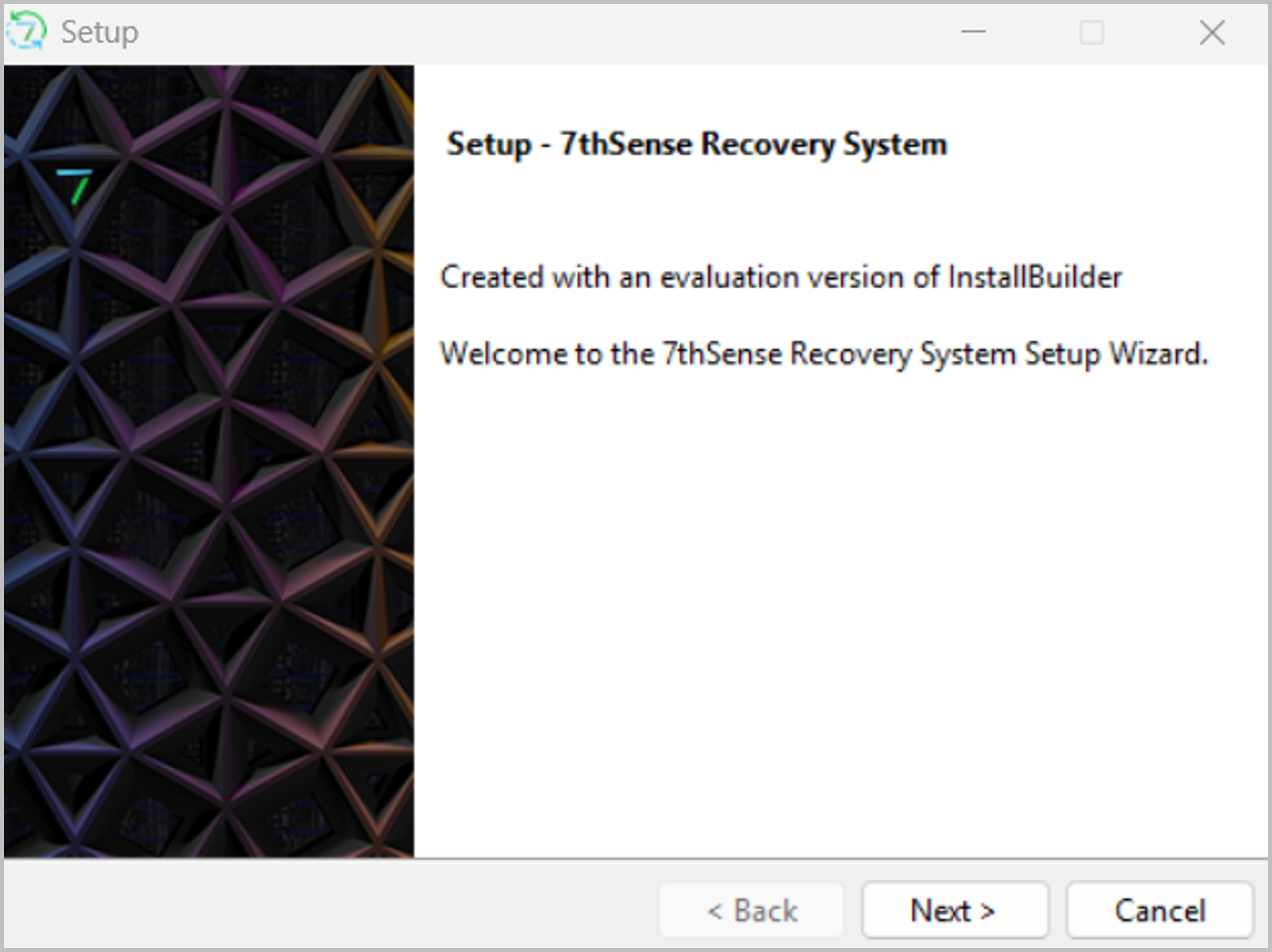
Click Next to start the Installation Setup wizard.
-
Accept the End-User Licence Agreement and click Next
-
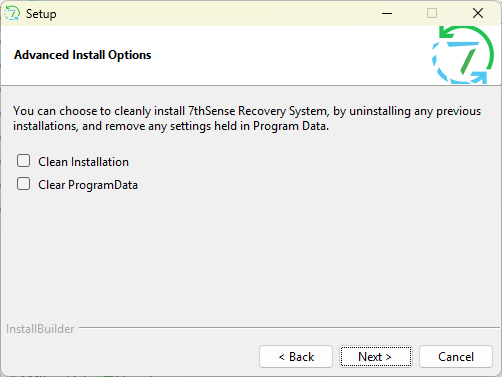
In the “Advanced Install Options” panel…..
-
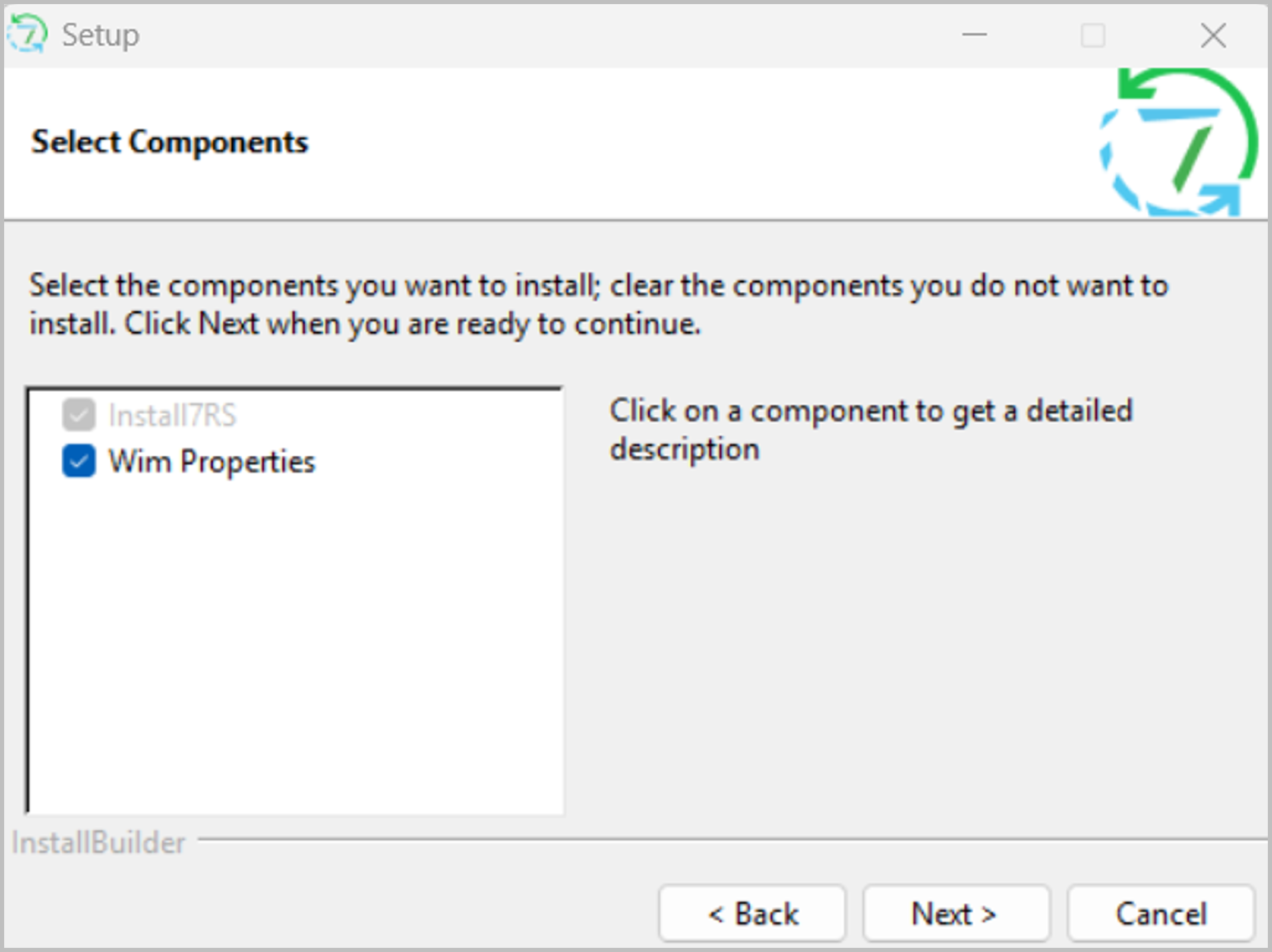
In the “Select Components” panel, make sure you have Wim Properties selected, then click Next.
-
Then click Next in the “Ready to Install” panel to begin the Installation.
-
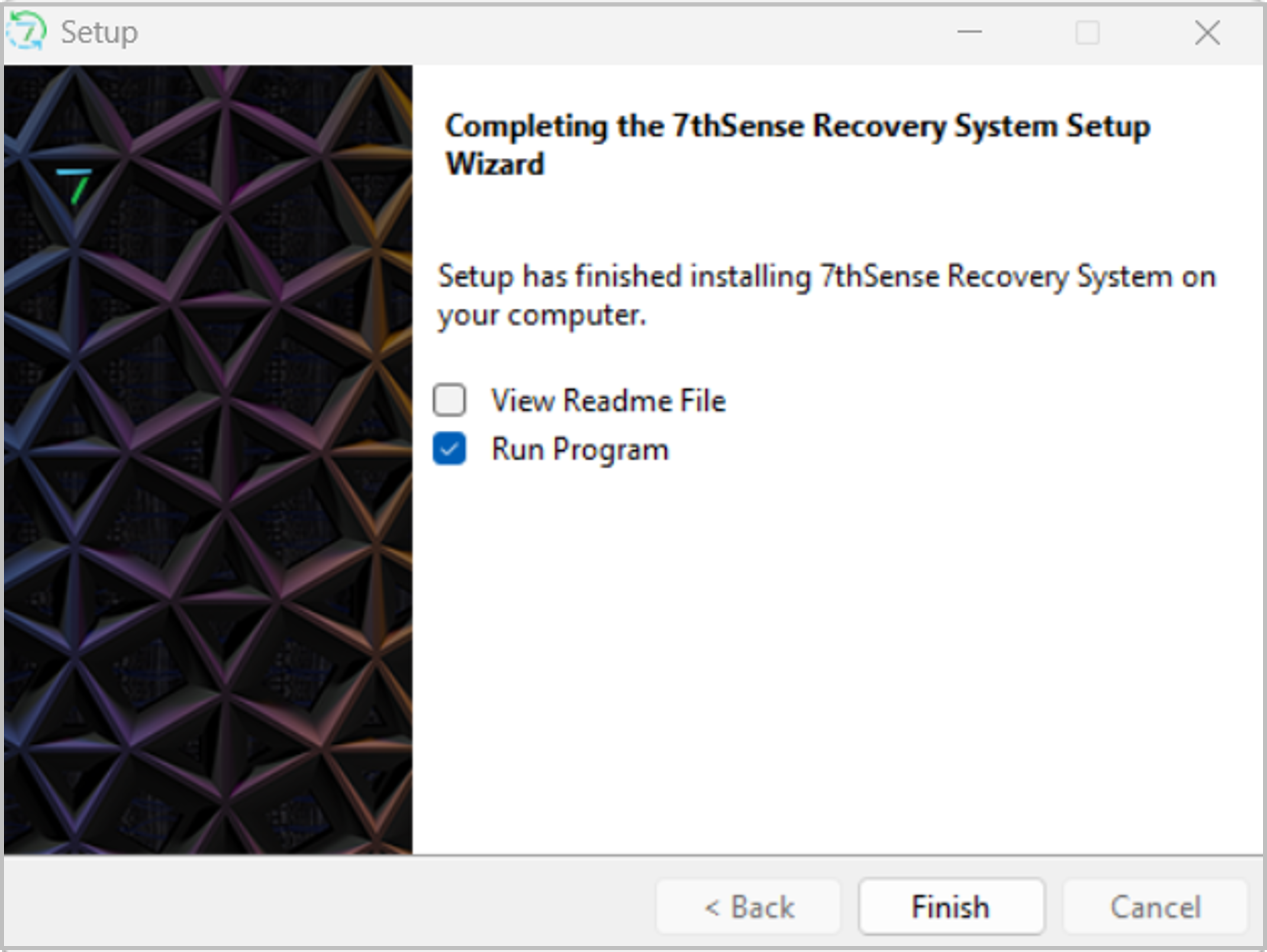
When the Installation has completed, click Finish to exit the Installation wizard.
Note the options shown here (which you can enable/disable) to View the Readme File and immediately Run the Program when you click Finish.
3. Startup and Initial Configuration
In this section we describe how to start the 7RS application and carry out the initial configuration.
You should review this section before you run any backups.
3.1 Start the 7RS application
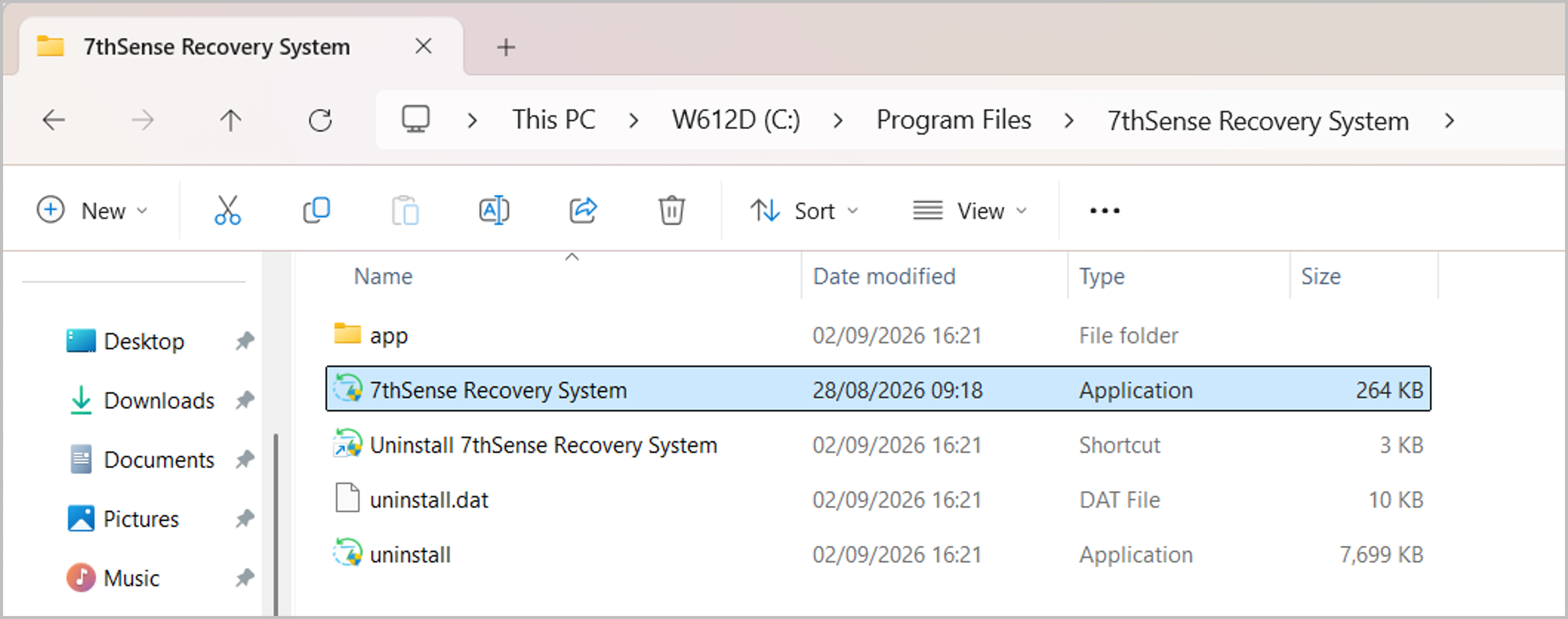
After doing the installation, you’ll find the executable for the 7RS application in C:\Program Files\7thSense Recovery System\
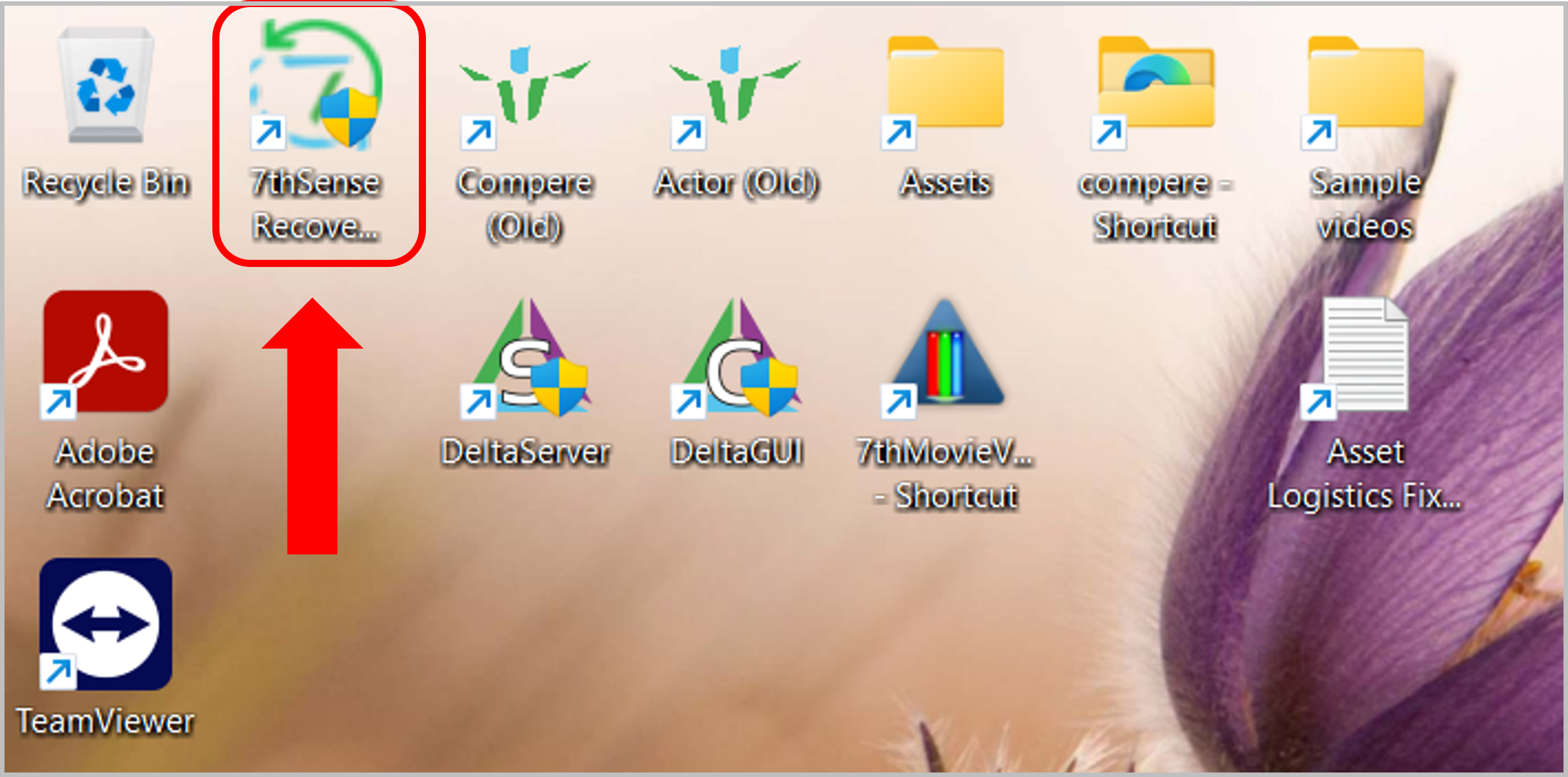
A short cut to the executable is automatically added to your Desktop during the installation.
3.2 The 7RS UI
All the functionality of the 7RS application is provided through a single UI.
The buttons at the top provide quick links to the various panels available in the application.
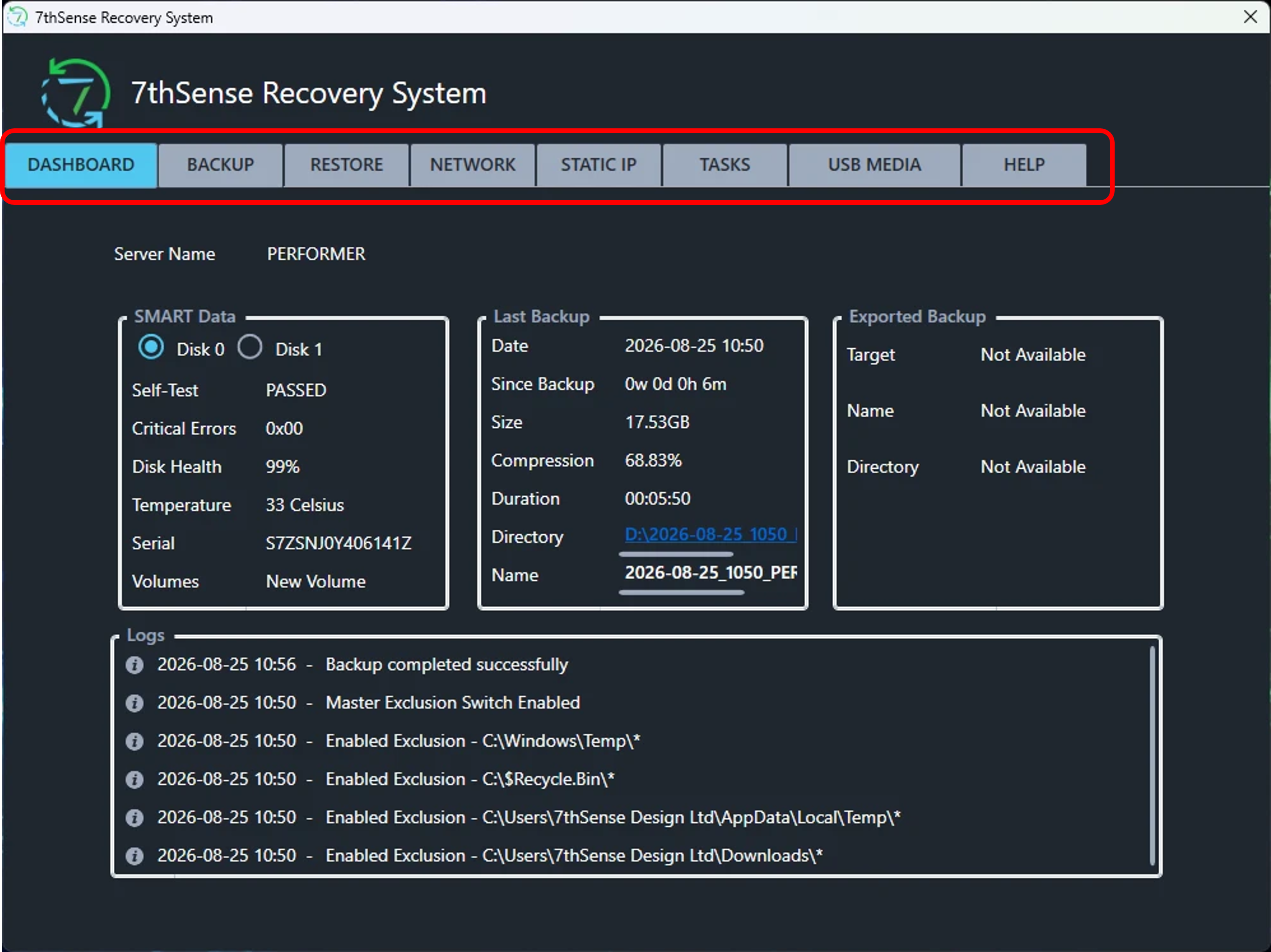
Each panel in the UI is described in detail elsewhere in this manual, but links are provided here for easy access:
3.3 Dashboard
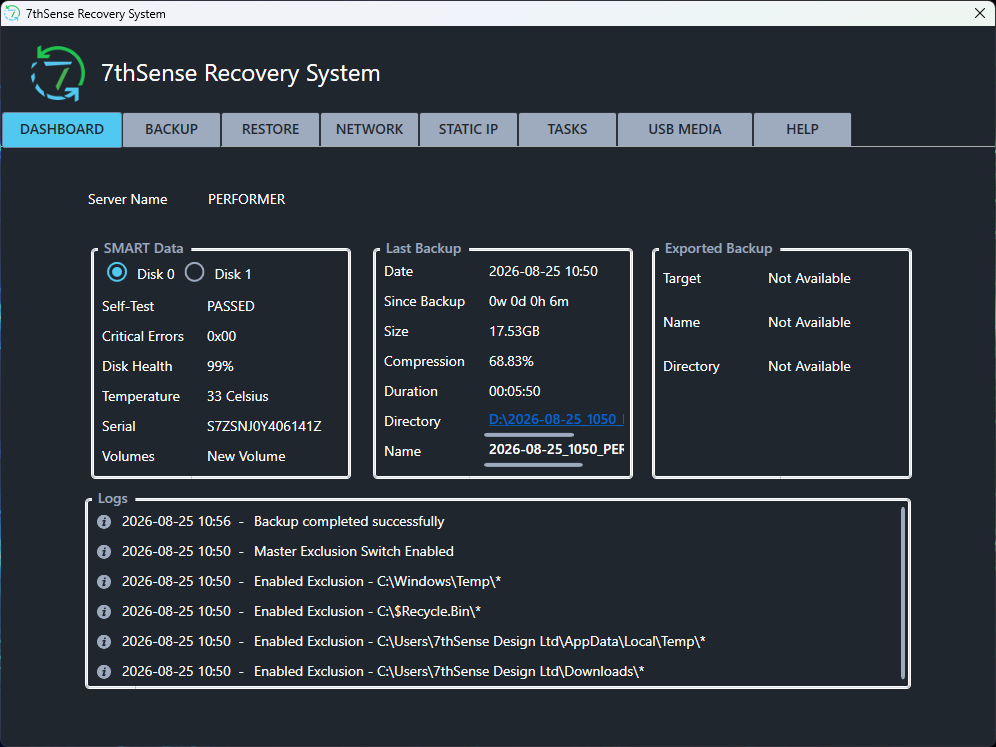
The Dashboard panel displays key information relating to the status and health of the 7thSense Recovery System.
SMART Data
In this section of the Dashboard, you can view standard SMART Data for any of the local hard disks in the Server. There’s a selector at the top where you can toggle between the available disks.
As you can see from the example above, key information provided for each disk includes:
-
Self-test status
-
Critical errors
-
Disk health
-
Temperature
-
Serial number
-
Windows associated volume label
Last Backup
The “Last Backup” section displays information relating to the most recent 7RS backup of the Server, including:
-
The name of the Backup Image and the date that it was created (and the duration of the execution)
-
How much time has passed since that backup was taken
-
The size of the Backup Image and the Compression achieved (the WIM file is currently created with MAX compression default-applied)
A hyperlink to the Backup Image file is provided, assuming that it is on a disk that is still accessible to the 7RS application.
Exported Backup
This section shows the default backup information that will be used in a future release of 7thSense Recovery System.
[Phil Reminder Note: This is the exported backup configuration, created with the “export” option on the Backup panel]
Logs
The “Logs” section at the bottom of the Dashboard shows log data for recent activity in the 7RS application, which is also written to a log file in this location:
C:\ProgramData\7thSense Recovery System\logs\
As well as information on the execution of backups and restores, you’ll also see data here relating to any configuration changes that you might make (e.g. adding or removing items from a Backup Exclusion List).
3.4 Help
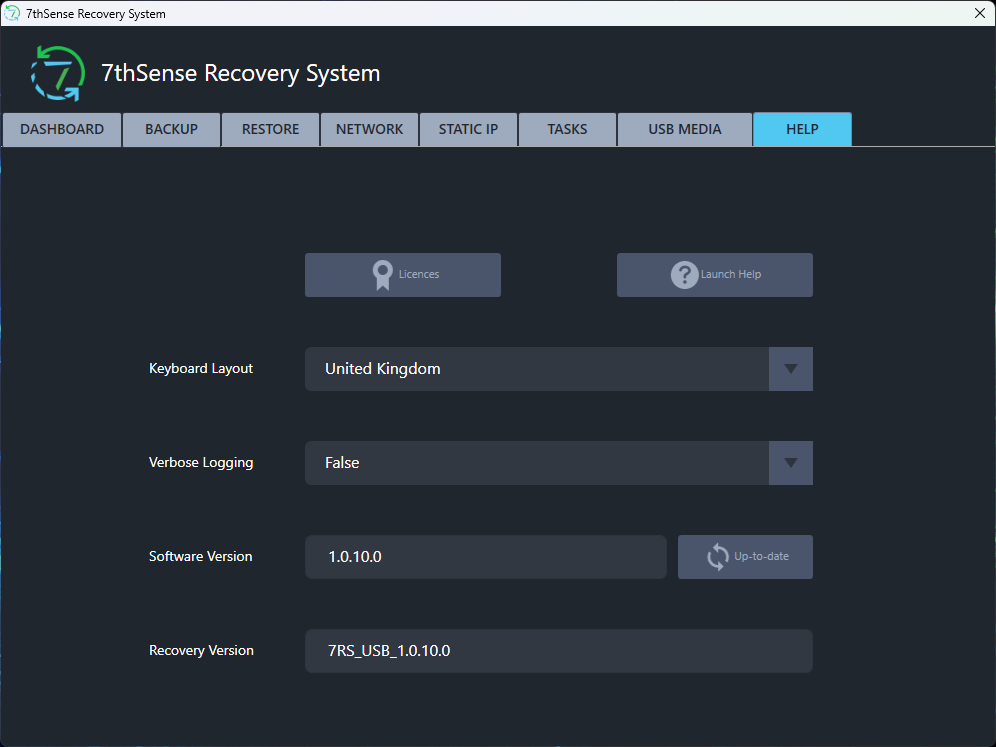
The Help panel contains a selection of useful controls and resources.
-
A link to view the 7RS software Licences
-
A link to the in-app copy of this User Manual
-
Configuration of the Keyboard Layout for the Recovery Environment. Note that a manual restart of the Server is required if this value is changed.
-
Configuration for Verbose Logging
Software Version of the currently installed 7RS application.
-
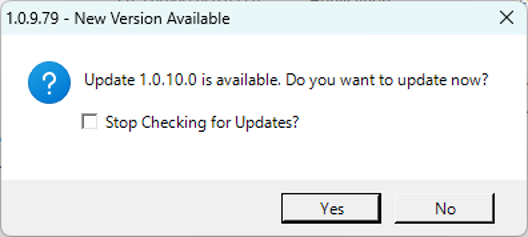
Clicking the Check for Updates button next to Software Version initiates a check to see if a more recent version of the 7RS application is available and, if there is, gives you the opportunity to download and install that newer version, otherwise it will say Up-to-Date
-
Recovery Version shows the version of the latest Recovery Environment that has been created on the Bootable USB.
3.5 Network
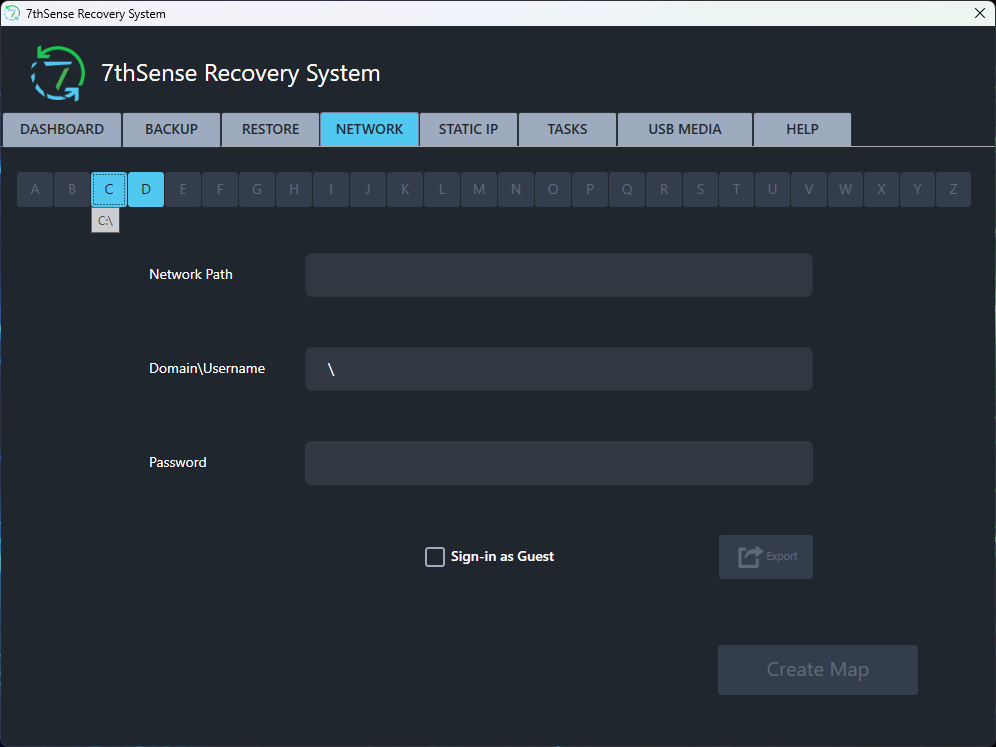
The Network panel is used to set up Mapped Drives that can be referenced in the Backup and/or Restore process.
-
On backups…. you can only backup a Windows Partition from a local disk, but the Backup Image that you create can be stored on either a local disk or a networked drive. Use of a networked drive reduces the requirement of having sufficient free space on the Server to store the Backup Images.
-
On restores… you can only restore a Windows Partition to a local disk, but the Backup Image that is used as input for the restore can be accessed from either a local disk or a networked drive.
The following tables summarise where/how network drives can be used in backup and restore operations.
|
7RS Operation |
Source (Where you are backing up from) |
Target (Destination of the backup image) |
|---|---|---|
|
Backup |
Local Disk |
Local Disk or Network Drive |
|
7RS Operation |
Source (Location of the backup image ) |
Target (Where you are restoring to) |
|---|---|---|
|
Restore (Windows) |
Local Disk or Network Drive |
Local Disk |
|
Restore (Recovery Environment) |
Local Disk or Network Drive |
Local Disk |
So, in summary, if you’re planning to write your Backup Images to a Network Drive, or if you’ll be doing restores using Backup Images stored on Network Drives, you must ensure that those network location(s) have been correctly mapped in the Network panel.
3.5.1 Creating a Mapping
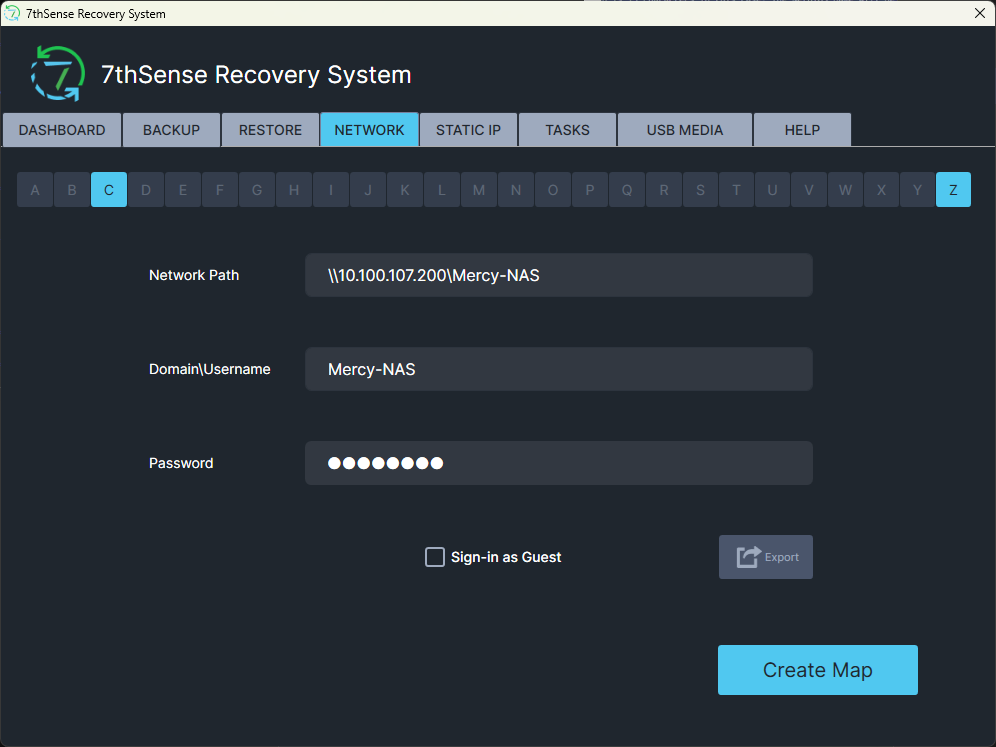
At the top of the panel, you have Explorer buttons for each active drive letter. Click the appropriate button to select that driver letter for configuration.
Then complete the text entry boxes to configure the mapping:
-
Network Path: The required Uniform Naming Convention (UNC) network path.
-
Domain\Username: Any required username for network share access.
-
Password: Any required password for network share access
For an unprotected open share, you can tick the ‘Sign-in as Guest” option, which results in the domain/username and password being dummied (to 7th \ 7th and 7th).
Once you’ve provided the configuration information, click Create Map to create the Mapping.
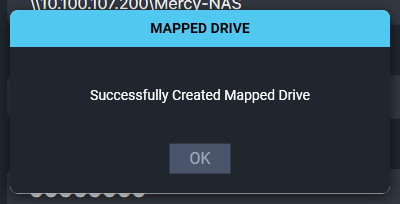
A successful mapping will be confirmed by this message -
3.5.2 Exporting a Mapping
Once a mapping has been successfully established, the Export button in the Network panel will be enabled.
This allows you to optionally export (to the Bootable USB) the current Network Settings so that those connections can be automatically established when launching the 7RS application in the Recovery Environment.
This operation requires that the Bootable USB has already been created, and that it is currently attached to the Server and accessible to the 7RS application.
3.6 Static IP
The Static IP panel allows you to setup a Static IP when connecting to a Network where no DHCP Server is present. This facilitates proper communication between this Server and other “known Servers” when using the 7RS application in the Recovery Environment.
Configuration of a Static IP is only required in a non-DHCP setup.
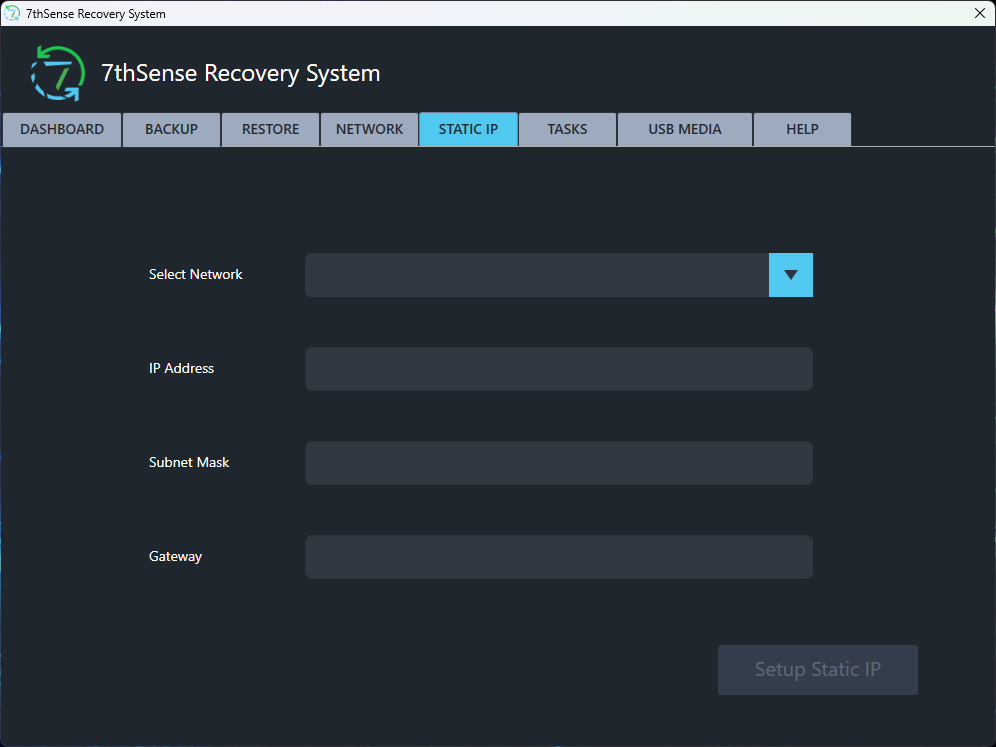
At the top of the panel, use the Select Network dropdown to select the active NIC that requires the Static IP.
Then complete the text entry boxes to configure the Static IP:
-
IP Address
-
Subnet Mask
-
Gateway (if required)
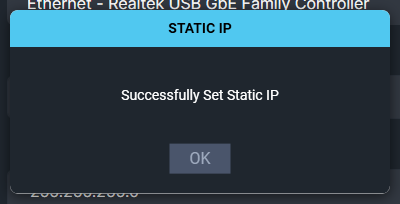
Once you’ve provided the configuration information, click Setup Static IP to create the static IP
4. Performing a Backup
Once you've installed and configured the 7RS application, you’re ready to start taking backups.
In this next section we look at how to configure a backup, and then manually execute that backup through the 7RS UI.
If you’d prefer to execute backups via the Command Line, see the CLI section in Advanced Features.
4.1 The Backup Panel
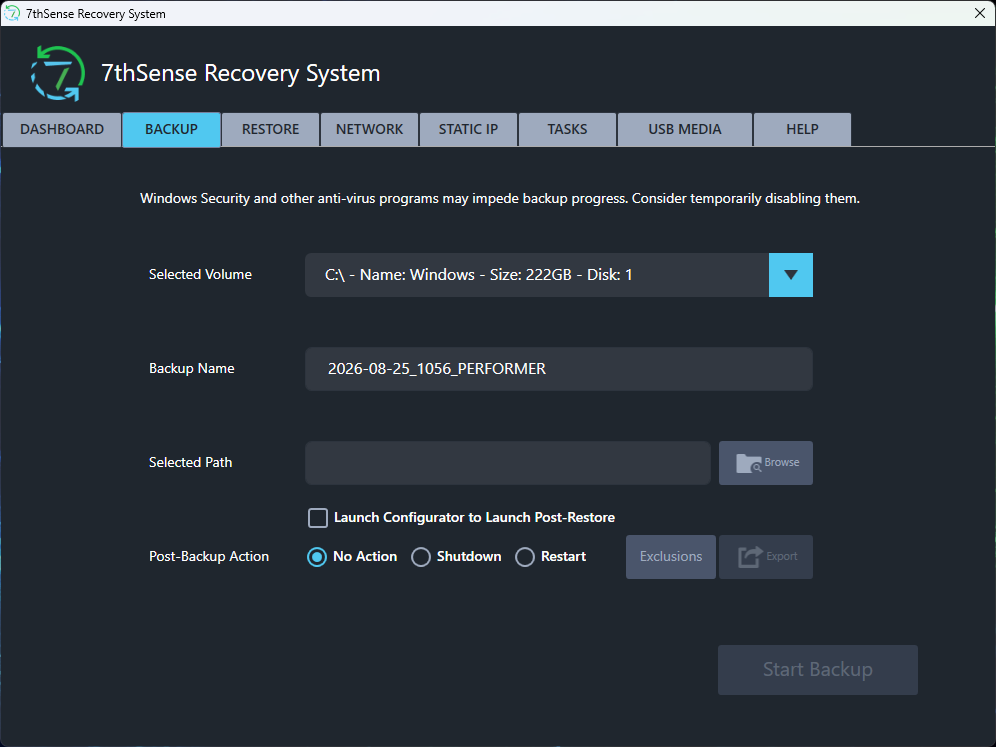
Backups are configured and manually executed in the Backup panel.
4.2 Basic Configuration
Follow these simple steps to complete the basic configuration of your backup.
-
Use the Selected Volume drop-down to locate and select the Windows Partition to be backed up.
The first volume that 7RS encounters with a label of “Windows” will be default selected.
-
In the Backup Name text box, enter the name of the Backup Image that will be created (an over-rideable default name is provided, which consists of a reverse date and the server name).
-
Click the Browse button next to Selected Path to locate and select the desired location where the Backup Image will be stored.
-
Note 1: The target location for the Backup Image can be either a local hard disk, or it can be a networked drive (assuming you’ve mapped that drive in the Network panel).
-
Note 2: There is no default location, you must provide one before the backup can be executed.
-
-
The Post-Backup Action option allows you to determine what happens after the backup has completed. While the most common choice is likely to be “No Action”, depending on the context in which the Server is being used (and perhaps the reason that this particular backup is being taken), it might be desirable to have the Server automatically shut down or restarted after the backup has completed.
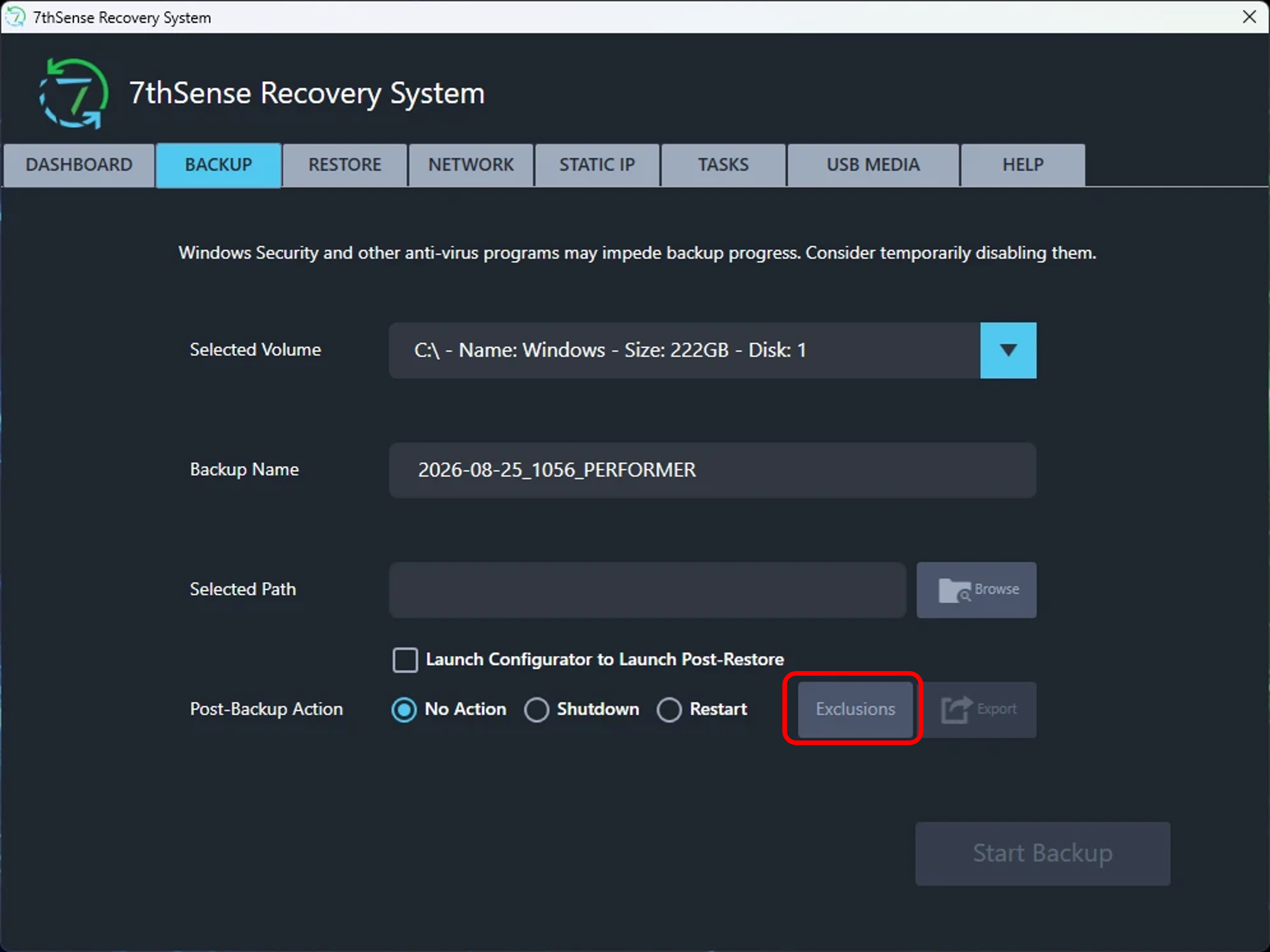
4.3 Exclusions list
You can optionally create an Exclusions List for a backup, so that specific components in the selected Windows Partition can be excluded from the Backup Image.
Click the Exclusions button in the Backup panel.
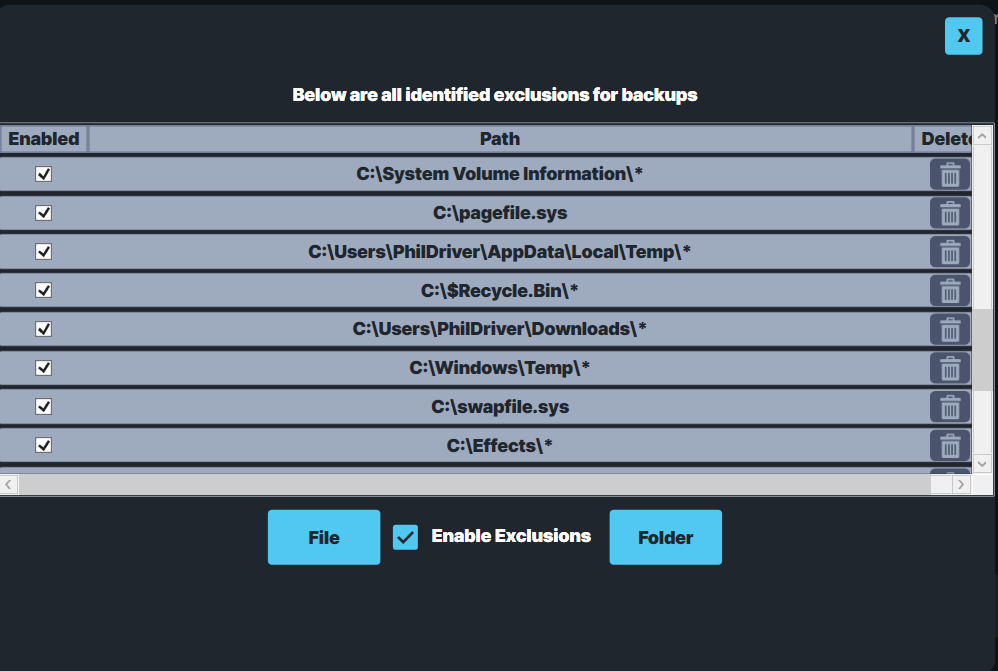
Some folders/files will be automatically included in the Exclusions List, but you can optionally add more exclusions if required.
-
Use the File and Folder buttons below the list to indicate to the explorer what it is you’re trying to exclude.
-
Then, once you’ve selected your exclusions, tick the Enable Exclusions option to activate the Exclusions List.
4.4 Exporting the backup configuration
You can optionally export the configuration settings for this backup which will be used in a future release of 7thSense Recovery System.
4.5 Executing the Backup
Windows Security, and any other antivirus programs installed on the Server, may slow down the backup progress, especially in the initial “discovery phase”. Where possible, and to ensure optimum performance, the Security and antivirus programs should be disabled for the duration of the backup.
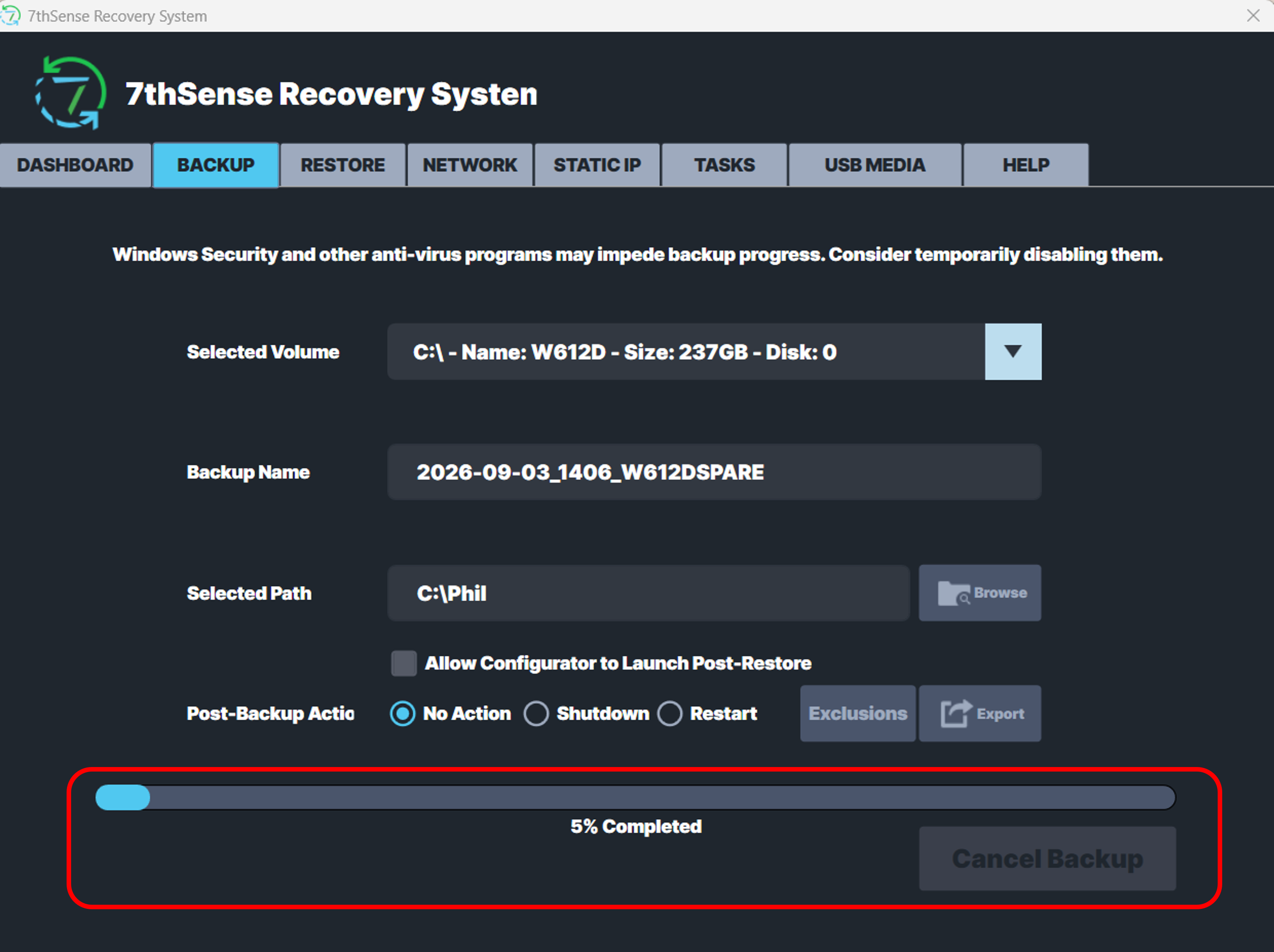
Once you’ve completed the configuration of the backup, you can execute it by clicking the Start Backup button.
The status of the backup is shown in the progress bar at the bottom of the Backup panel.
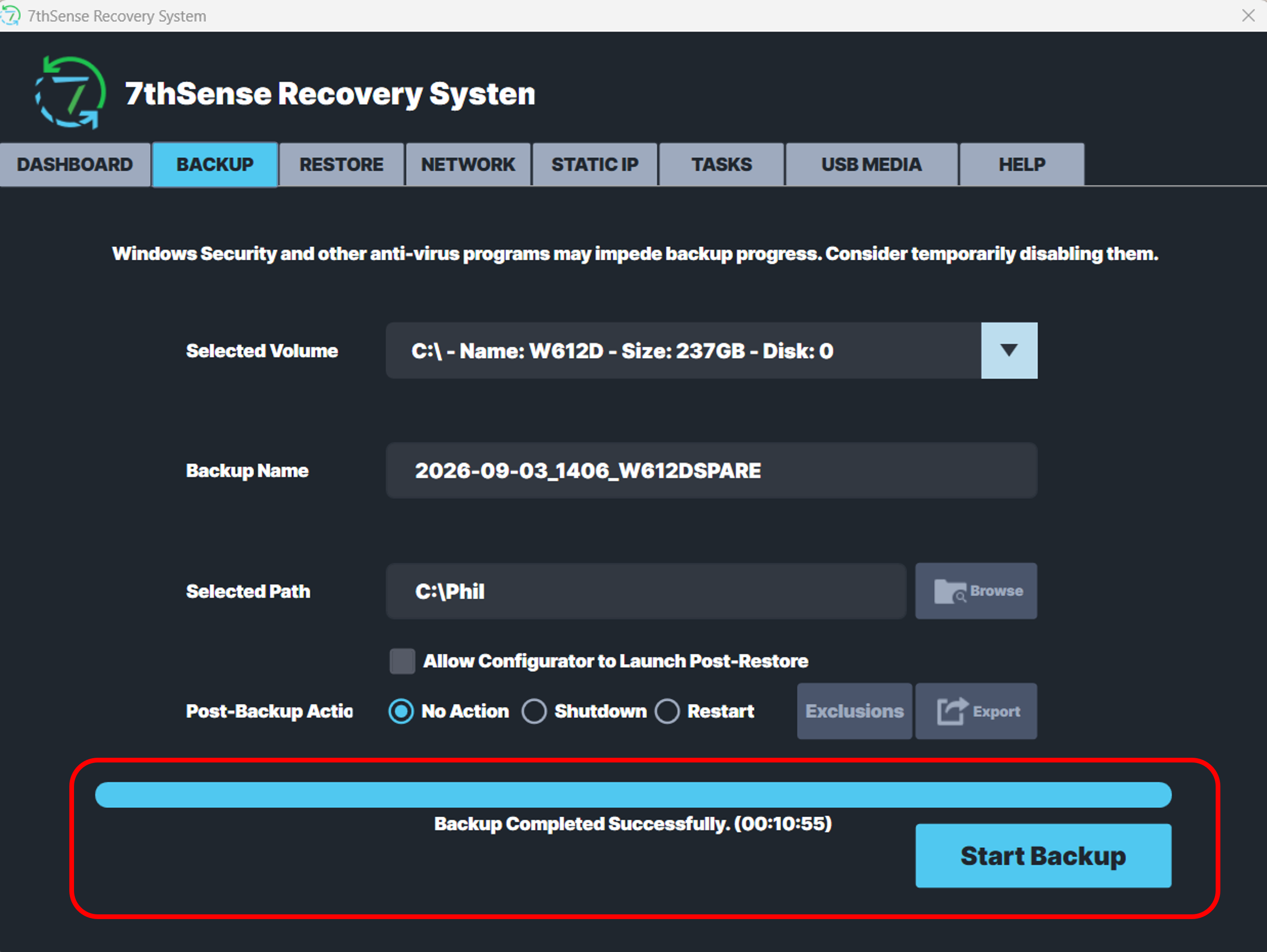
As shown below, upon completion, you’ll see “Backup Completed Successfully” message.
An integrity check is done on the Backup Image before the backup job is marked as complete.
The Backup Image (WIM File) will be in the target location that you specified in the Backup configuration.
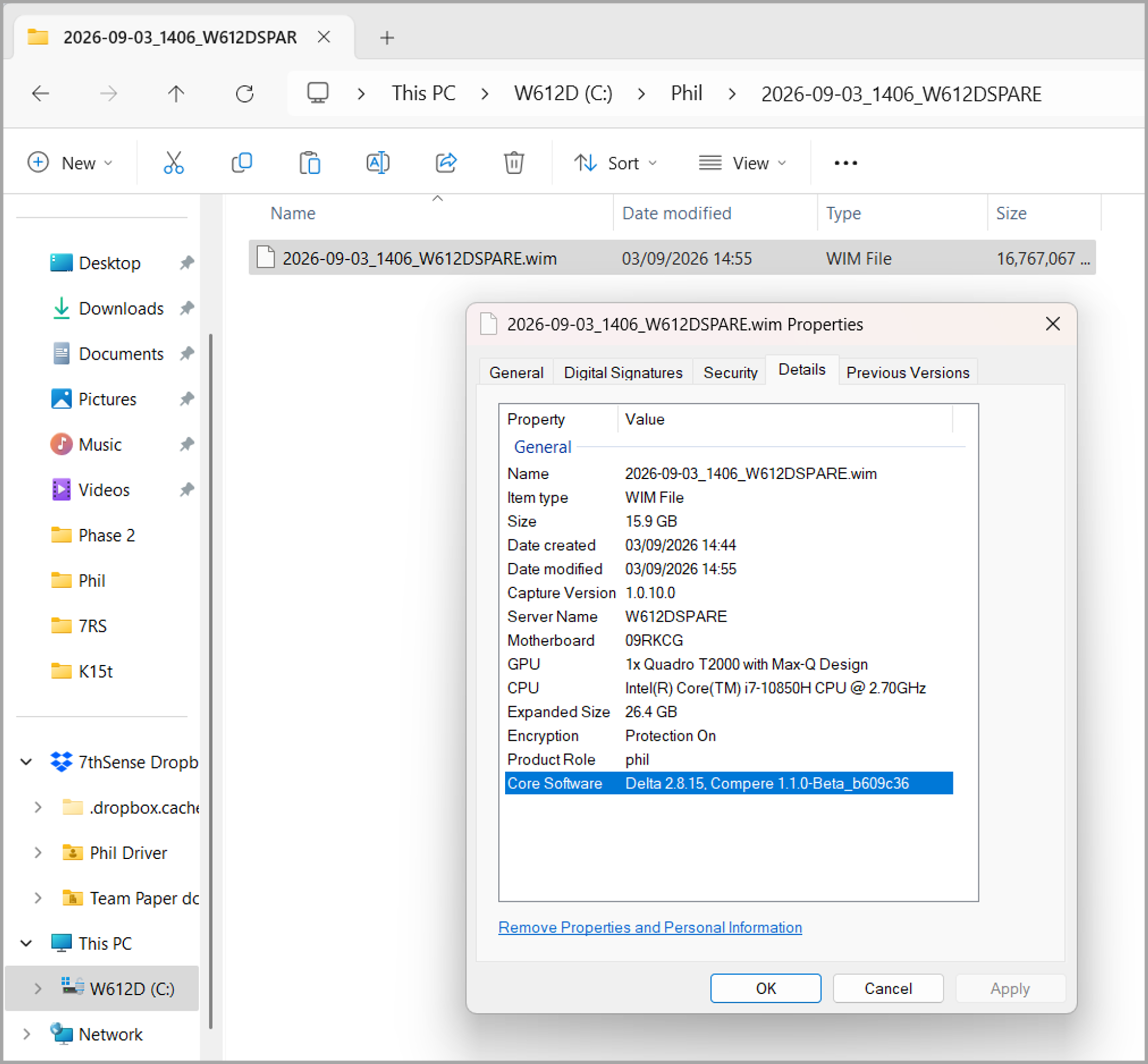
The Details tab in the backup file’s properties provides useful information, including an indication of which 7thSense core software was present on the backed up Server.
5. Performing a Restore
In this next section we look at how to restore from a Backup Image created by the 7RS application.
The following subjects are covered in this section:
-
Understanding the different Restore Environments
-
Creating an optional Bootable Recovery Environment
-
Configuring and running a Restore
5.1 Restore Environments
There are two different environments in which a restore can be done:
5.1.1 Windows Environment
A restore in a Windows Environment is possible when a full-functioning Windows 10/11 system is available in which to run the 7RS application and execute the restore. This Windows system might be running on the Identical System to which the backup was created, or it might be running on a Similar System.
In many situations, the Windows Environment would be the preferred environment in which to do the restore, as it allows you to start the 7RS application and execute the restore within a familiar setting. It also negates the need to do a server restart after the restore has taken place.
However, utilisation of Windows 10/11 Environment has two significant prerequisites:
-
Restores can only be done to a local disk, so the Server on which the restore is taking place would need a functioning Windows Environment in which to run the 7RS application.
-
This may not always be the case, in the context of recovering from a Server failure.
-
-
The Server on which the restore is taking place would also need to have more than one OS Drive (i.e. one drive hosting the functioning Windows Environment, and another “spare” drive as the target location of the Windows system being restored).
-
Not all 7thSense Servers have multiple OS Drives (e.g. the S-Series)
-
So, due to one or both of the above prerequisites, a restore in a Windows Environment will not always be possible.
5.1.2 Recovery Environment
In this scenario, a Bootable USB is used to launch a “Recovery Environment” (based on Windows PE) in which the 7RS application can be used without requiring a full-functioning Windows system.
This environment is intended to be used when:
-
There is no existing Windows 10/11 Environment in which to run the 7RS application.
-
The Server on which the restore is to be executed only has one OS Drive.
5.1.3 Environment-Specific Differences
Once started, either in a Windows Environment or in the Recovery Environment, the 7RS application looks and behaves exactly the same. There are no environment-specific differences between the two restore scenarios.
5.1.4 Log files
As well as displaying in the “Log” section of the UI’s Dashboard panel, details of the Restore are also written to a log file. The location of the log file depends on whether you’re running the restore in a Windows Environment or in the Recovery Environment:
-
Windows Environment: C:\ProgramData\7thSense Recovery System\logs\
-
Recovery Environment: The logs folder in the root of the Bootable USB.
5.2 Creating a Bootable Recovery Environment
The creation of the Bootable Recovery Environment is optional, but it is recommended, even if the expectation is that a full-functioning Windows 10/11 Environment will be available for the restores.
However, if you do not wish to create a Bootable Recovery Environment, you can skip directly to the next section to learn how to run a Restore.
The Bootable Recovery Environment is created in the “USB Media” panel.
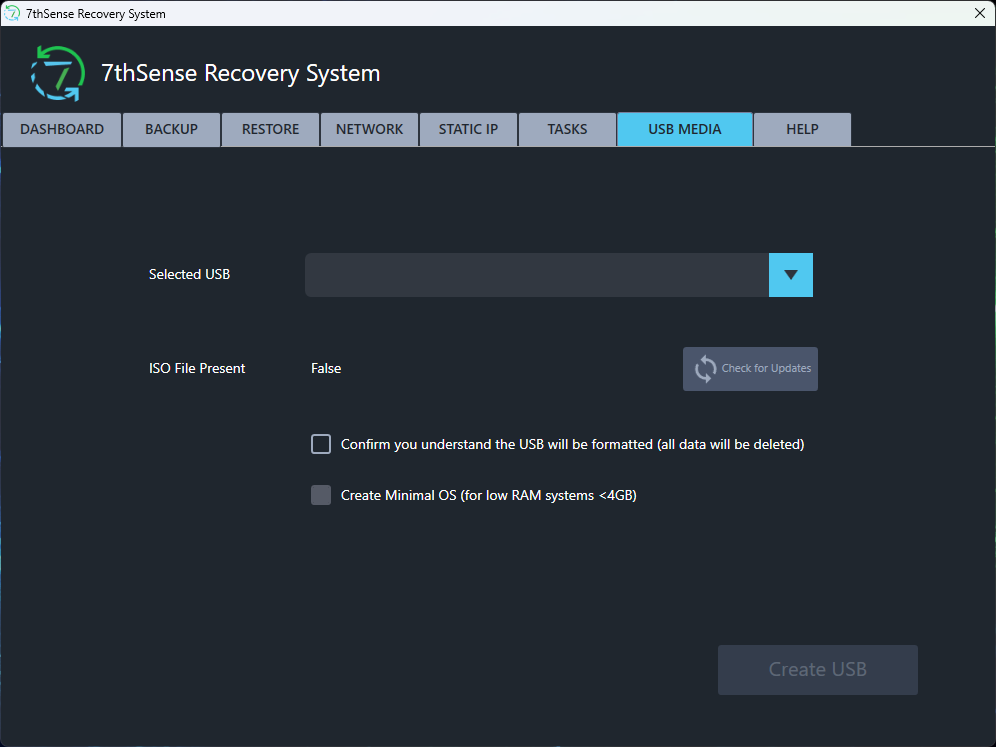
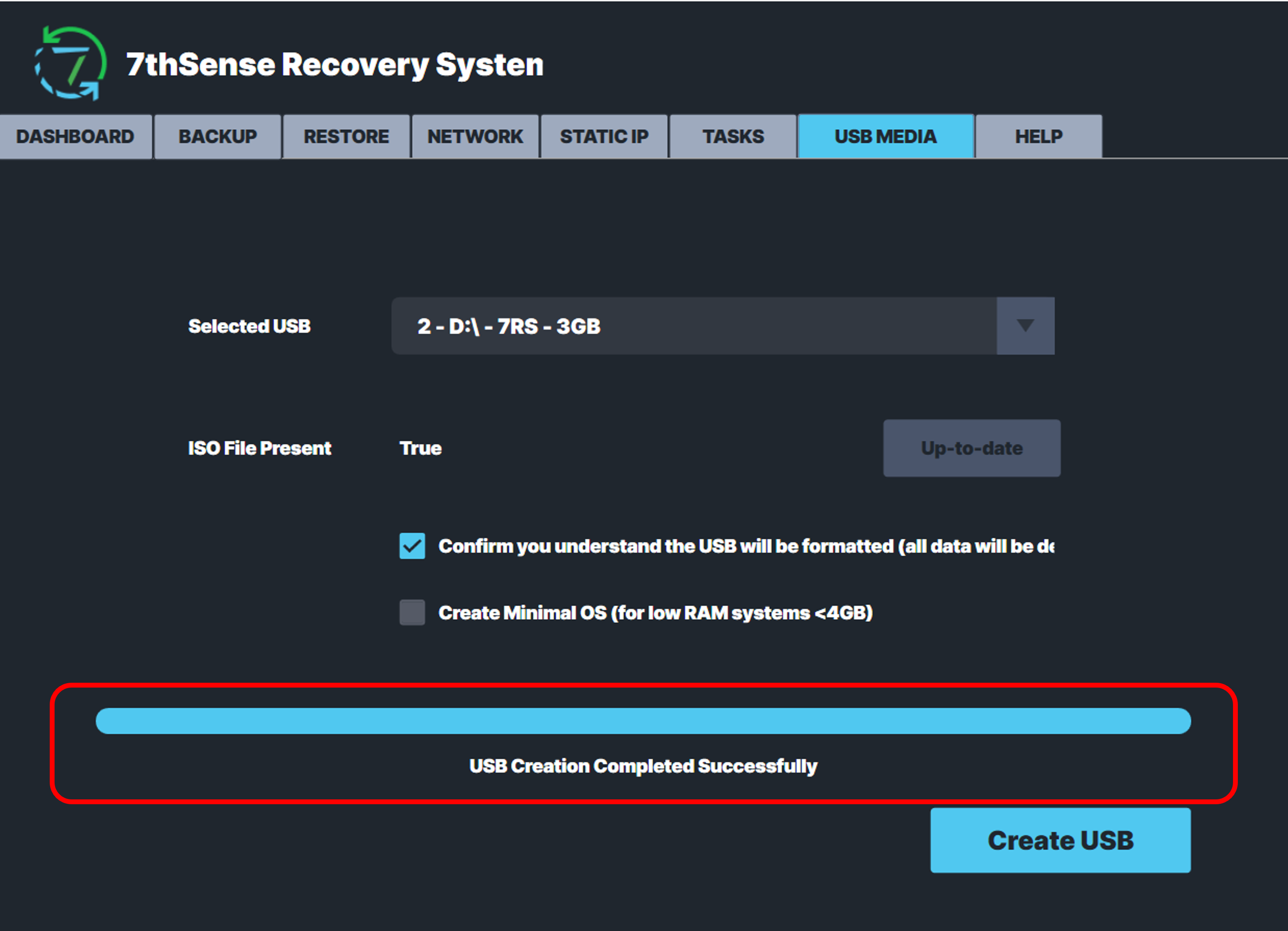
Follow these simple steps to create the Bootable USB:
Step 1: Attach the USB Drive to the Server.
Step 2: Use the Selected USB dropdown to view a list of removable media currently connected to the Server, and select the USB drive.
Step 3: The ISO File Present indicator will show whether or not the USB Drive already contains an ISO file.
Step 4: Depending on context, clicking the Check for Updates button has various possible outcomes:
-
-
If the USB Drive does not already contain an ISO file, the latest ISO file will be downloaded in preparation for being written to the Drive.
-
If the USB Drive already contains an ISO file but a newer one is available, that newer file will be downloaded in preparation for being written to the Drive.
-
If the USB Drive already contains the latest ISO file, an “Up-to-date” message will be displayed, and nothing will be downloaded.
-
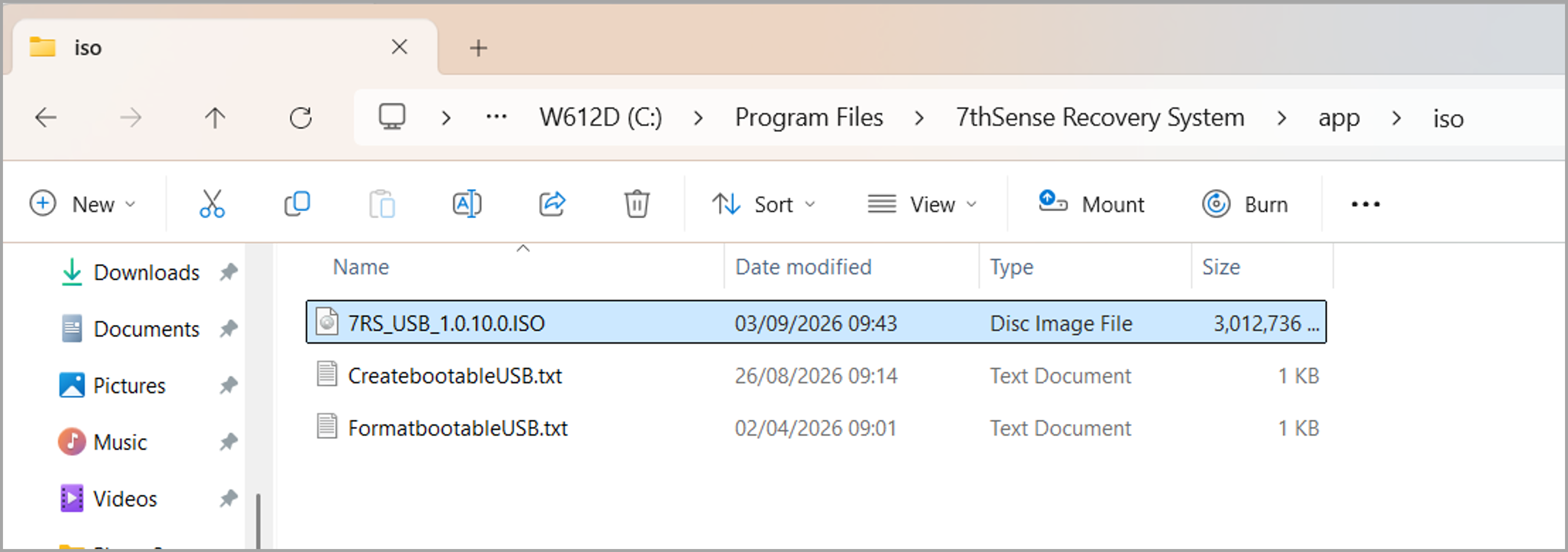
Note : The downloads are roughly 3Gb in size, and are written to an “iso” folder in ..\Program Files\7thSense Recovery System\
Step 5: Before creating the Bootable USB, you will need to tick the “Confirm you understand…” acknowledgement regarding the formatting of the USB (and subsequent loss of any data stored on it).
Step 6: Optional Create Minimal OS
[Phil Reminder: Not fully functioning yet, might get hidden. See also “Create Lite Image” in the Tasks panel]
Step 7: Click Create USB
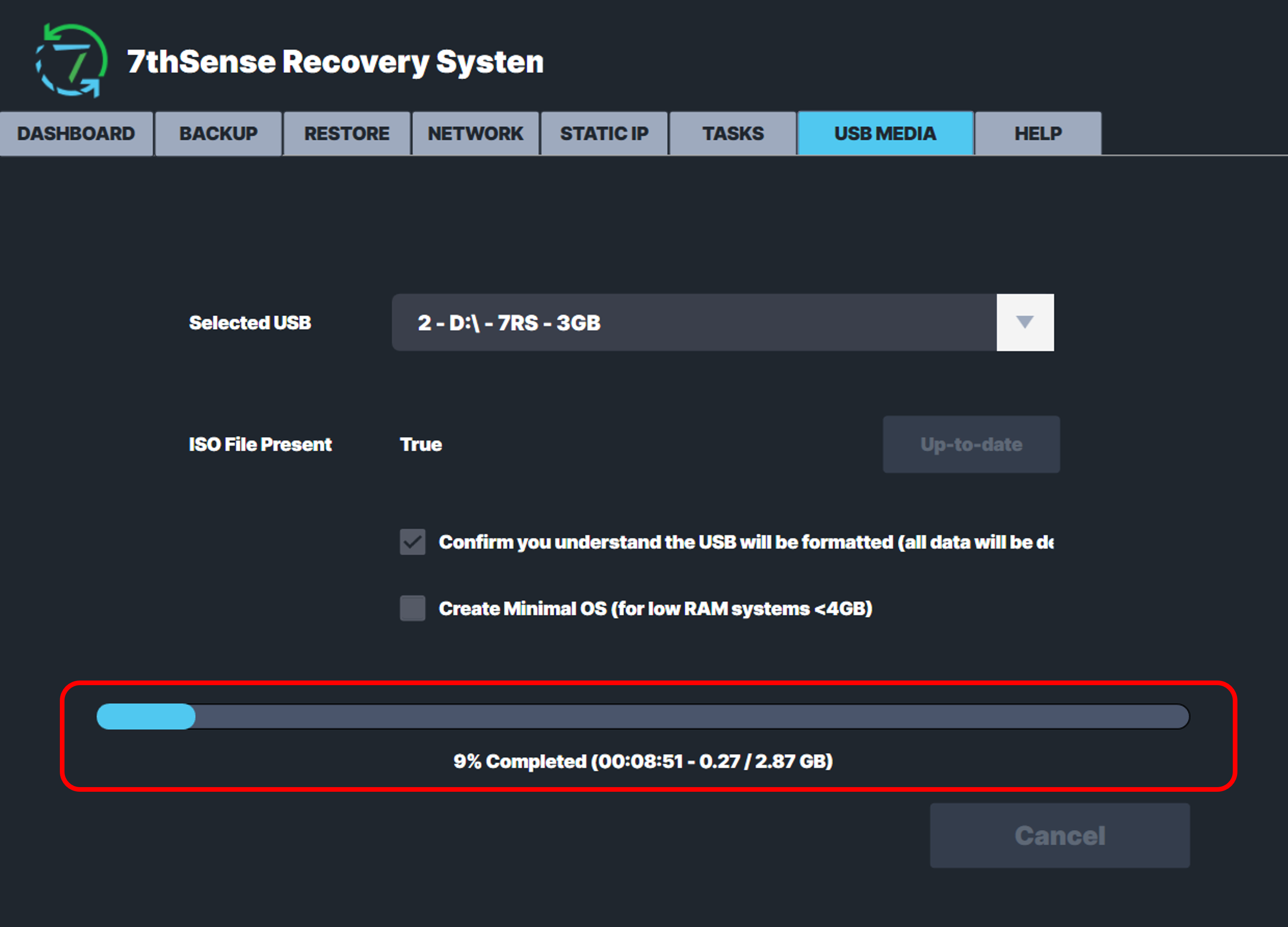
A status bar will show you the progress (which can take up to 10 minutes)…
And then you’ll see the confirmation when the USB Creation has completed successfully…
5.3 The Restore Panel
As previously noted, the 7RS application looks and behaves in exactly the same way, regardless of whether you’re running it in the Windows Environment or the Bootable Recovery Environment.
In the context of a restore, you can run the 7RS application on either the Identical System that the backup was created on, or you can run it on a Similar System.
Restores are configured and manually executed in the Restore panel.
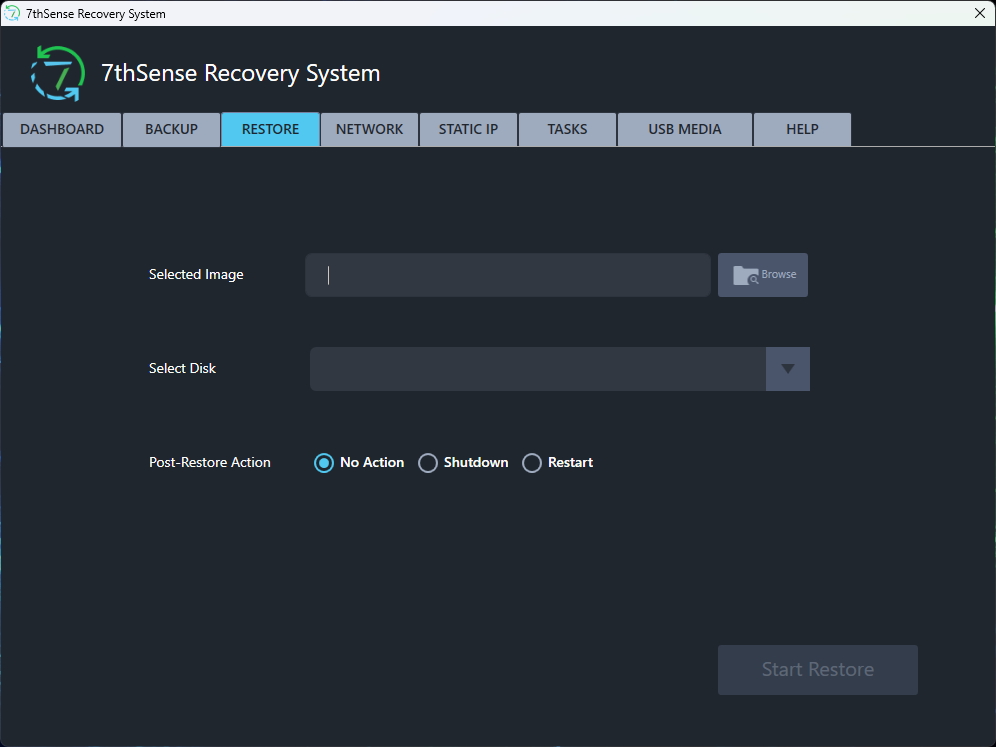
Follow these simple steps to configure and execute your restore.
Step 1: Click the Browse icon next to Selected Image to locate the Backup Image (WIM file) that you want to use as the source of the restore.
If restoring a Backup Image over the network, you will need to ensure the network location has been mapped.
Step 2: Use the Select Disk drop-down to choose the local disk drive where the Backup Image will be restored to.
Step 3: Click Start Restore.
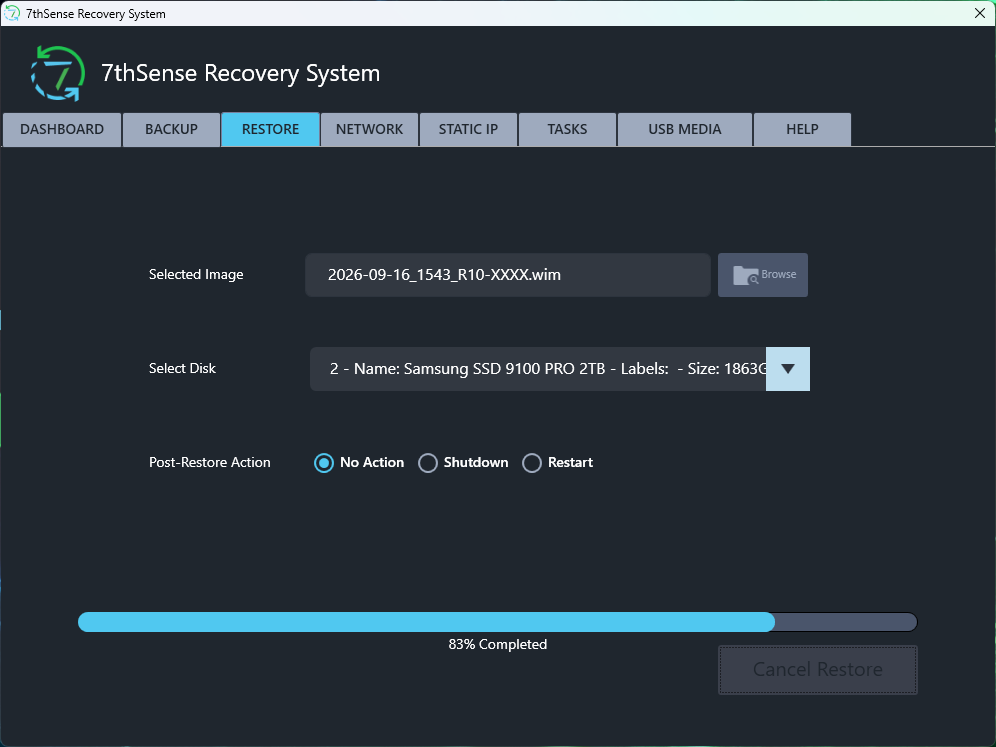
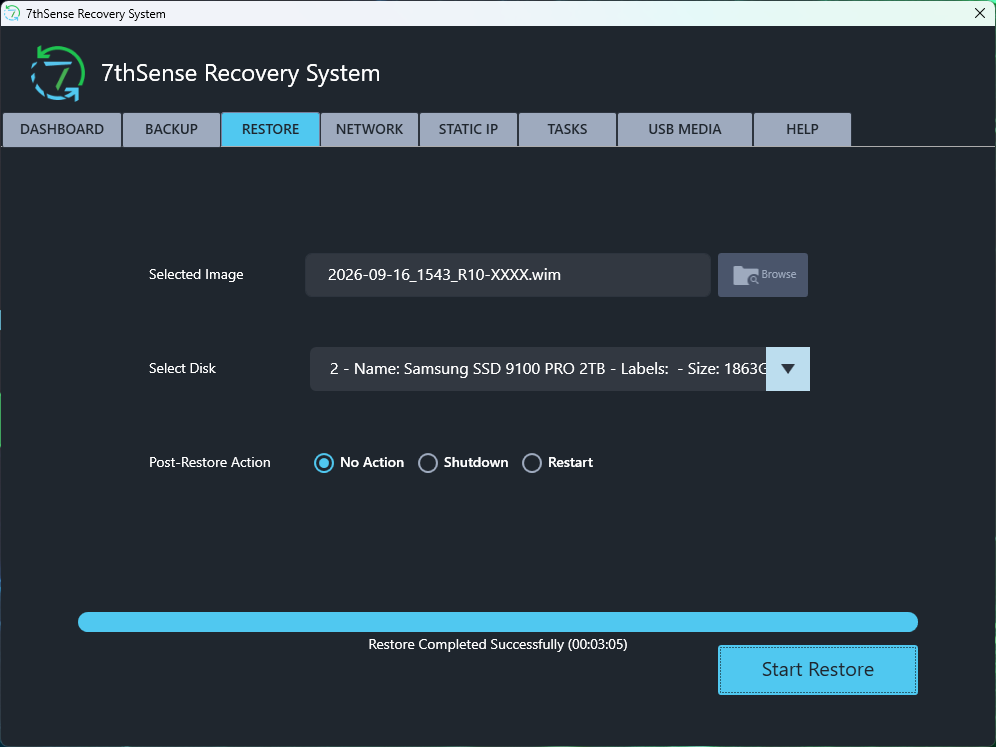
The status of the restore is shown in the progress bar at the bottom of the Restore panel.
6. Advanced Features
Having covered the basics of performing backups and restores, in this next section we look at some of the more advanced features available in the 7RS application.
6.1 The Tasks Panel
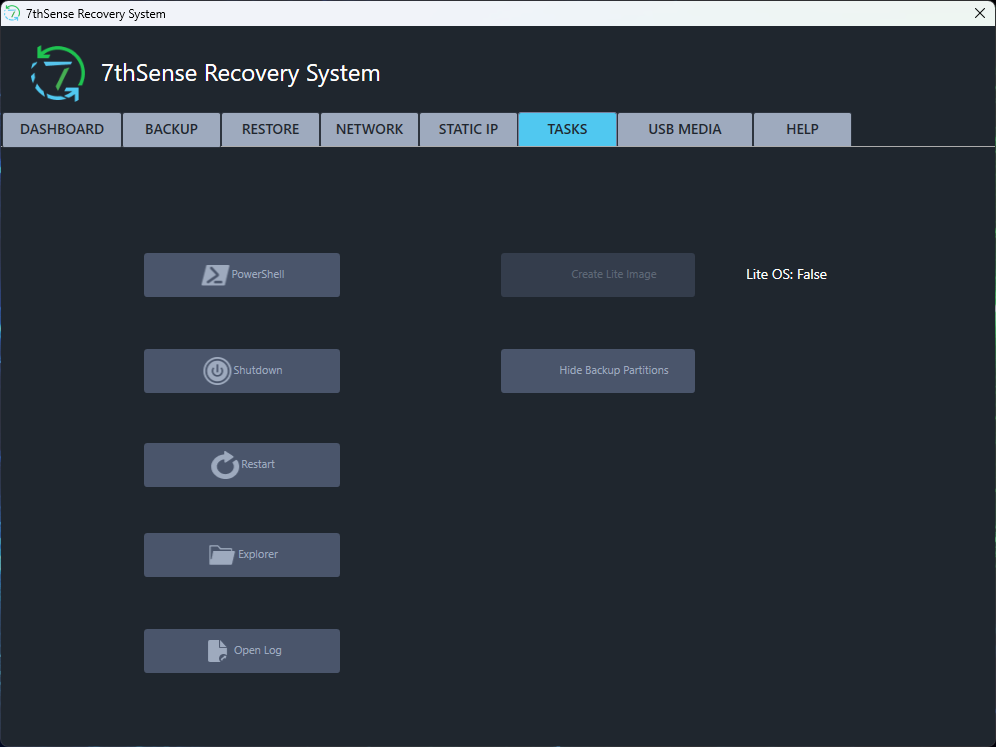
The Tasks panel provides access to a range of useful functions.
-
Powershell: Launch the PowerShell terminal (for debug purposes)
-
Shutdown: Perform a shutdown of the 7thSense Server
-
Restart: Perform a restart of the 7thSense Server
-
Explorer: Launch Windows Explorer (or Q-Dir, when in the Bootable Recovery Environment)
-
Open Log: Open the 7RS log file (7thSense Recovery System.log) in Notepad
-
Create Lite Image: [Phil Reminder: Not fully functioning yet, might get hidden. See also “Create Minimal OS” in the USB Media panel]
-
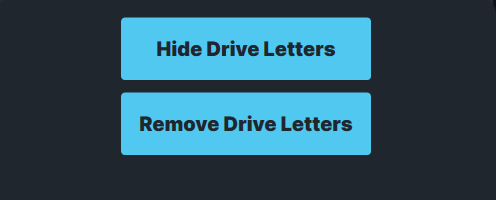
Hide Backup Partitions: Allows you to optionally hide or remove the Drive Letters of a restored-to Windows Partition.
6.2 Backup Execution via Command Line Interface (CLI)
Section 4 described the process for configuring and manually executing a backup using the 7RS application UI, but you also have the option of running Command Line executions of the 7RS executable.
6.2.1 Locating the Executable
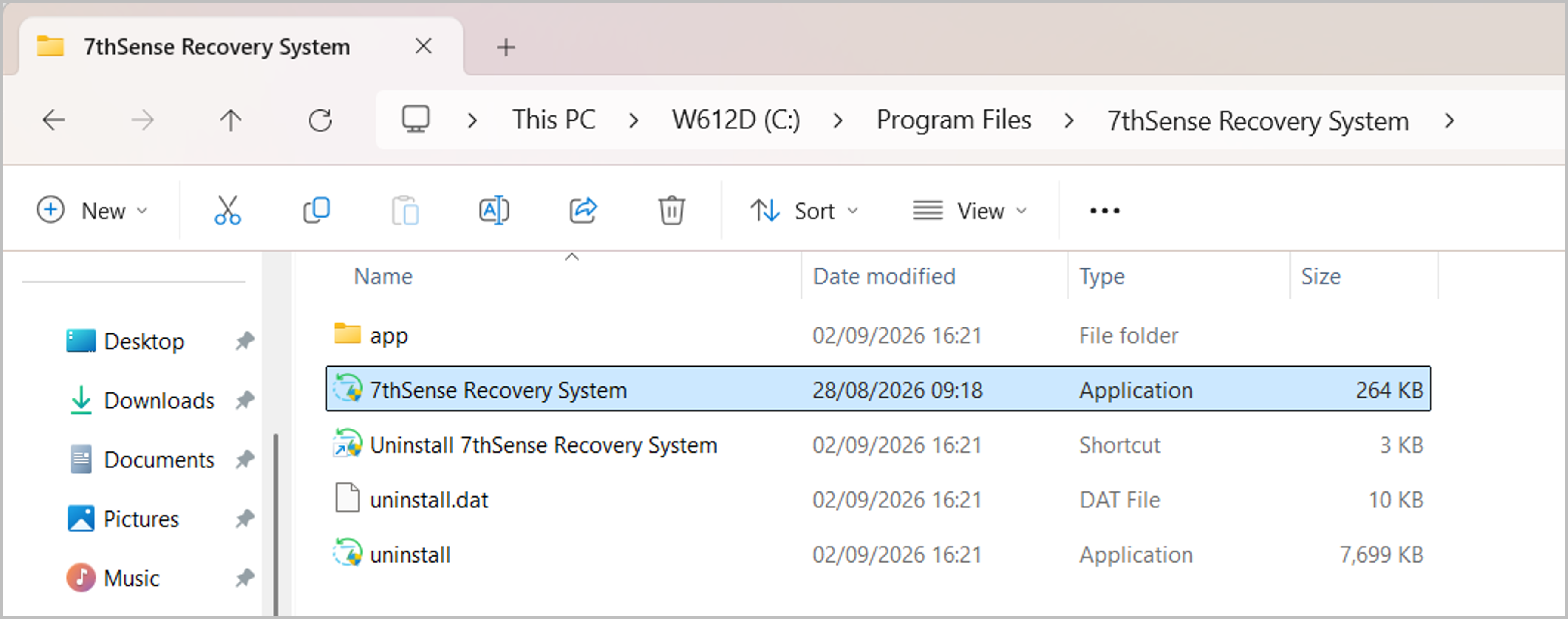
As shown earlier, you’ll find the executable in C:\Program Files\7thSense Recovery System\
6.2.2 Supported arguments
Here’s a summary of the executable’s supported optional arguments and CLI arguments:
usage: .\7thSense Recovery System.exe [-h] [-v] [-c] [-cli] [-backup_name BACKUPNAME] [-backup_path BACKUPPATH]

optional arguments:
  -h | -help            Shows this help menu
  -v | -version         Returns version of application
  -c | -cleanup         Cleanup ShadowCopies if terminated mid-process
  -cli                  Launch Application as CLI

-cli arguments:
  -backup_name          Identifies Image backup name. Must be used with -cli
  -backup_path          Identifies target destination. Must be used with -cli
6.2.3 CLI Example
In the example below we’re:
-
Launching the application via the CLI to execute a backup
-
The Backup Image will be called “Backup_01”
-
The backup will be written into a folder on the E: drive called “7RS_CLI_IMAGES”
.\7thSense Recovery System.exe -cli -backup_name "Backup_01" -backup_path "E:\7RS_CLI_IMAGES"
7. Un-installing the 7RS application
To uninstall the 7RS application:
-
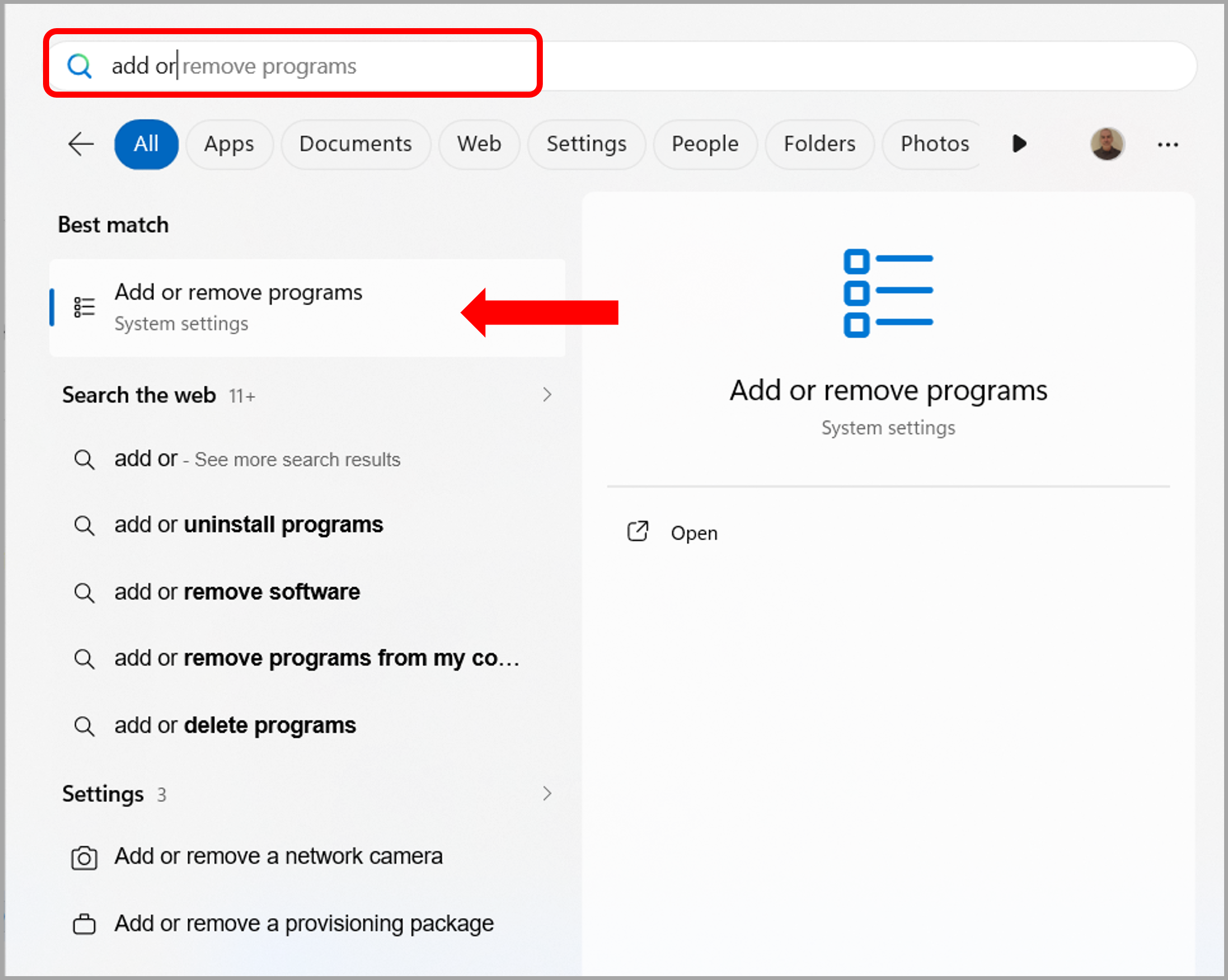
Go to the Windows Start Menu, search “Add or remove programs”, and click the link to System Settings.
-
Locate the ‘7thSense Recovery System' in the list of applications, the click 'Uninstall’
-
Confirm you want to uninstall by clicking ‘Yes’
-
Press ‘OK’ to complete un-installation
Uninstalling 7RS will also uninstall the associated utility application 7RS - Listener
8. Contact and Support
8.1 Contact Details
Email: support@7thsense.one
Phone: +44 (0) 1903 812299 (UK) or +1 248 599 2717 (US)
8.2 Additional Resources
Training Portal: 7thSense Academy
Support Portal: https://portal.7thsense.one/online-help/index.html?online_help_home_page.html
8.3 Remote Tools
The primary tool used by 7thSense for providing remote support is TeamViewer which is installed onto all our units. Ensure the server, or a remote PC has external network connectivity for us to connect to, to allow us to provide assistance.