

1. Introduction
This document describes the 7thSense Display Minder application to be utilized on 7thSense S-Series servers.
The following key subjects are covered in this document:
-
An Introduction to the Display Minder application
-
A Guide to Installing and using Display Minder
This document covers everything you need to know in order to install, understand, use and support Display Minder.
These, however, are the key points you initially need to know:
-
It’s just a 2-click installation, and you should keep all the Settings initially as their defaults.
-
7thSense startup script update is required.
-
Set up Adrenalin EDID/Eyefinity (and 10bit mode if needed).
-
Arm the system.
-
Once Display Minder has been configured and armed, it runs in the background and requires no ongoing user input.
-
See the Troubleshooting section if you have any problems.
2. Introducing the Display Minder application
The 7thSense Display Minder application is a stability enhancement for 7thSense S-Series Servers.
2.1 What does it do?
Display Minder has two distinct functions.
Display Removal Protection
Display Removal Protection stops a cable pull, or a display being switched off, from triggering a fault with the driver.
It achieves this by putting one black pixel in the top left corner of the primary display and presenting to it 60 times a second, at about 1.5% of the GPU.
When Delta goes to full screen, the black pixel is hidden behind Delta's playback window. If Windows Explorer is set to Maximize and covers the pixel, the Display Removal Protection still functions as intended.
Shutdown Protection
Via a “Capture” function, Display Minder saves the EDID, Eyefinity and Bit Depth configurations into a "Display Profile".
The Shutdown Protection function detects a controlled shutdown/restart and steps in to remove the EDID and Eyefinity configuration.
When the server starts, Display Minder runs in the background and will wait until one physical display is present before re-applying the saved "Display Profile".
Display Minder does not replace the Adrenalin Software and driver configuration process, it only records the result.
2.2 How does it work?
Display Minder consists of a UI and an underlying executable.
displayminder.exe
The user-facing UI.
dmagent.exe
This executable (aka “the agent”) runs in the background and interfaces with the AMD display driver.
When the agent is running, the Display Minder system can either be Armed or Unarmed, as described in this table:
|
System status |
Behaviour |
Notes |
|---|---|---|
|
Unarmed |
Shutdown Protection: Disabled Display Removal Protection: Disabled |
|
|
Armed |
Shutdown Protection: Enabled Display Removal Protection: Enabled |
|
|
Armed (Restricted) |
Shutdown Protection: Enabled Display Removal Protection: Enabled |
Shutdown Protection and Display Removal Protection are both enabled, but due to a mismatch between the “Live” and “Captured” Display Profiles, the reinstatement of the saved profile is disabled. |
The following table summarises which Actions are supported by the agent when the system is Armed or Unarmed.
|
Action |
Unarmed |
Armed |
|---|---|---|
|
Remove the Display Profile when Windows shuts down. |
No |
Yes (Shutdown Protection) |
|
Reinstate the Display Profile once the displays have returned. |
No |
Yes (Shutdown Protection) |
|
Support the “Capture”, “Apply” and “Remove” actions (via UI/Remote/CLI). |
Yes |
Yes |
|
Report State and answer the Control Port |
Yes |
Yes |
|
Keep a pixel rendering on the primary display so that a display can be safely lost. |
No |
Yes (Display Removal Protection) |
3. Installing Display Minder
Display Minder is only for use with the S-Series.
The installer package is self-contained. All runtime dependencies are included, which results in the installer being 110MB.
The reference AMD driver that was used for development of Display Minder was 26.8.1, but support is provided all the way back to the 24.8.1 driver.
3.1 Running the Installer
On S-Series servers that have shipped since Display Minder was introduced (~Sep 2026), the installer can be found at:
C:\7thSense\Software & Drivers\Drivers\Graphics\AMD
The installer can also be downloaded HERE . We recommend placing the downloaded installer at the above path on your S-Series.
Run the setup executable. It should not be run as Administrator, just double click it.
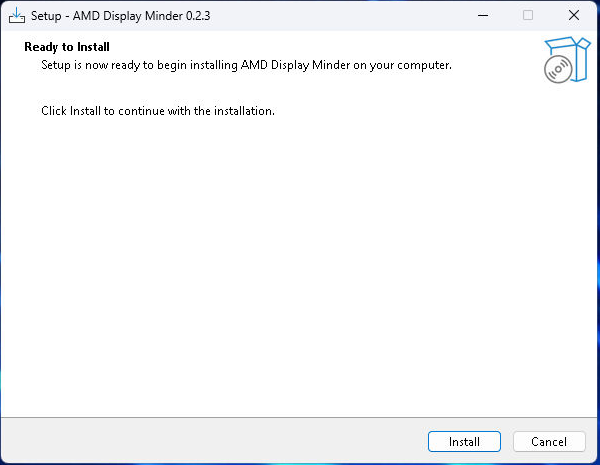
Just click Install to begin the installation:
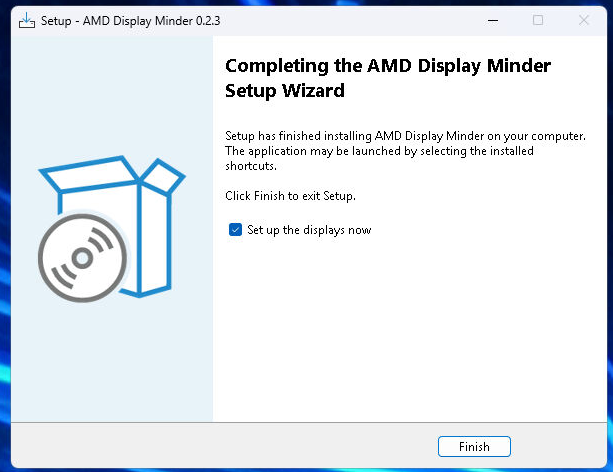
When the installation is complete, you have option to open the Display Minder UI right away, or you can launch it later on.
Click Finish to close the wizard.
3.2 Post Installation
Once the installation has completed:
-
Executables and Logs are located in C:\Program Files\7thSense\AMD Display Minder\
-
The agent (dmagent.exe) is automatically started, and will be re-started at logon every time the server boots.
-
-
The saved Display Profiles and EDIDs are located in C:\ProgramData\7thSense\AMD Display Minder\
-
A settings file (config.json) is also created here, with defaults of "no display profiles" and "unarmed"
-
3.3 Updating the 7thSense Startup Script
The S-Series runs a script upon Windows OS startup, and this script must be revised to suit Display Minder activities. For example, DeltaServer.exe needs to refrain from starting until Display Minder has finished restoring the display profile.
There exist a few variations of our factory startup script, depending on the version of Windows the platform is running, and the server's productized usage.
Choose the download link from the table below that’s appropriate to your S-Series, and overwrite the existing script located at C:\7thSense. It is recommended to first make a BACKUP copy of existing factory script.
Note that the script filename is slightly different for Windows 10 vs Windows 11:
Windows 10: startupScript-Fullscreen.ps1
Windows 11: startupScript.ps1
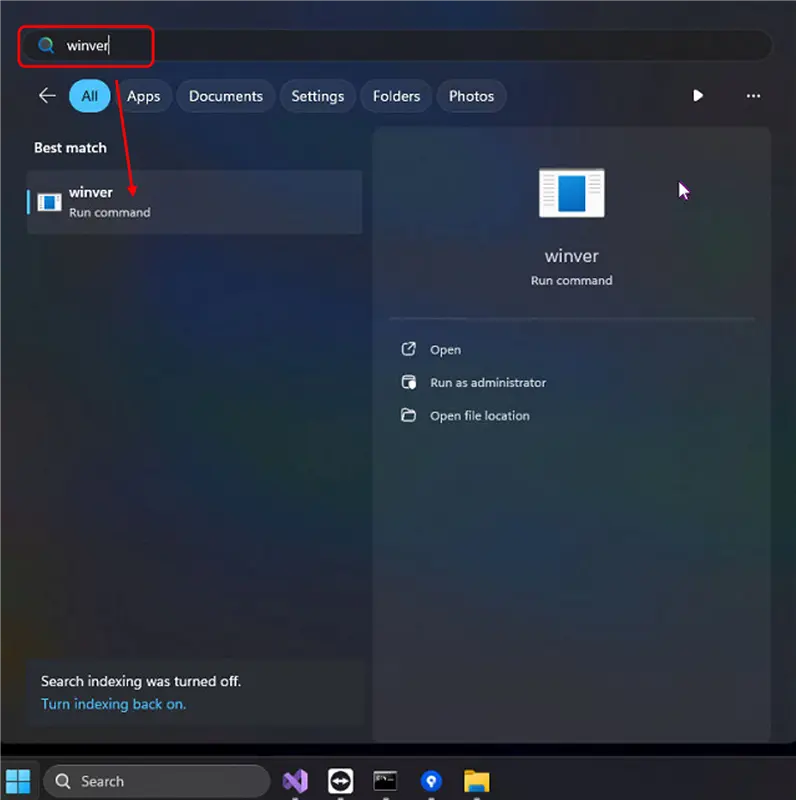
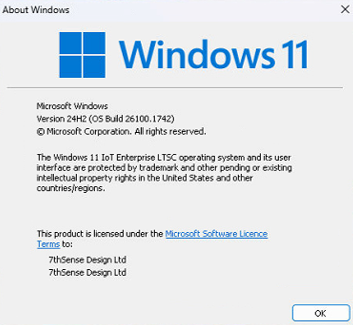
If you are uncertain which version of Windows is running, the easiest way to check is to open the start menu, type winver, and run the winver utility that is found.
3.3 Software Update Notes
An update (or re-installation) of the Display Minder application will retain all the settings in config.json (including "armed" vs "unarmed"), as well as the EDID files and the logs.
3.4 Uninstall
The advantage of having the installer package self-contained is that uninstallation removes everything. This includes all the logs, so if you want to retain them, they should be backed up prior to doing the uninstall.
4. System Setup
This section describes how to setup Display Minder on a 7thSense S-Series. We'll be covering the following steps:
-
Step 1: Configuration of EDID, Eyefinity and Bit Depth
-
Step 2: Starting and Navigating the Display Minder UI
-
Step 3: Testing the Capture/Apply/Remove functionality
-
Step 4: Arming the System
-
Step 5: Validating the System
-
Step 6: Reviewing the System Settings
4.1 Step 1: Configuration of EDID, Eyefinity and Bit Depth
When setting up the S-Series, you will ideally have all the monitors, projectors and LED controllers connected, powered and cabled. This, however, is not always possible.
The AMD Adrenalin software allows you to emulate outputs and configure an Eyefinity arrangement without requiring all the displays that you eventually intend to use being connected. Only one connected display device is required in order to do this.
The separate “S-Series Configuration” document provides detailed instructions on how to set up the displays in Adrenalin, including the EDID Emulation, the Eyefinity arrangement, and the Bit Depth.
Here are some additional supporting notes in relation to doing the Adrenalin configuration on a Server with Display Minder installed:
-
A first time installation of Display Minder will have a default setting of Unarmed. Make sure you leave the System Unarmed while you complete the initial Adrenalin configuration.
-
If you are reconfiguring existing Adrenalin settings on a server on which Display Minder is usually Armed, make sure it is Unarmed before starting that reconfiguration.
-
For the setup of 10-bit and Eyefinity, follow the prescribed process of configuring your EDID and Eyefinity Grouping in 8-bit mode, and then, assuming you have at least one display connected, use the 7thSense Context Menu to enable 10-bit mode.
-
This requires a reboot to take effect.
-
When the Server reboots you can then use Display Minder to Capture the Display Profile as normal.
-
Once in 10-bit mode, you can no longer access Eyefinity configurations in Adrenalin, so you will need to switch back to 8-bit mode through the 7thSense Context Menu option and reboot.
-
4.2 Step 2: Start the Display Minder UI
Once you've completed the Adrenalin configuration or reconfiguration, you can run displayminder.exe (as an Administrator) to start the Display Minder UI.
There are two views in the UI, Basic and Detailed.
The Basic View
This is an example of the “Basic” view:
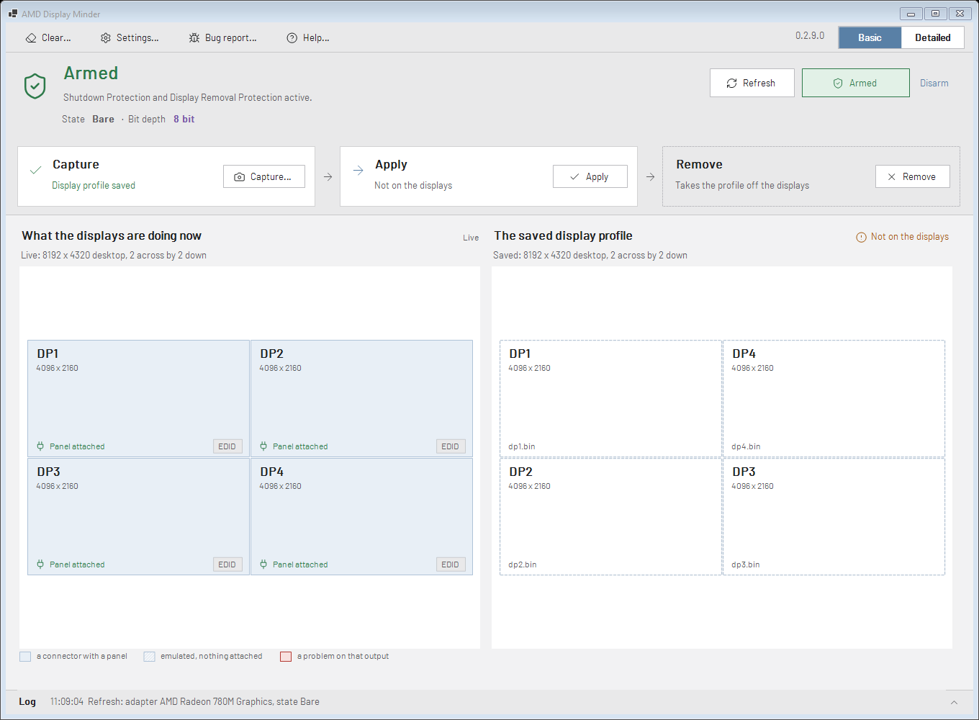
The “Basic” view consists of the following sections:
-
Toolbar. Contains buttons on the left for the Clear, Settings, Bug Report and Help commands, and toggles for switching between the Basic and Detailed views over on the right, together with the version indicator for Display Minder.
-
Status band. Indicates the following:
-
Whether the system is Armed or Unarmed (with buttons to Arm, Disarm and Refresh on the right)
-
The current State (whether a Display Profile has been saved, and if it has been applied).
-
The current Bit Depth
-
-
Workflow. Contains the buttons for the core functions of Capture, Apply and Remove.
-
Display Panes. What the displays are doing now (on the left), and the currently saved display profile (on the right).
-
Log. By default, shows the most recent line of the Log, but as shown here you can click to expand it.
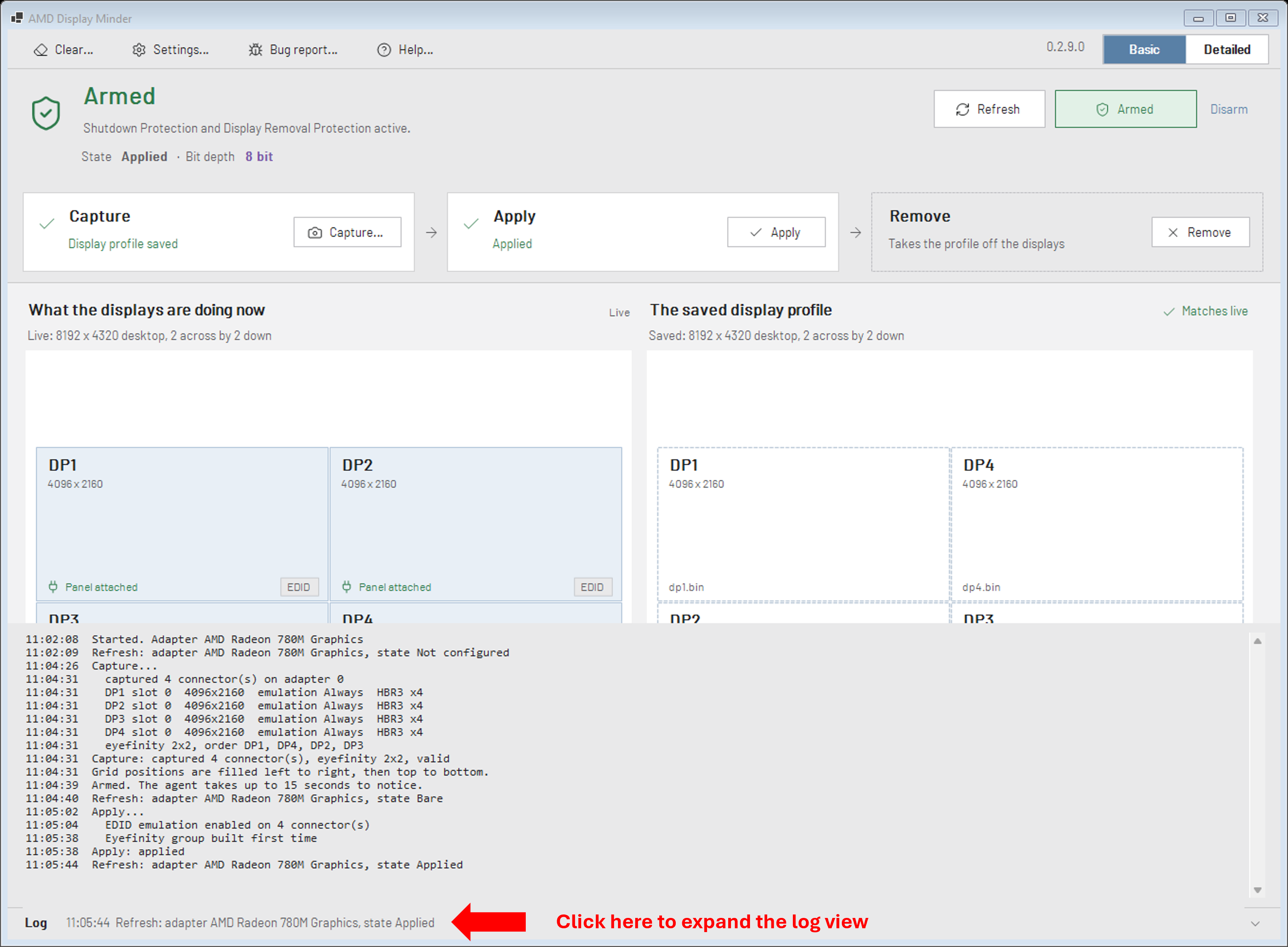
The Detailed View
Here’s an example of the “Detailed” view, which contains an additional Detail section at the bottom displaying the AMD Driver's own account of each Connector.
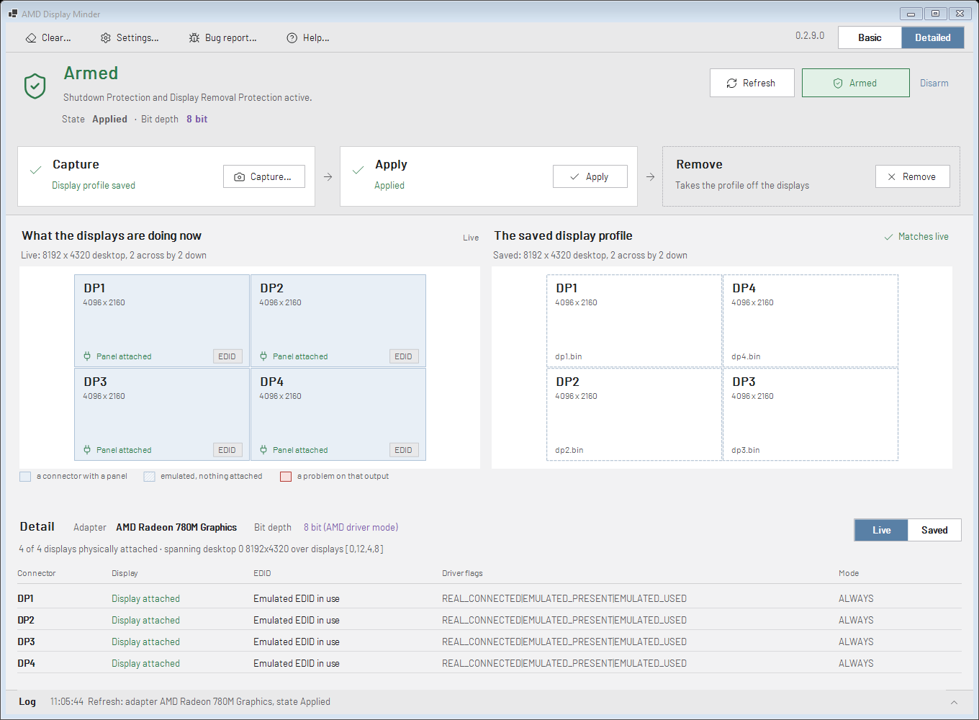
Above the table, we see the name of the Adapter, the current Bit Depth, how many displays are attached, and the spanning desktop that the driver reports.
In the table itself:
-
Connector: The name the profile gives the output
-
Display: Whether a panel is attached to that connector
-
EDID: Whether the driver is presenting an emulated EDID, or the panel's own
-
Driver flags: The raw flags, in the form the logs and AMD's documentation use
-
Mode: The emulation mode set on the connector
You’ll note that there are two buttons at the top right of the Detail section, for “Live” and “Saved”.
The above example of the UI shows the “Live” detail, and below is an example of the “Saved” detail, which shows the same connectors as the display profile recorded them.
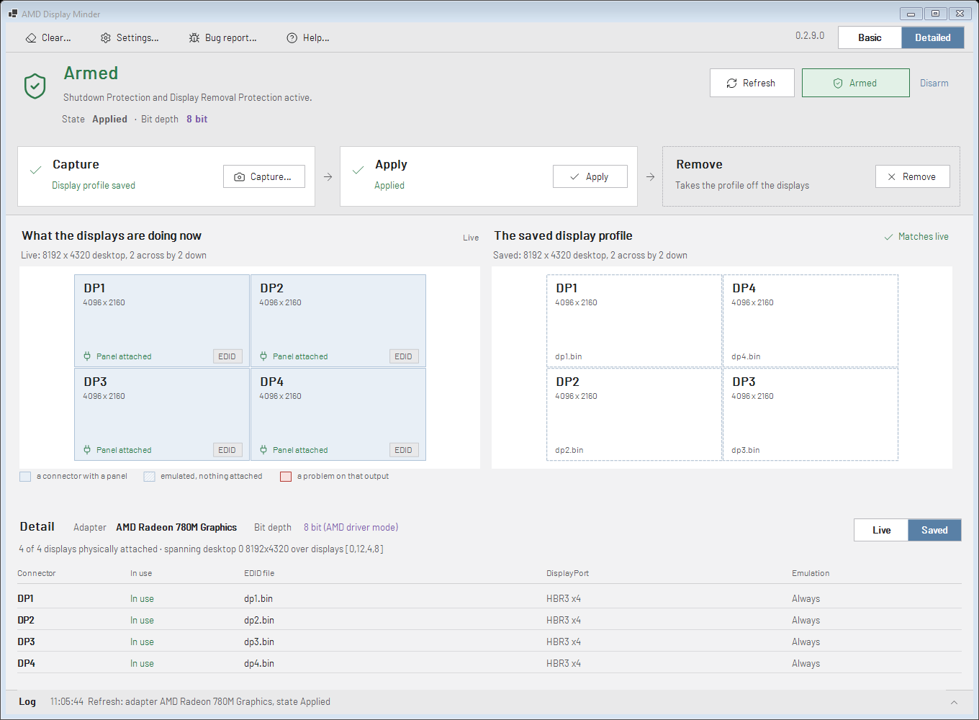
-
Connector: The name the profile gives the output
-
In use: Whether the profile drives that connector
-
EDID file: The .bin for this saved EDID
-
DisplayPort: Link rate and lane count
-
Emulation: The emulation mode to set when the profile is applied
The System Tray Icon
Closing the UI hides it to the System Tray.
The System Tray Icon uses a colour-based system to indicate the following:
-
Green: armed and matching (the “saved” and “live” profiles match)
-
Red: armed and mismatched (the “saved” and “live” profiles do not match)
-
Grey: unarmed
Hovering the mouse over the Tray Icon shows the full text description:

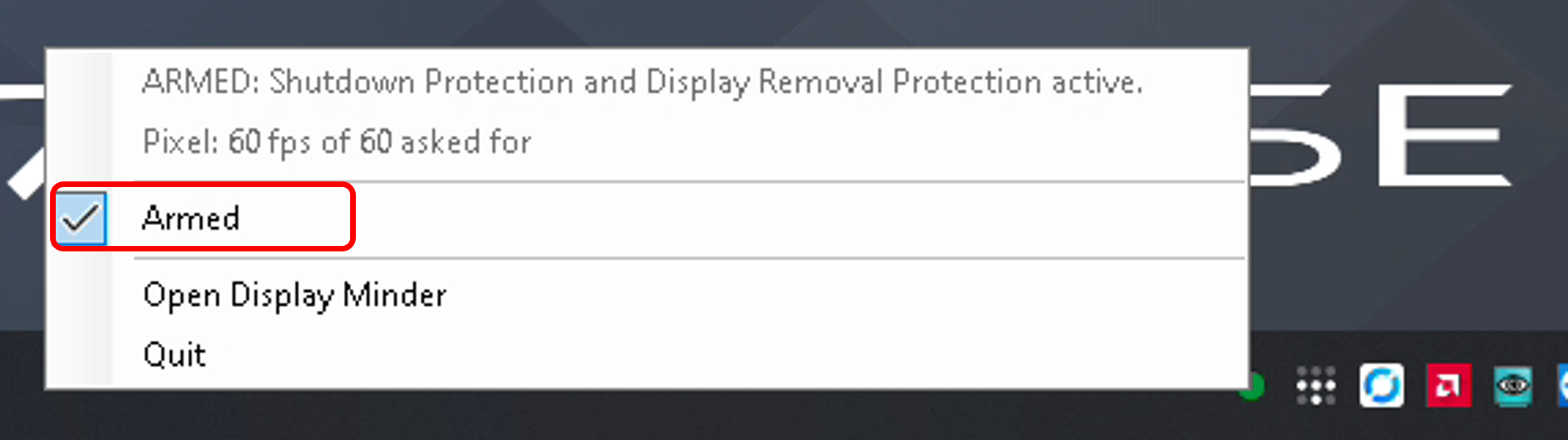
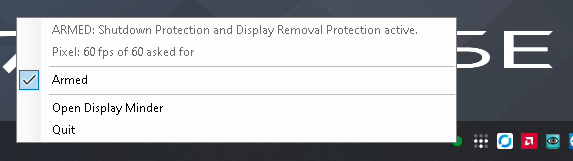
You can right-click the Tray Icon and toggle between Armed and Unarmed without having to re-open the UI.
Closing/Quitting the UI
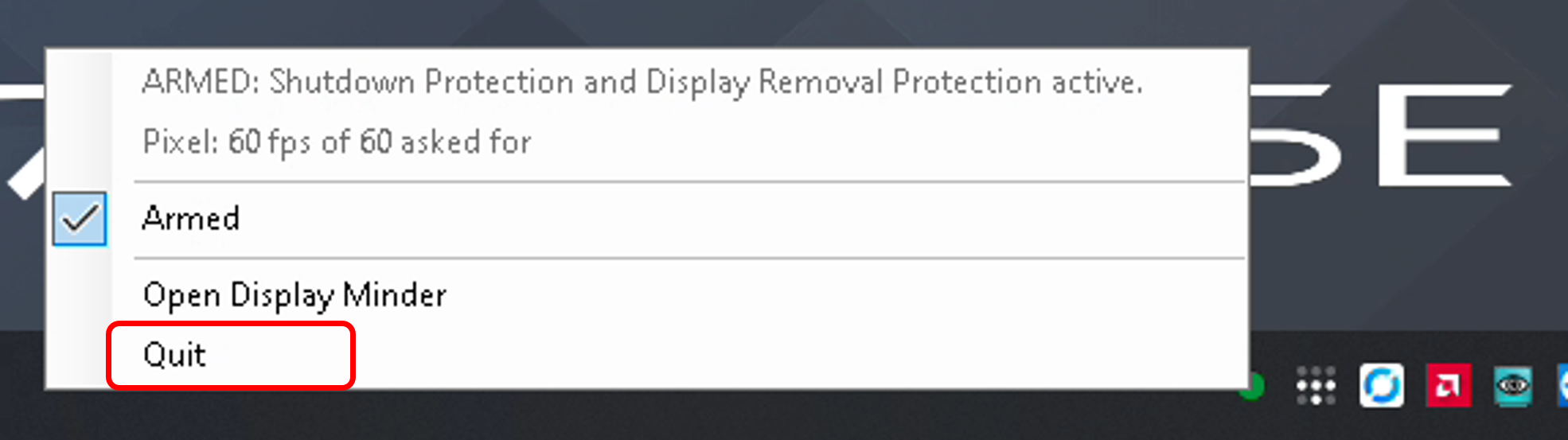
Selecting Quit in the System Tray menu closes down the UI altogether.
4.3 Step 3: Test the Capture, Apply and Remove functions
Now that you're familiar with the UI, you're ready to start testing the functionality.
In this step you're going to do the following:
-
Capture a Display Profile
-
Apply the captured Display Profile
-
Remove the Display Profile
-
Re-Apply the captured Display Profile
4.3.1 Capture a Display Profile
Display Profiles are created with the Capture command.
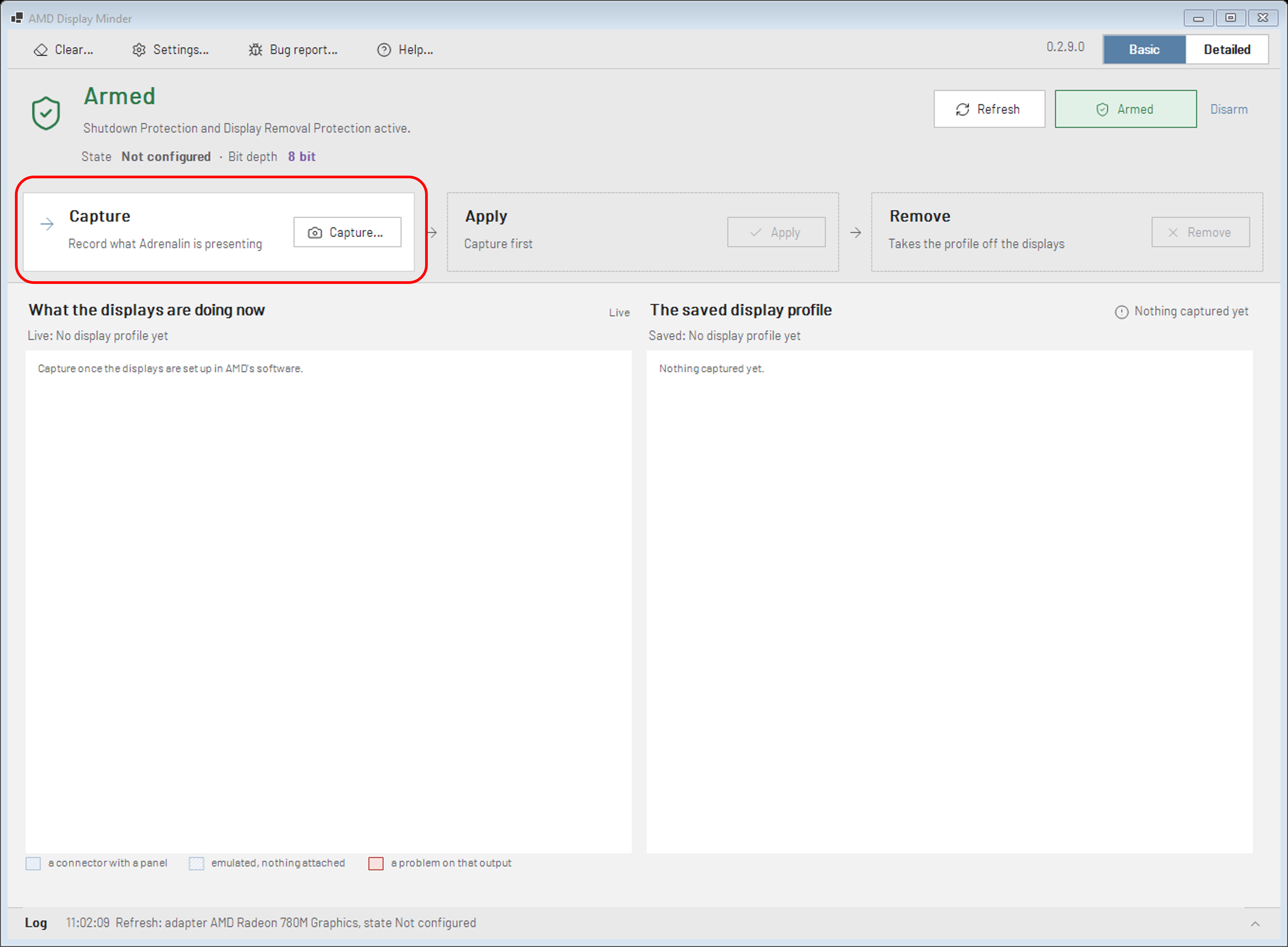
When you click Capture, it will cause dmagent.exe to do the following:
-
Record what each output is currently presenting live
-
Write this information to config.json
-
Create a .bin file for each display output currently in use
The output on live displays is not affected by these actions. The Capture changes nothing on the displays. The new profile reaches them only when you do an Apply.
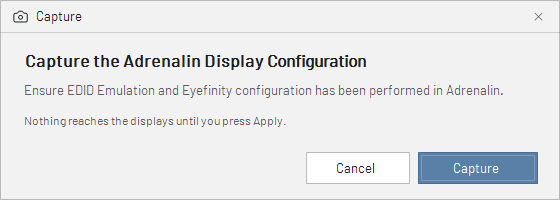
If this is the first time you’ve done a Capture, you’ll see this basic confirmation message:
If a Display Profile already exists for an output, a pop up will display information on what will be replaced (with the number of connectors and the DisplayPort link rate under it), and asks for confirmation:
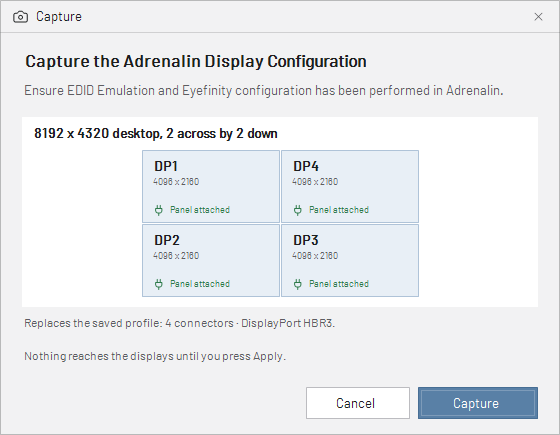
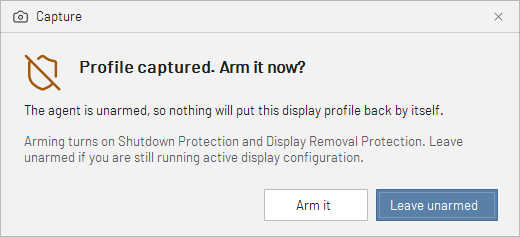
You’ll then be given the option to Arm the System.
Ordinarily you would click “Arm It” (assuming you do want the system Armed), but on this occasion while you’re first setting up the system, you should click “Leave Unarmed” so that you have the opportunity to test the Remove and Apply commands.
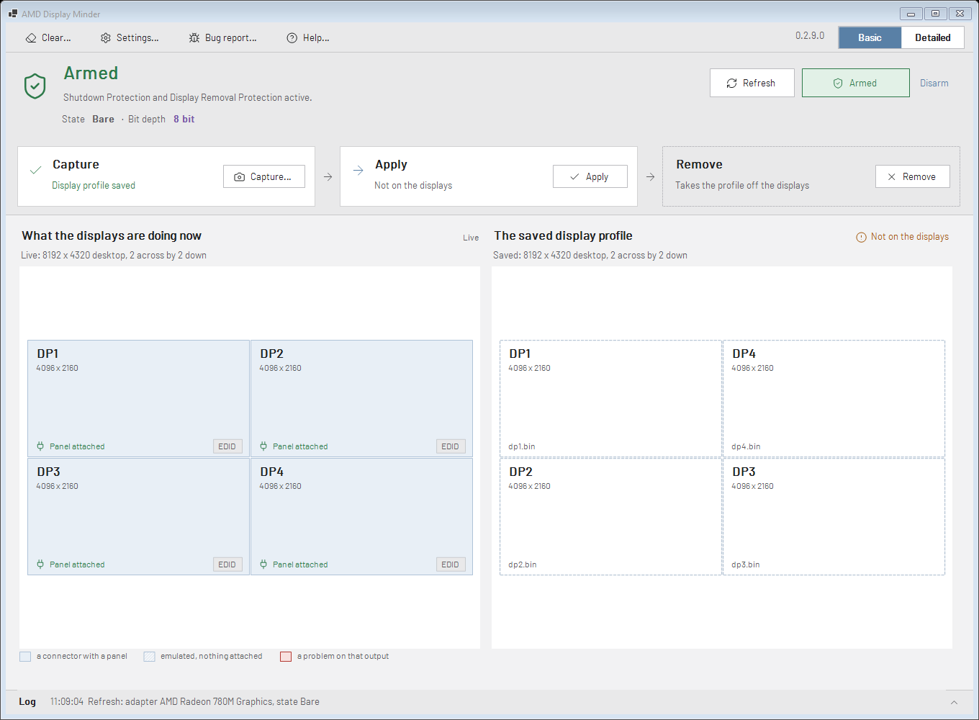
Below is an example of what the updated UI will look like after a Capture has completed (and before an Apply has been done).
Note that the right hand Display Pane shows the details of the saved Display Profile, and indicates that the profile has not currently been applied to the live displays.
The UI is refreshed each time a button is clicked, but a “Refresh” button is also provided, which re-reads the AMD display setup and the captured Display Profile.
Additional Usage Notes:
-
An Eyefinity Group is recorded only when an Eyefinity desktop is actually set up.
-
If the outputs are still separate desktops, EDIDs are saved in the Display Profile, but with no arrangement.
-
If you have a requirement for Eyefinity, you should configure it first in Adrenalin, and then do the Capture with Display Minder.
4.3.2 Apply a saved Display Profile
A saved Display Profile can be applied with the Apply command, which sets the emulated EDIDs on every Connector in the profile, and then builds the Eyefinity group.
When you click Apply, you’ll see the following pop-up:
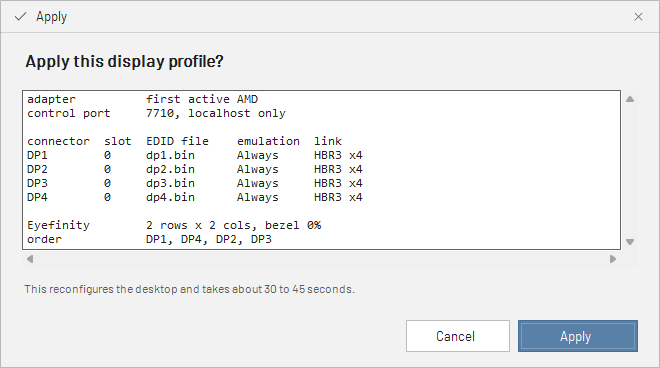
The confirmation pop-up displays the following information about the saved profile that is about to be applied:
-
The adapter and the control port.
-
Every connector, with its EDID file, emulation mode and link rate.
-
The Eyefinity grid, and the order of the displays in it.
The Apply takes about 30 to 45 seconds and rearranges the desktop.
Panel Size pop-up
Many panels accept a mode larger than their native size and scale it internally, but nothing the driver reports will says whether or not a given panel will do so. If it does not, that monitor reports no signal until you change or remove the profile.
In this scenario, you’ll see this pop-up during an Apply:
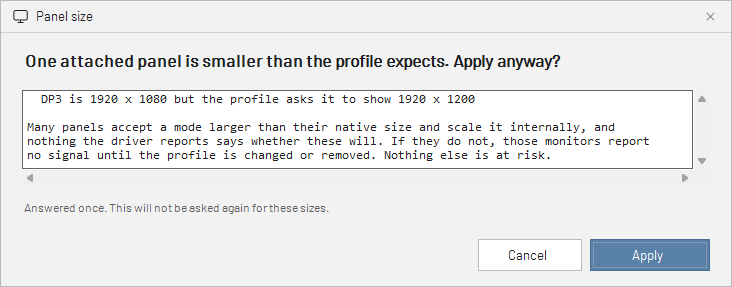
Your answer is saved against that pairing of sizes. Display Minder does not ask this question again for the same pairing.
Black Out Cover
Applying (or removing) a profile rearranges the desktop with the signal still up, which shows on the displays as several flashes.
For this reason, the agent “covers” the displays while it works, so they go dark and come back when the Apply is finished.
Shown below is an example of a cover on a four display server. Note that the message appears once in the middle of every display, not once across the whole combined display. In this example, one of the displays in this capture is still enumerating, so it carries no message yet.
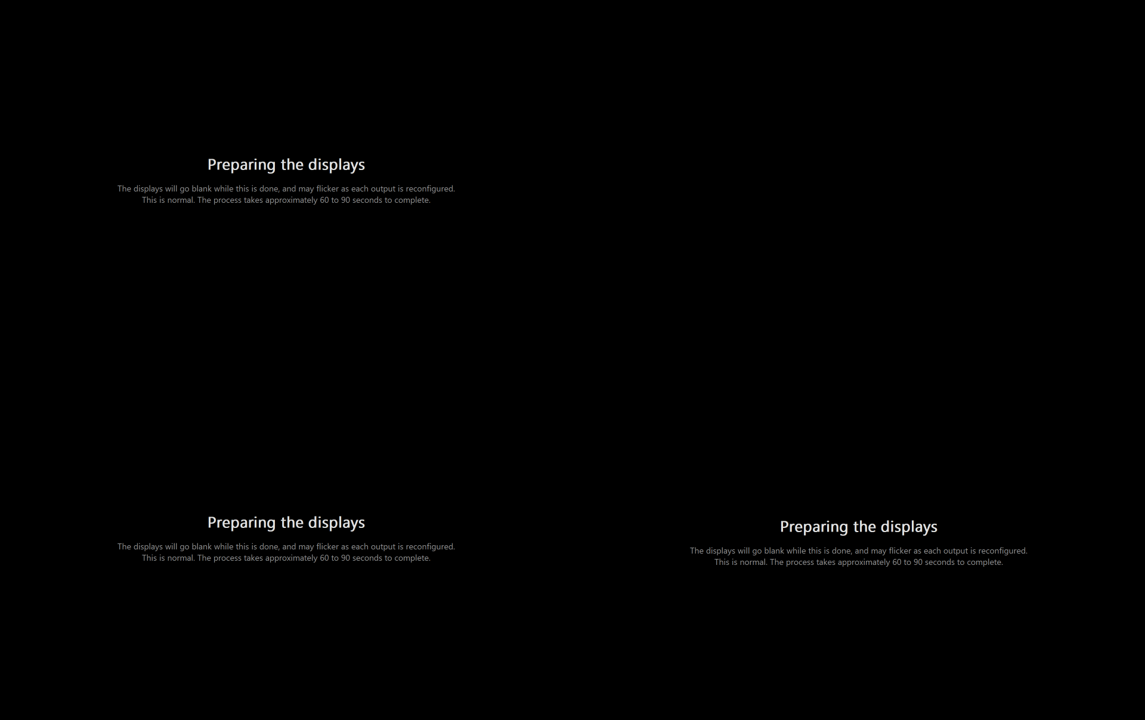
Here’s a larger view of the same message.
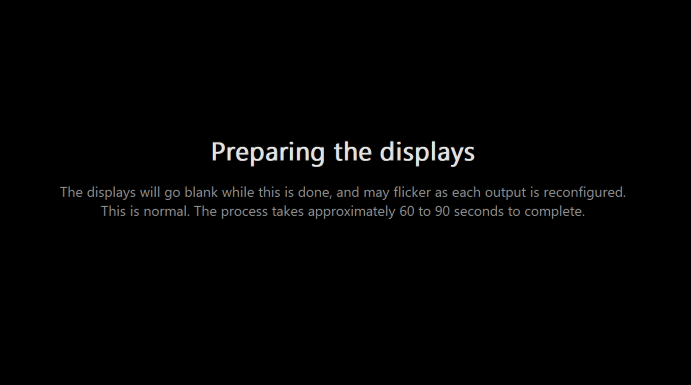
The agent shows this message while it sets the emulated EDIDs and takes them off again before the real Apply takes place. That pass is what makes the Eyefinity group build the first time.
The time given in the message is the whole startup sequence, from the cover appearing to the combined display being up.
The message is visible for the number of seconds set by messageSeconds in Settings, and then the cover goes plain black until the Apply has completed.
You can optionally switch off the cover off with Black out the displays while they are being changed in Settings. The Apply or Remove will still run, but the “flashing” will still occur while the re-arranging is taking place.
The following cover is then shown when the profile is applied.
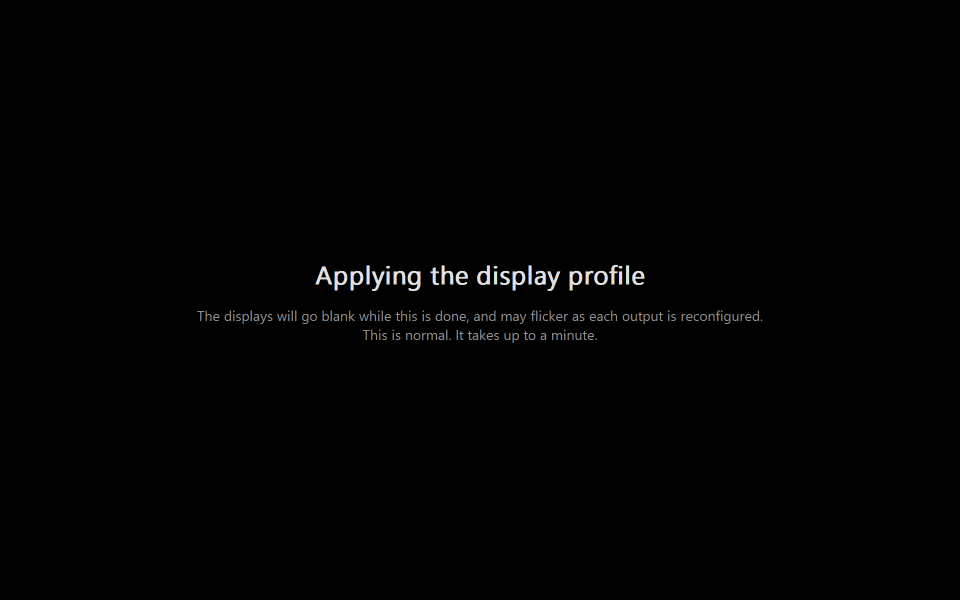
Additional Usage Notes:
-
Removing shows the same cover with the headline Removing the display profile, while Repairing a group that came up as a clone shows Repairing the display profile. A second attempt adds the attempt number to the headline.
-
Occasionally during testing we've seen the displays being Cloned instead of Spanning (because the driver got confused). If this happens, do a Remove (see below), then re-Apply, and it should correct the problem.
-
The Apply intentionally does not take place if there are no displays attached, as an attempt to do so will almost certainly trip up the driver. Setting the EDIDs in this scenario is prevented.
Reinstate Countdown
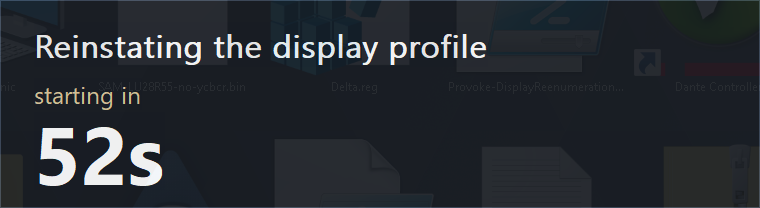
After a restart, the agent waits for the displays to settle before it applies.
The duration of this wait can be set in Settings, but it is recommended not to reduce it below the default value of 60 seconds, as this can affect the reliability of successfully applying the Display Profile.
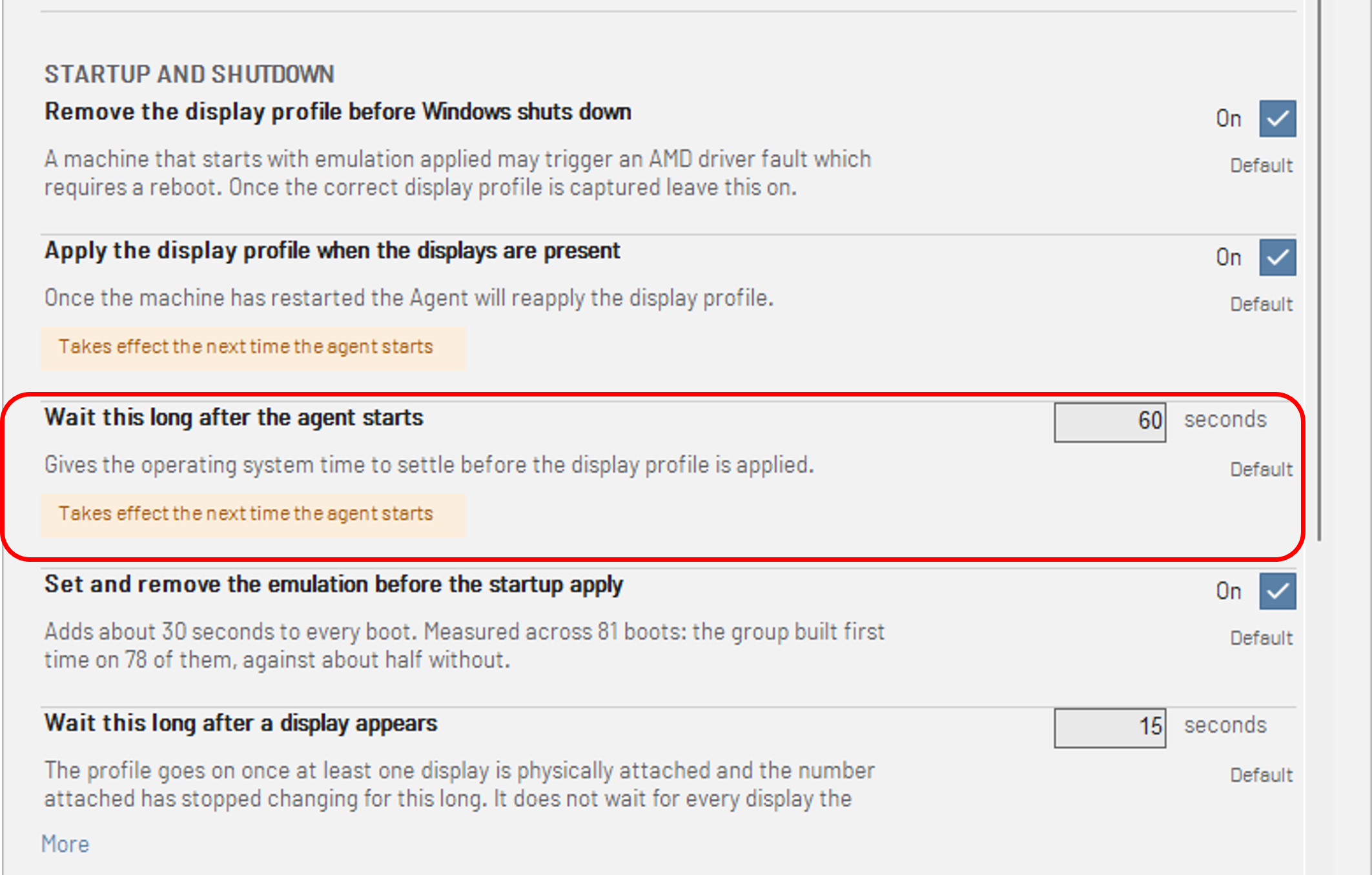
A panel like this will display a countdown so that it’s clear that the machine is waiting rather than stuck.
The panel changes to Waiting for displays if the wait runs out and the displays are still not ready.
Updated UI
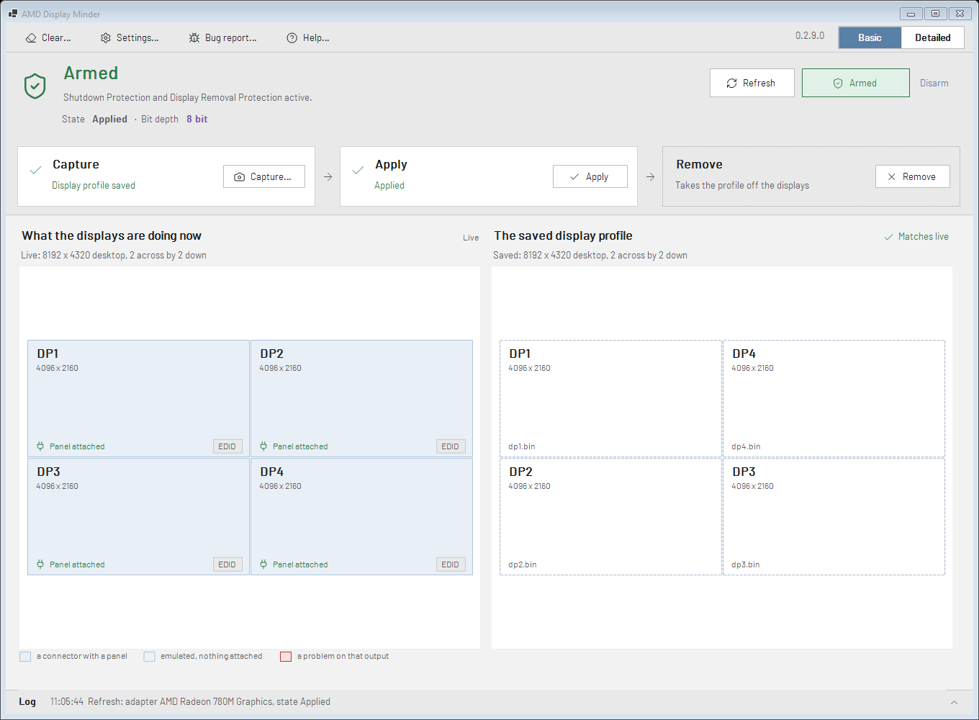
Once the display driver is back, the Live output should match the (restored) AMD Adrenalin set up.
Here’s an example of how the UI will look after a successful Apply. Note the “Matches Live” confirmation at the top right of the right-hand Display Pane.
4.3.3 Remove a Display Profile
You wouldn't ordinarily do a Remove immediately after an Apply, but you’re doing it here so that you can test the Remove (and Re-Apply) functionality.
Click the Remove button in the main UI.
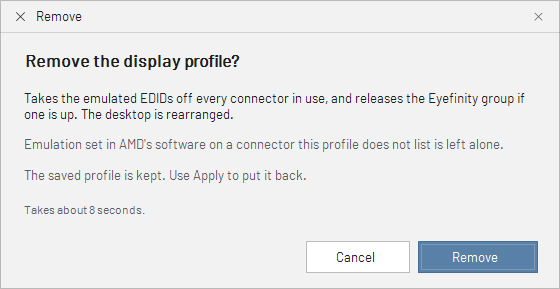
This will release the Eyefinity Grouping and remove the emulated EDIDs from every output in the currently saved Display Profile. This is effectively reverting to a "Bare" system, and it takes approximately 8 seconds.
You’ll see a message like this, and you can click Remove to confirm.
4.3.4 The “Clear” Function
There’s no need to test the Clear function at this point, but it’s mentioned here so that you’re aware of it.
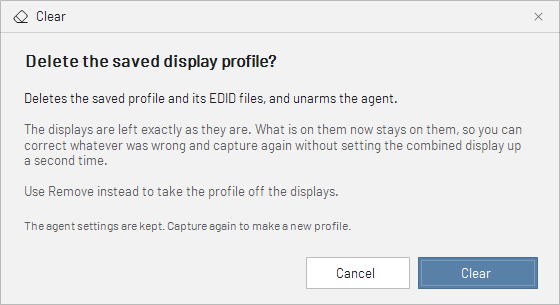
At the top of the UI there’s also includes a “Clear” function, which deletes the saved Display Profile and EDID (.bin) files, and toggles the system to Unarmed. This essentially re-sets the system back to a fresh install, and it can be used when there has been an error in creating a Saved Profile and you want to start again from scratch.
4.3.5 Re-Apply a saved Display Profile
After you've completed the testing of the Capture, Apply and Remove functions, and you're happy that everything is working correctly, you can execute the Apply again to re-Apply the saved Display Profile.
With the Profile re-applied, you're then ready to Arm the system.
4.4 Step 4: Arm the System
As we’ve already seen, there are several different ways that you can Arm the System (toggling from Unarmed to Armed).
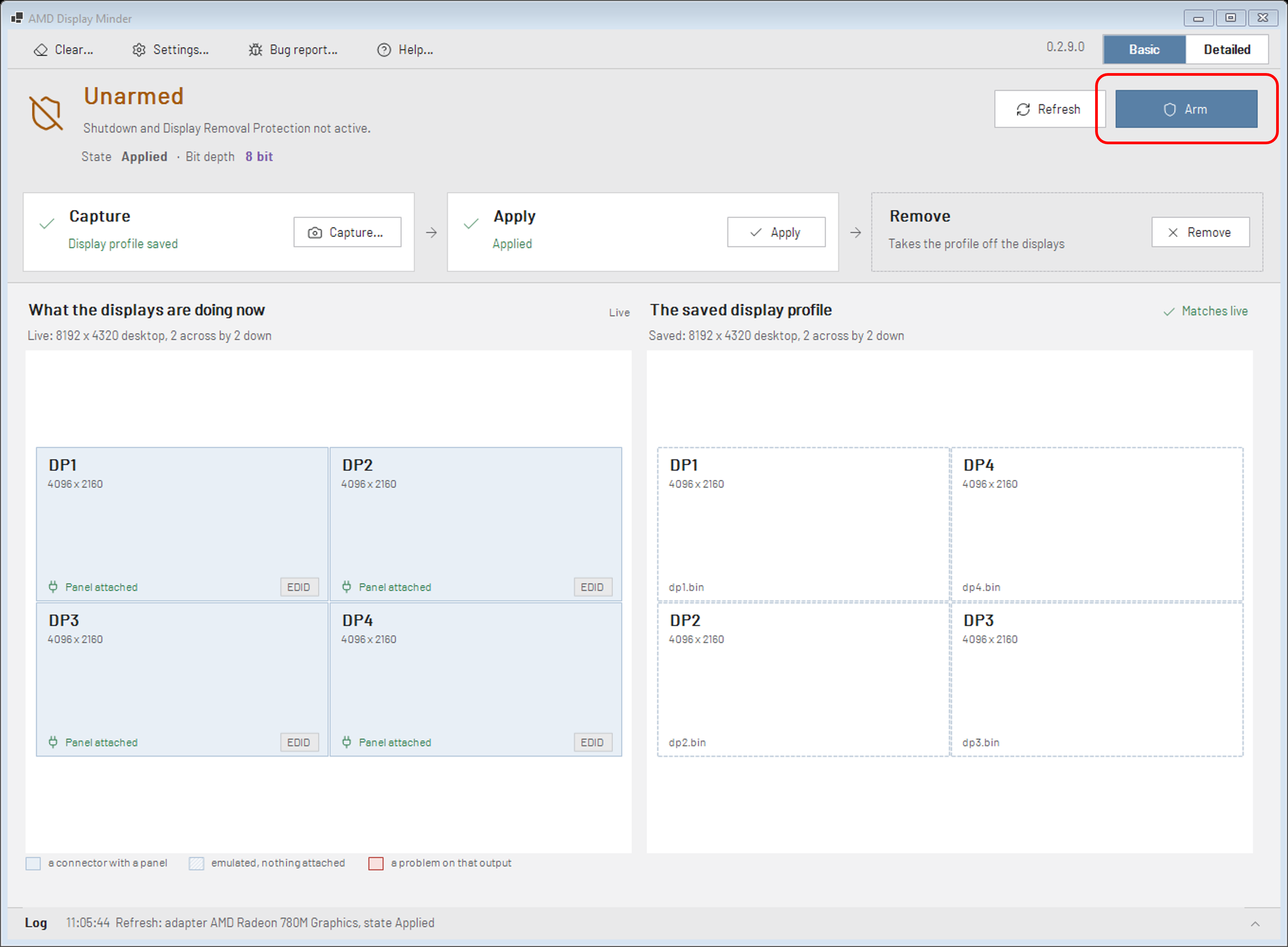
You can do it via the “Arm” button in the Status Band at the top of the UI:
Or you can do it via the System Tray icon:
Arming takes effect within about 15 seconds. It does not visibly change anything, it just enables Shutdown Protection and Display Removal Protection.
Once you've toggled the status to Armed, the Header in the UI will then show the Agent status as ARMED, and there’s a “Disarm” button to switch back to Unarmed:

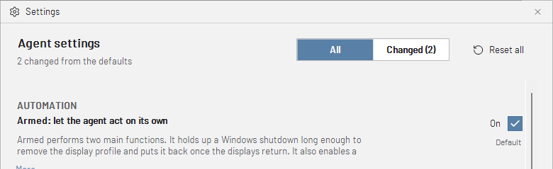
Note that you can optionally set the default to Armed in Settings, so that the System is always Armed when the agent is started.
4.5 Step 5: System Validation
You should now shutdown and restart the Server to confirm that everything is still working as expected.
Make sure you have at least one display connected when you do the restart.
The following table summarises the expected behavior during the various stages of shutdown, boot and logon.
|
Stage |
Behaviour |
|---|---|
|
During Shutdown |
Windows pauses the Shutdown (for up to 40 secs) while the Profile is removed. |
|
Boot |
The Server boots with no Eyefinity. Displays are using their inbuilt EDIDs. |
|
Logon |
The agent is automatically started, and waits at least 60 seconds (configurable in Settings). |
|
The displays are “attached and steady” for 15 seconds |
After the 15 seconds has elapsed (configurable in Settings), the Display Profile is applied and the outputs rearranged to the saved configuration. |
Additional Usage Notes:
-
Expect the correct output to appear roughly 60 to 90 seconds after logon.
-
The timing of Display Minder and Delta startup may need to be tuned to allow one to complete before the other.
-
Displays that are powered separately can connect at different times. The agent will wait with nothing applied for as long as it takes. So, if the Apply is not triggering, check that all expected displays are powered and connected.
-
Before leaving the system unattended, always ensure the following:
-
The System is Armed
-
The State is showing as Applied
-
The Tray Icon is green
-
4.6 Step 6: Review the System Settings
Now that you're familiar with the behaviour and operation of the System, you can review the Settings to see if there's anything that you want to change.
Click the Settings button at the top of the UI to view all the System Settings.
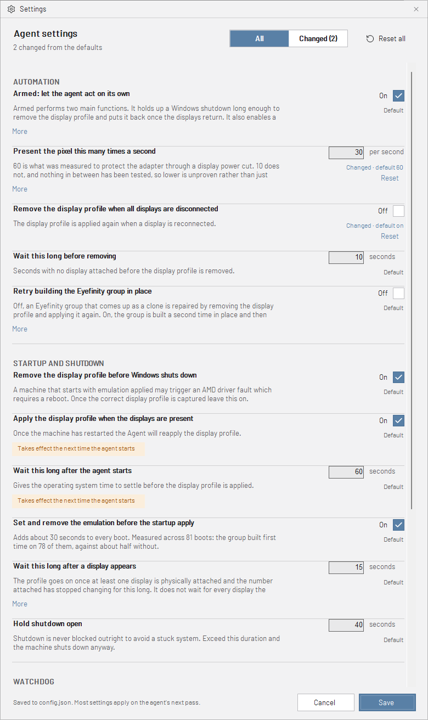
Settings are written to config.json when you click Save.
Setting changes will take effect within about 15 seconds (except those that only come into effect the next time the agent starts).
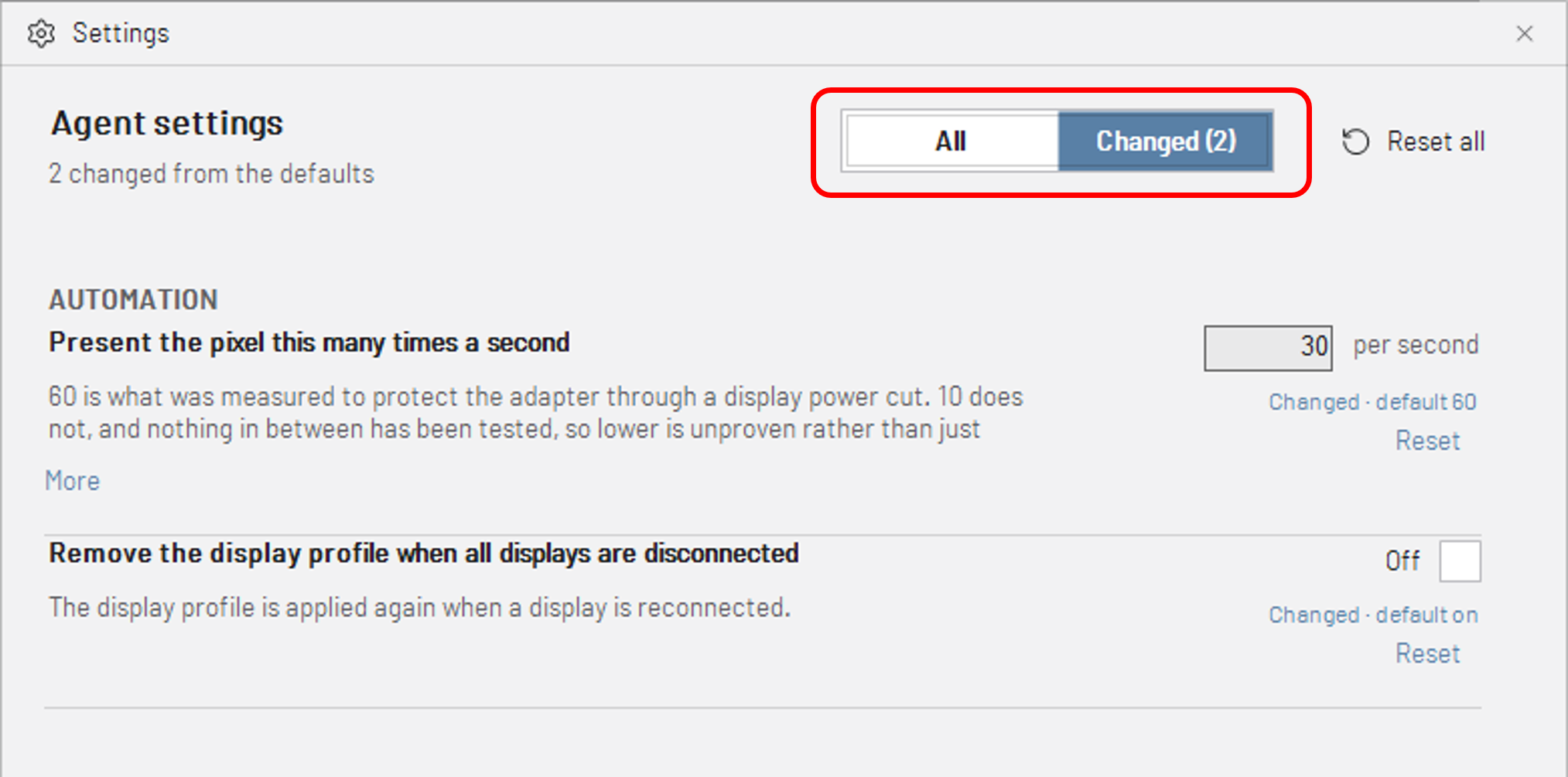
The Changed filter hides every setting that is still at its default, displaying only the ones you’ve changed.
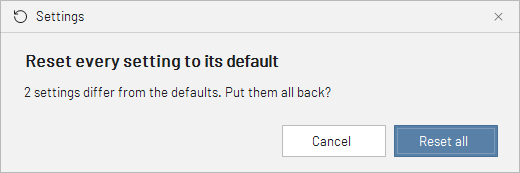
If you click the “Reset all”, you’ll see a pop-up confirmation like this:
5. Getting Help
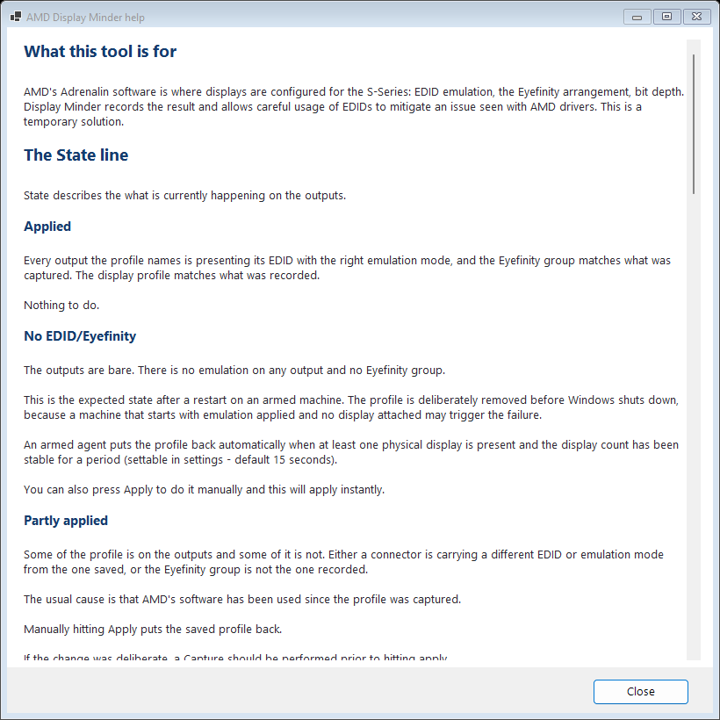
In addition to this manual, you can also find information about states, buttons and behaviour by clicking the Help button in the UI.
6. Troubleshooting
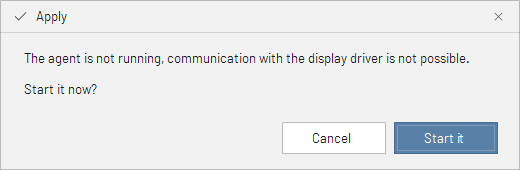
Agent not started
The UI interfaces with (and relies on) the agent dmagent.exe being started.
If you try to execute a command from the UI when the agent isn't started, you’ll see a message like this:
Monitors disconnected for an extended period
If all monitors are disconnected for an extended period of time, and then re-connected, the display will come back unconfigured. This is because Display Minder will unload EDID and Eyefinity after all monitors have been disconnected. Approximately 15 seconds after you re-attach the monitors, the agent will automatically run an Apply to reconfigure the display. A tick box is provided in Settings to enable/disable this functionality, and you can also configure the wait time before the removal happens.
Crashed Driver
If the system is in a crashed driver state...
-
Restore display power first. Restarting the device with nothing attached may just fail again immediately, for the same reason it failed the first time.
-
Reboot the server.
Problem Reporting
The “Bug Report” button at the top of the UI allows you to report problems.
When you click the button, a report is immediately generated (no confirmation prompt), and this creates a zipped file of approximately 15Mb containing useful troubleshooting information, which can be sent to 7thSense for investigation.