
This document describes workflow for setting up the graphics on a 7thSense S-Series hardware platform.
It also provides some additional information on using the AMD Cleanup Utility to do a Graphics Driver reset.
Pre-Requisites
General
There are no general pre-requisites for completing the workflow, other than having access to the S-Series and being able to interact with the Desktop.
Delta Version
Your version of Delta will need to be a minimum of v.2.8.
Graphics Driver
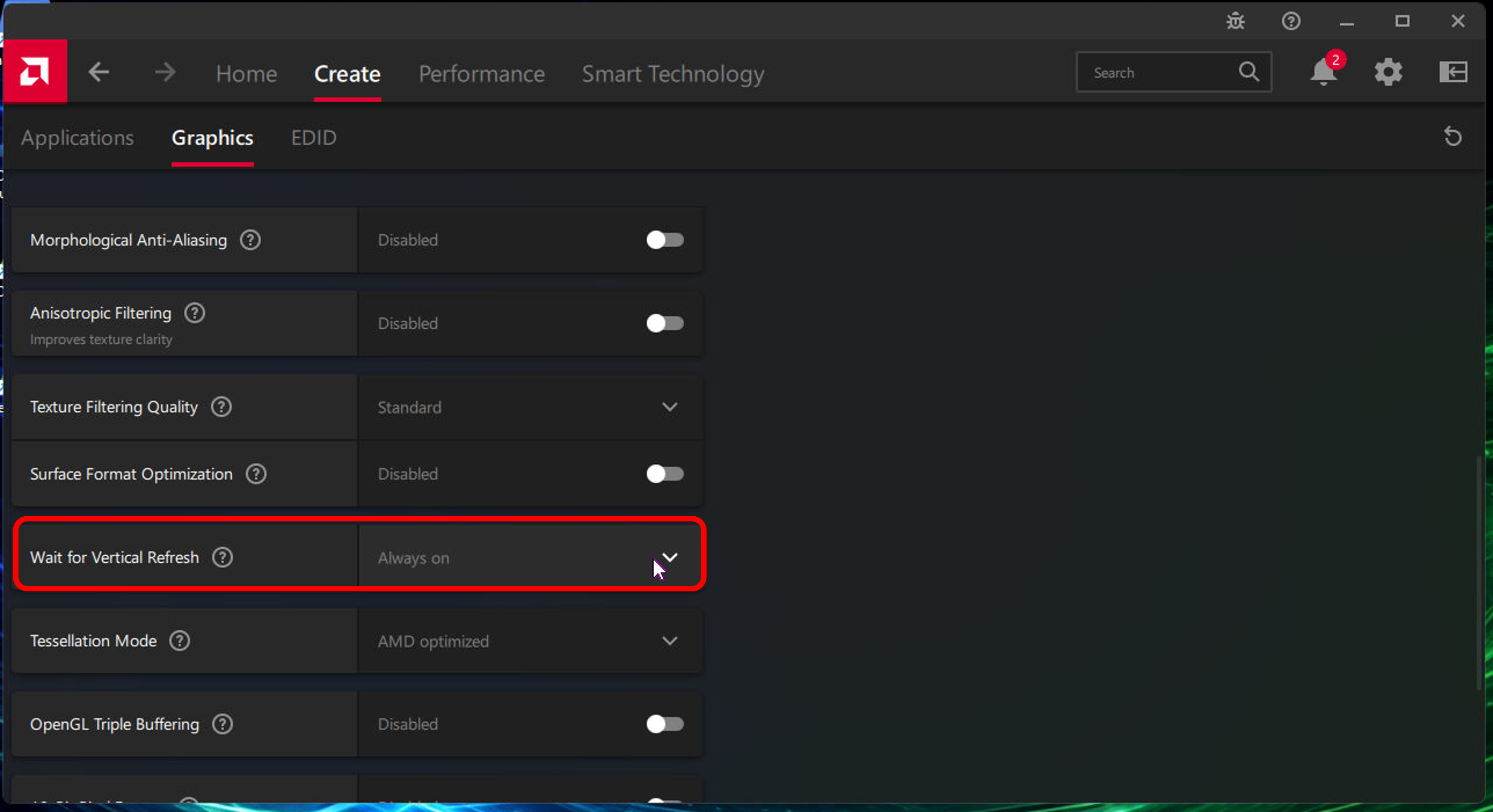
The “Wait for Vertical Refresh” option should be set to Always On. (See here for more details).
EDIDs
For Step 1 of the prescribed workflow, you'll need to access the 7thSense supplied EDIDs, which are located here:
C:\Program Files\7thSense\Delta\Utilities\EDID Files
For historical reasons, you should use the ones in the Nvidia folder, not the AMD folder.
Connected Displays
You should have all Displays that you wish to emulate already connected to the S-Series. Displays should not be emulated unless something is physically connected (as this runs the risk of corrupting the driver).
What's Involved
The prescribed workflow is based on the following 3 tasks:
-
Configuring the EDIDs
-
Enabling and Configuring Eyefinity
-
Enabling Display Mode (8-Bit or 10-Bit as required)
Most of this work will be done in the AMD Adrenalin GUI, which is accessible from the S-Series desktop.
The Workflow
The 3 steps in the workflow are described below.
Important: These steps must be completed in the prescribed order.
Step 1: Configure EDIDS (In the AMD Adrenalin GUI)
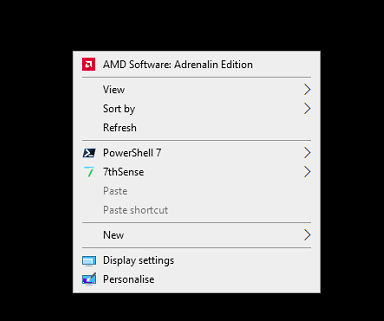
Right-click on the Desktop to reveal the context menu, and select AMD Software: Adrenalin Edition.
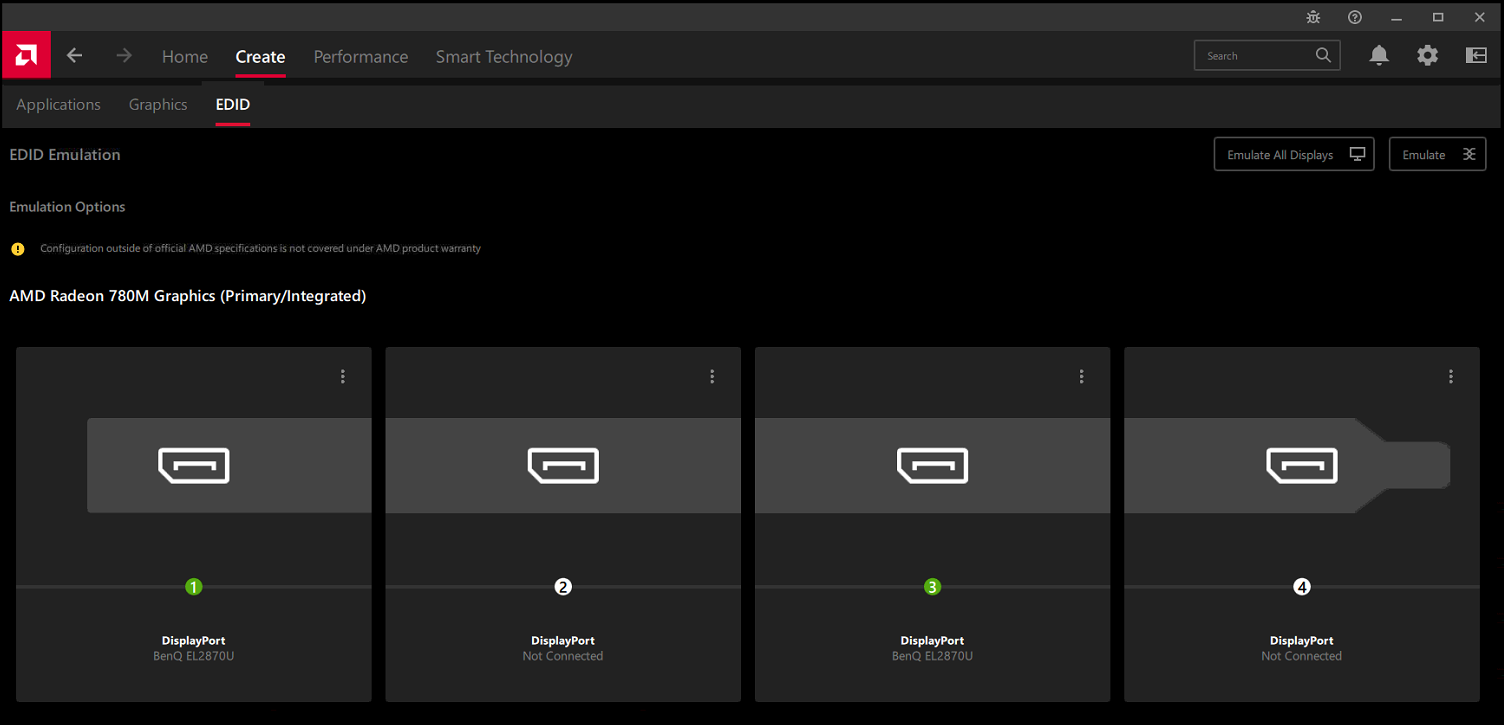
Click Create in the main menu, and then EDID in the sub-menu to enter the EDID Emulation screen.
In our example, we have two Displays connected (Ports 1 and 3).
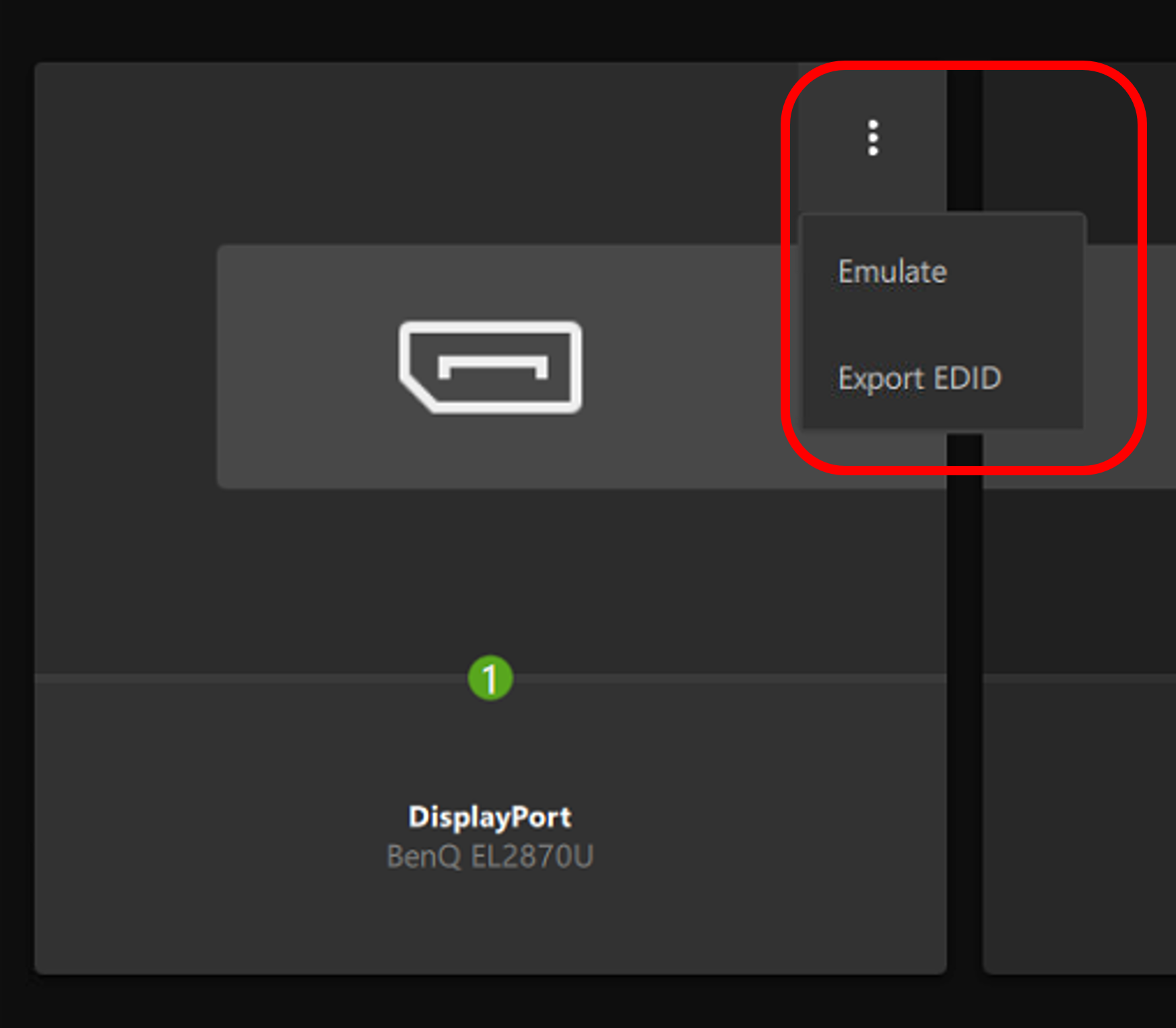
You will now configure the EDIDs for your desired output configuration.
Click the burger menu on the first DisplayPort and select the Emulate option.
The display’s border will turn red.
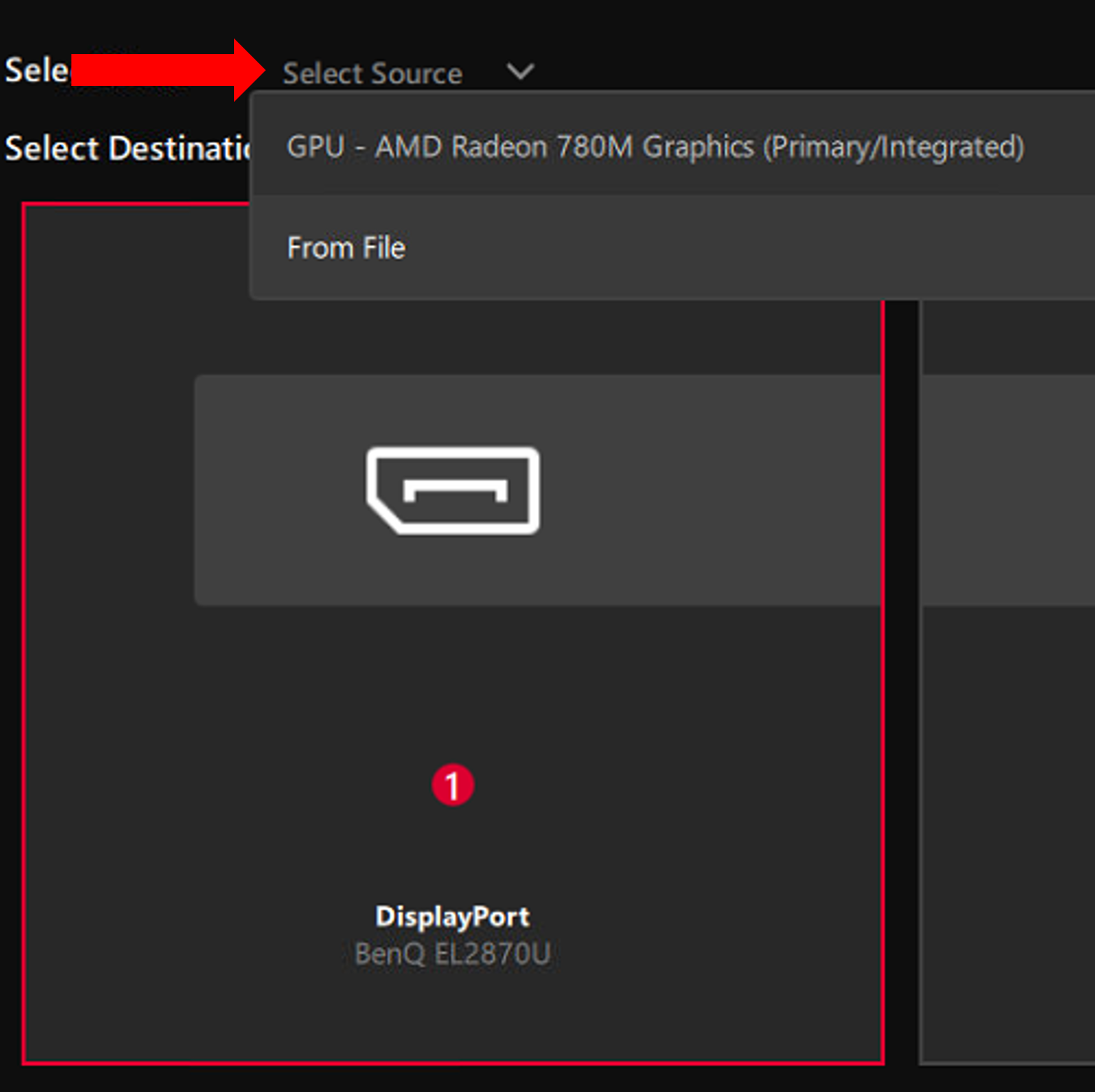
Click Select Source and then From File.
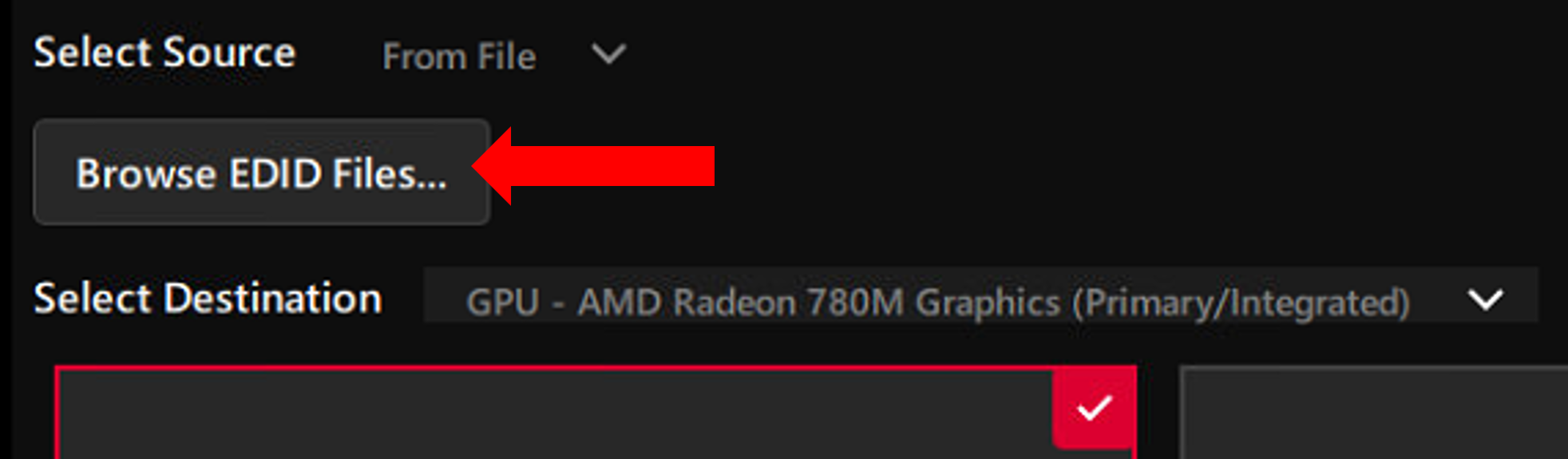
Click the Browse EDID Files… button.
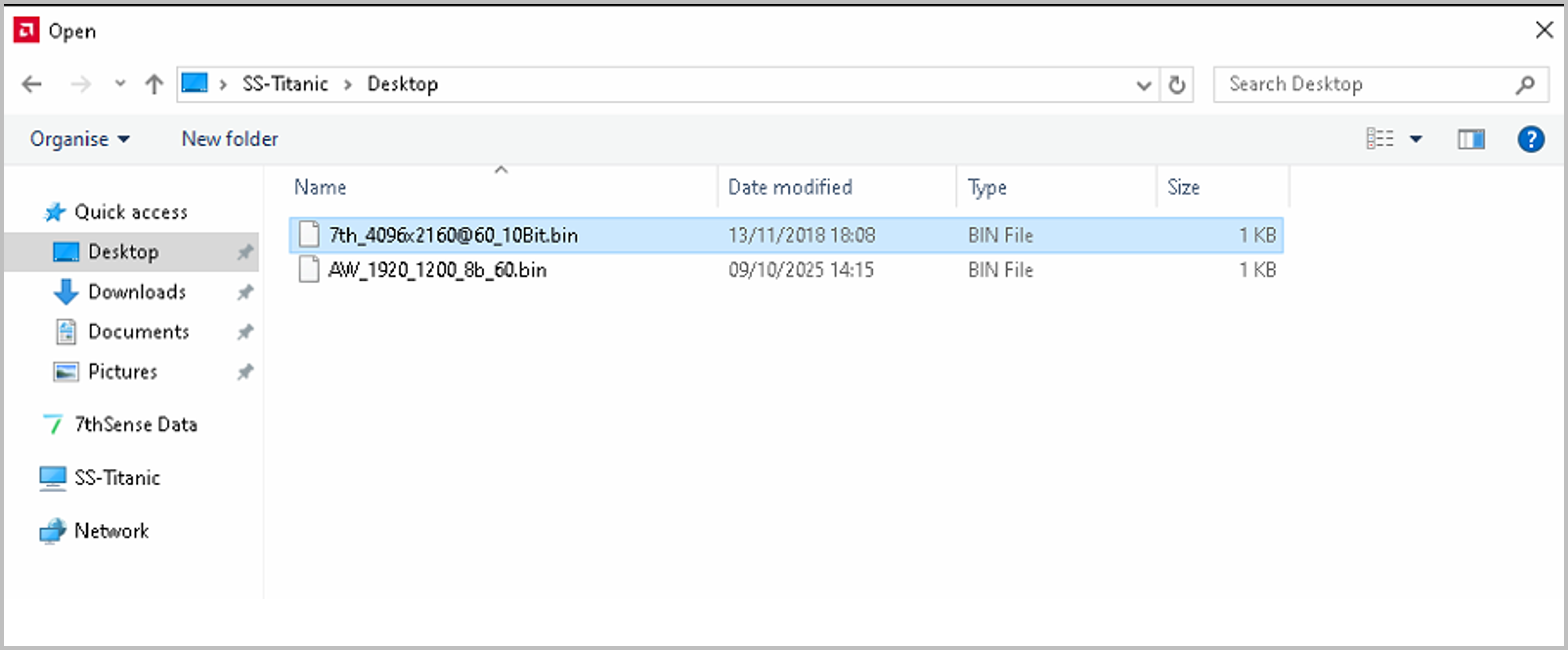
From the EDIDs provided to you by 7thSense, select one that is appropriate for the connected Display and your specific requirements.
In this example we’re selecting an EDID with 10-Bit mode.
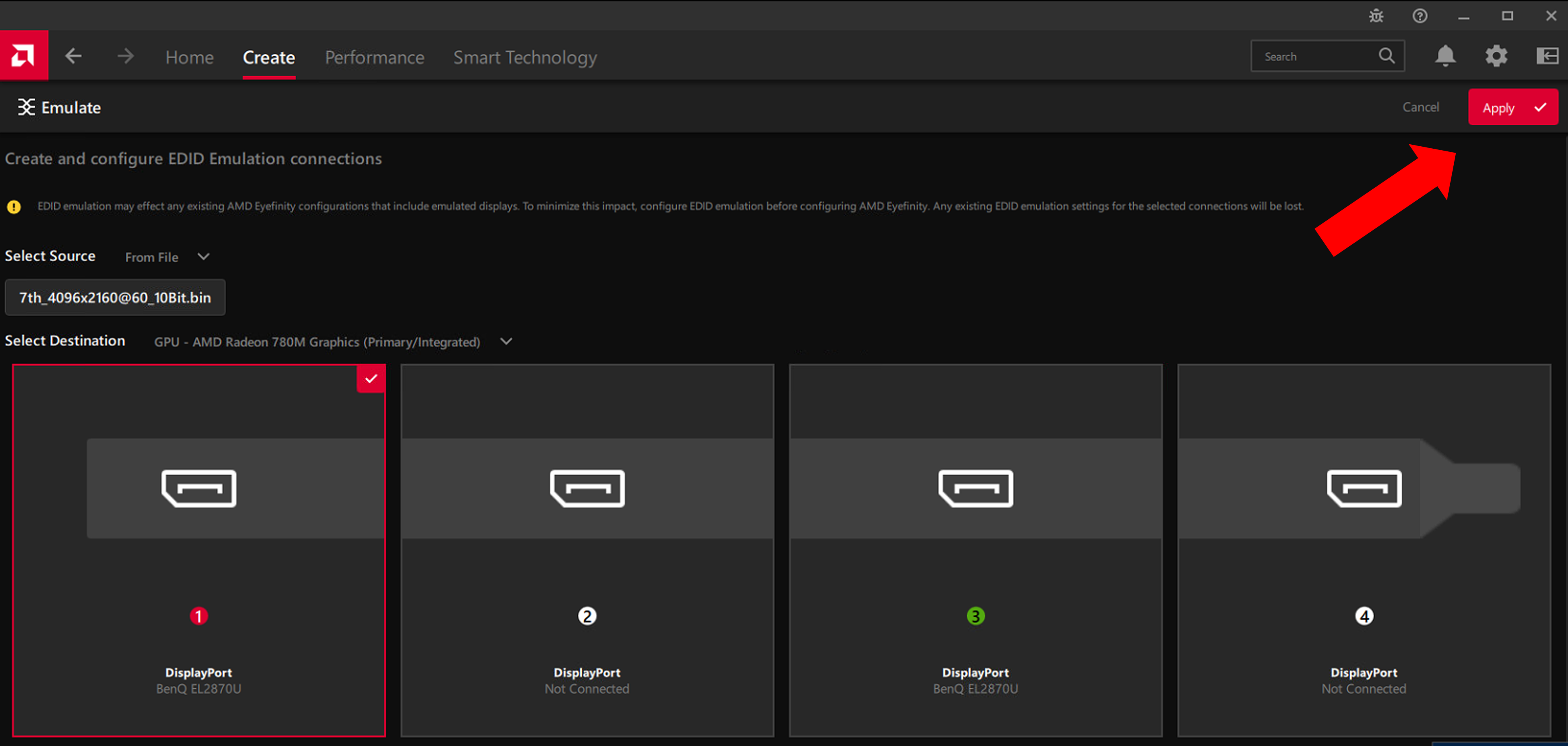
Then click Apply.
As we have two connected displays in our example, we’ve repeated the process for the second display (Port 3), and now both Displays are showing confirmation that the 7th_4K EDID has been loaded.
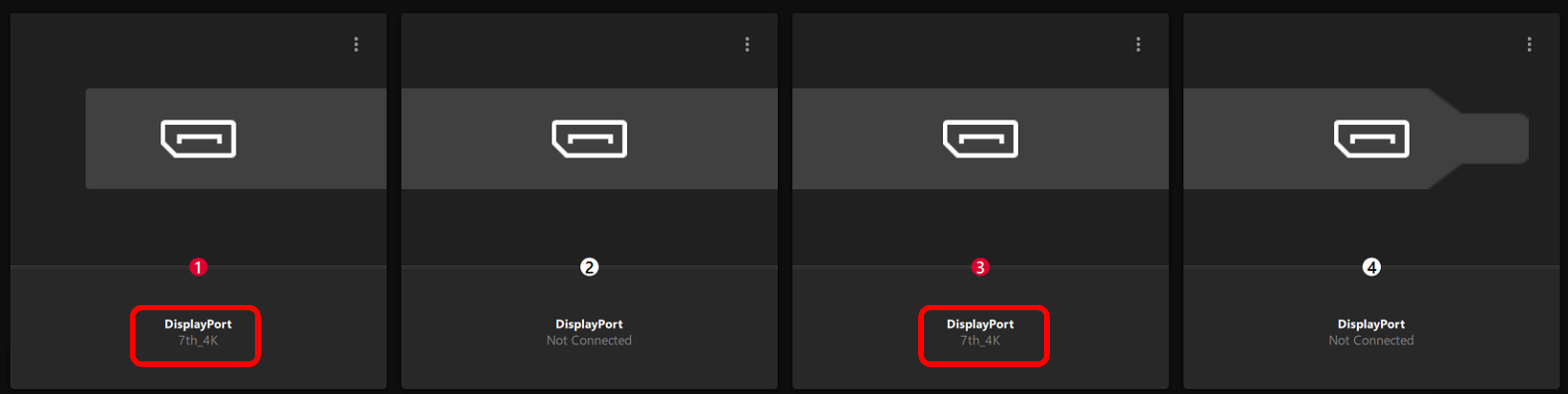
That completes the EDID configuration.
Step 2: Enable and Configure Eyefinity (In the AMD Adrenalin GUI)
With the EDIDs configured, you can now enable and configure Eyefinity.
-
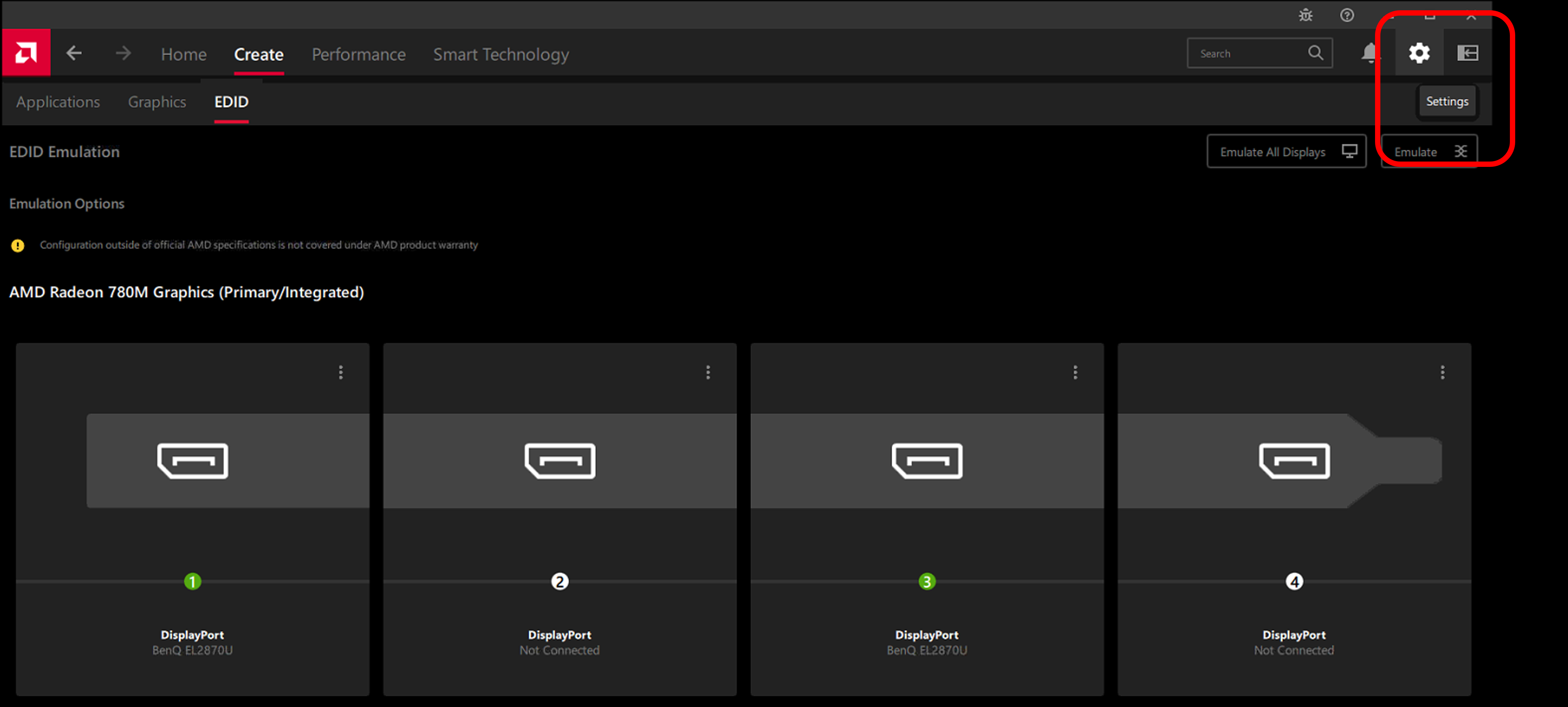
Go to Settings (click the cog in top right)
-
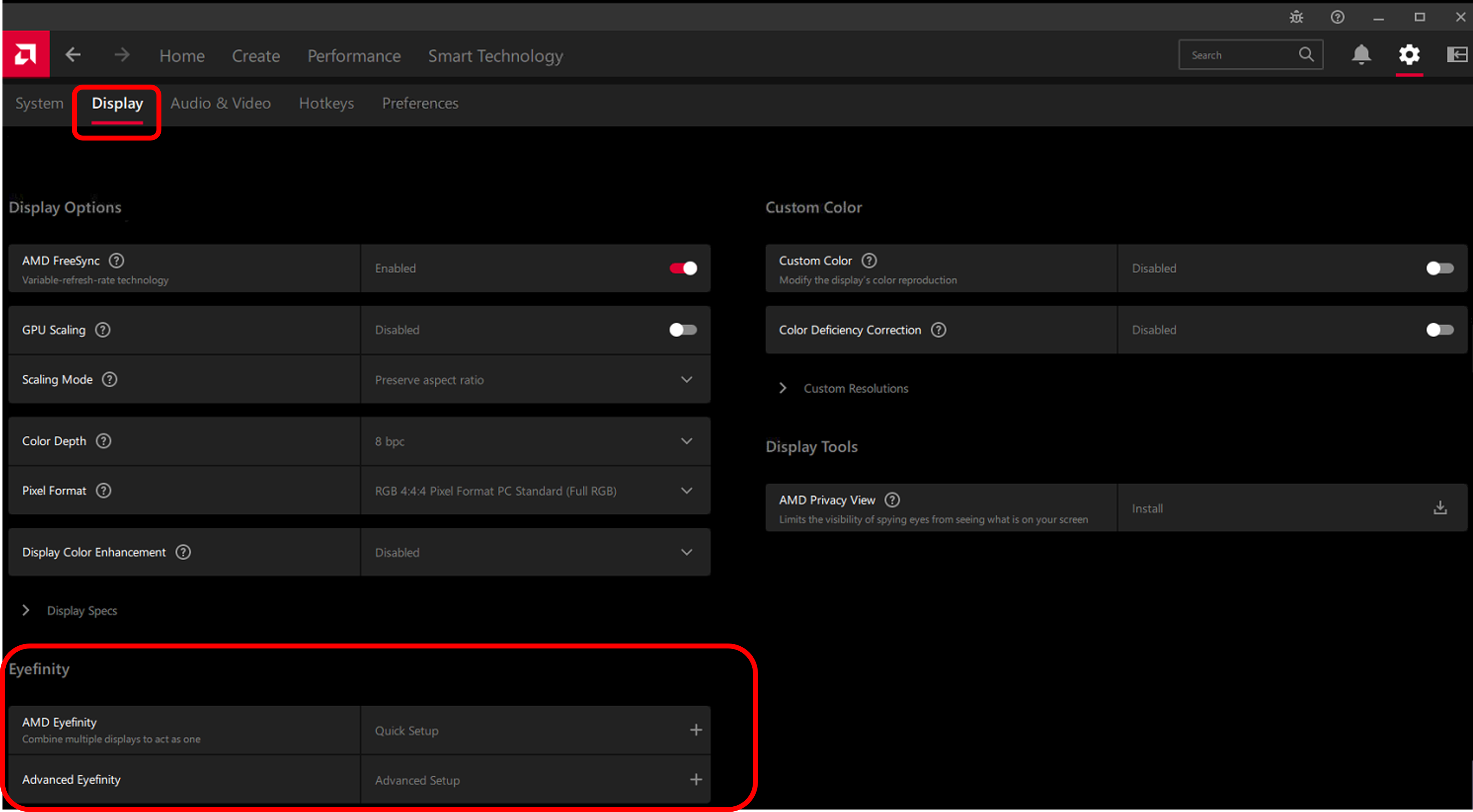
Select Display, scroll down to the Eyefinity section and select the Advanced Setup option.
-
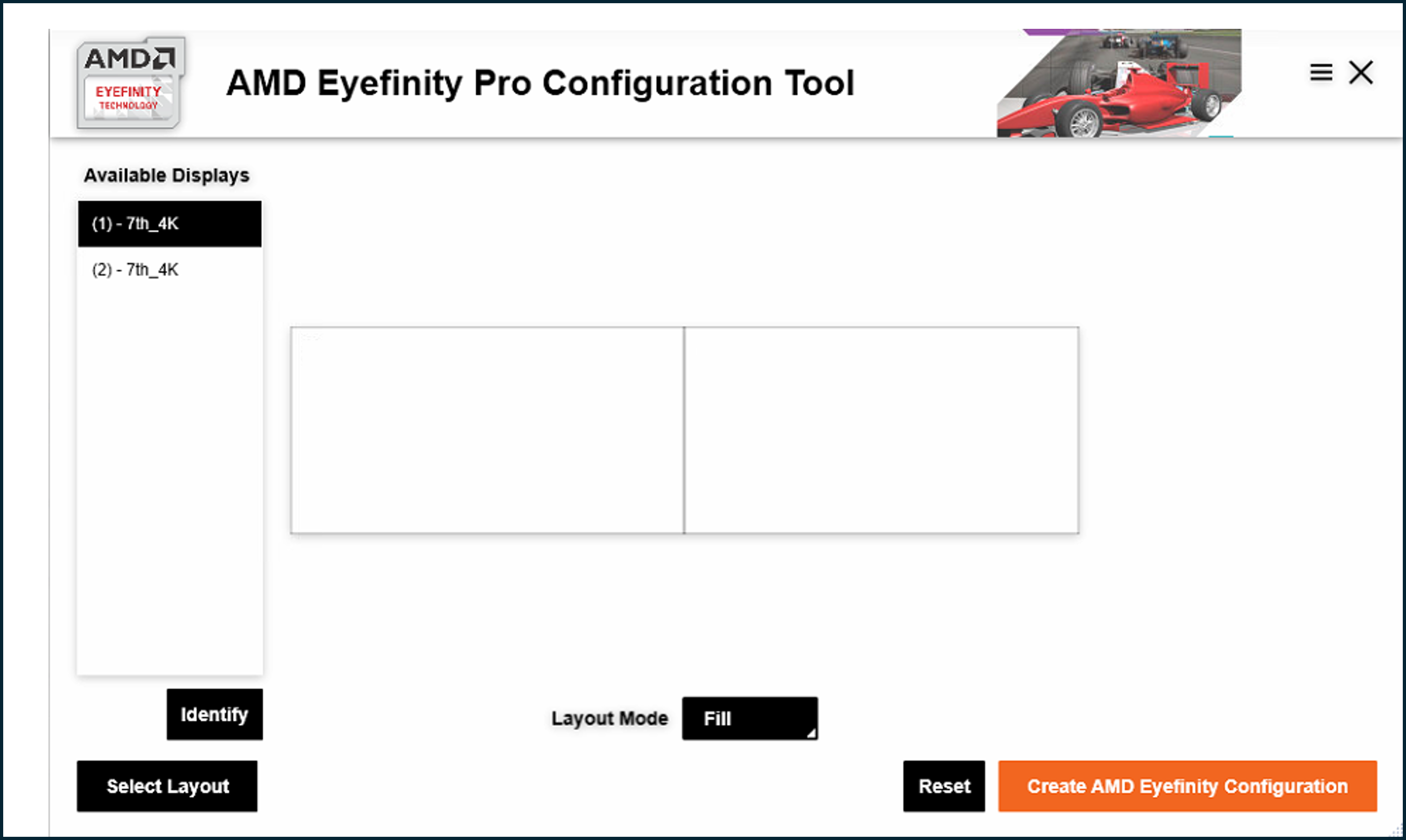
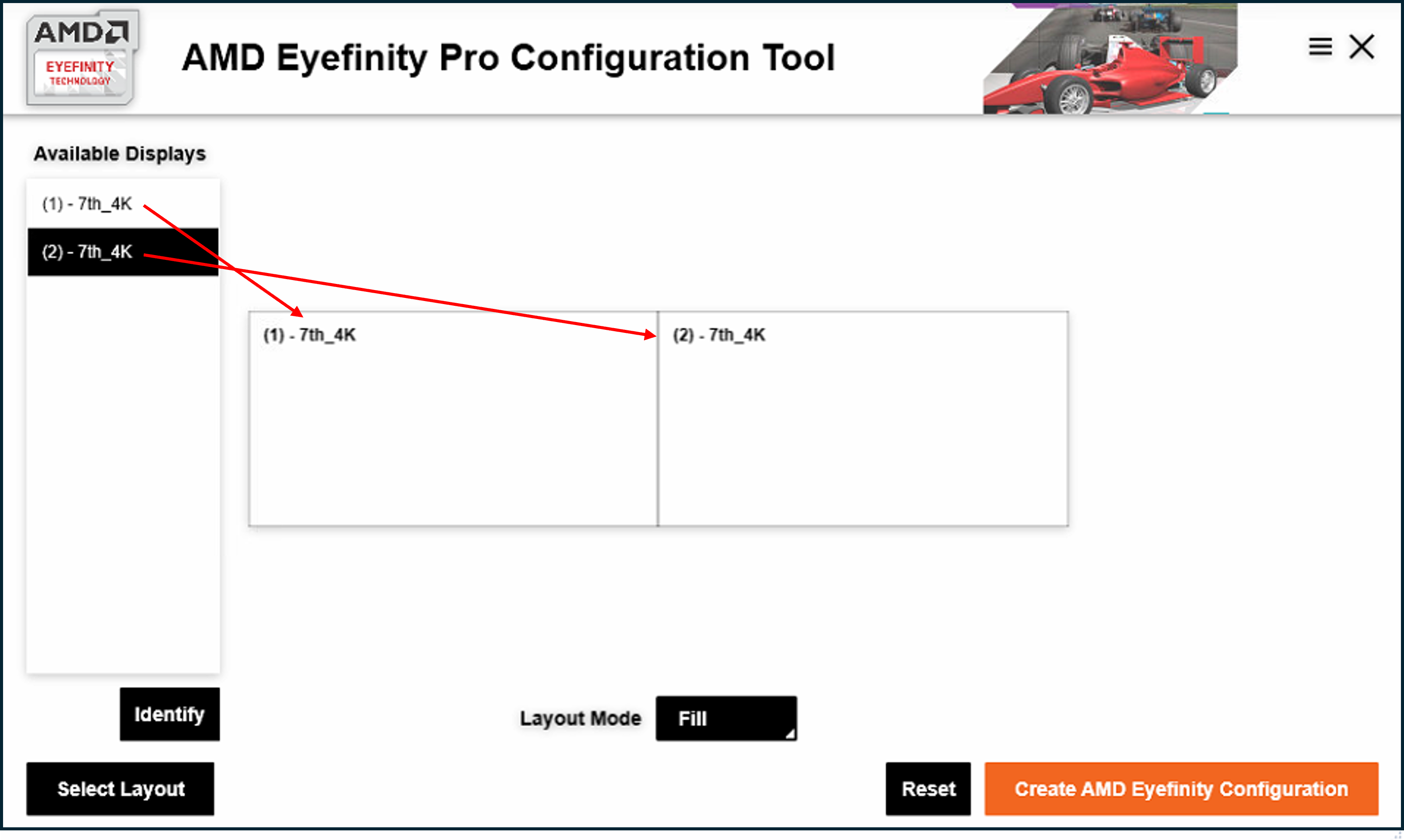
You’ll be taken to the Eyefinity Pro Configuration Tool, an example of which is shown here.
-
Continuing with our earlier 2-Display example, we drag/drop the two available displays.
-
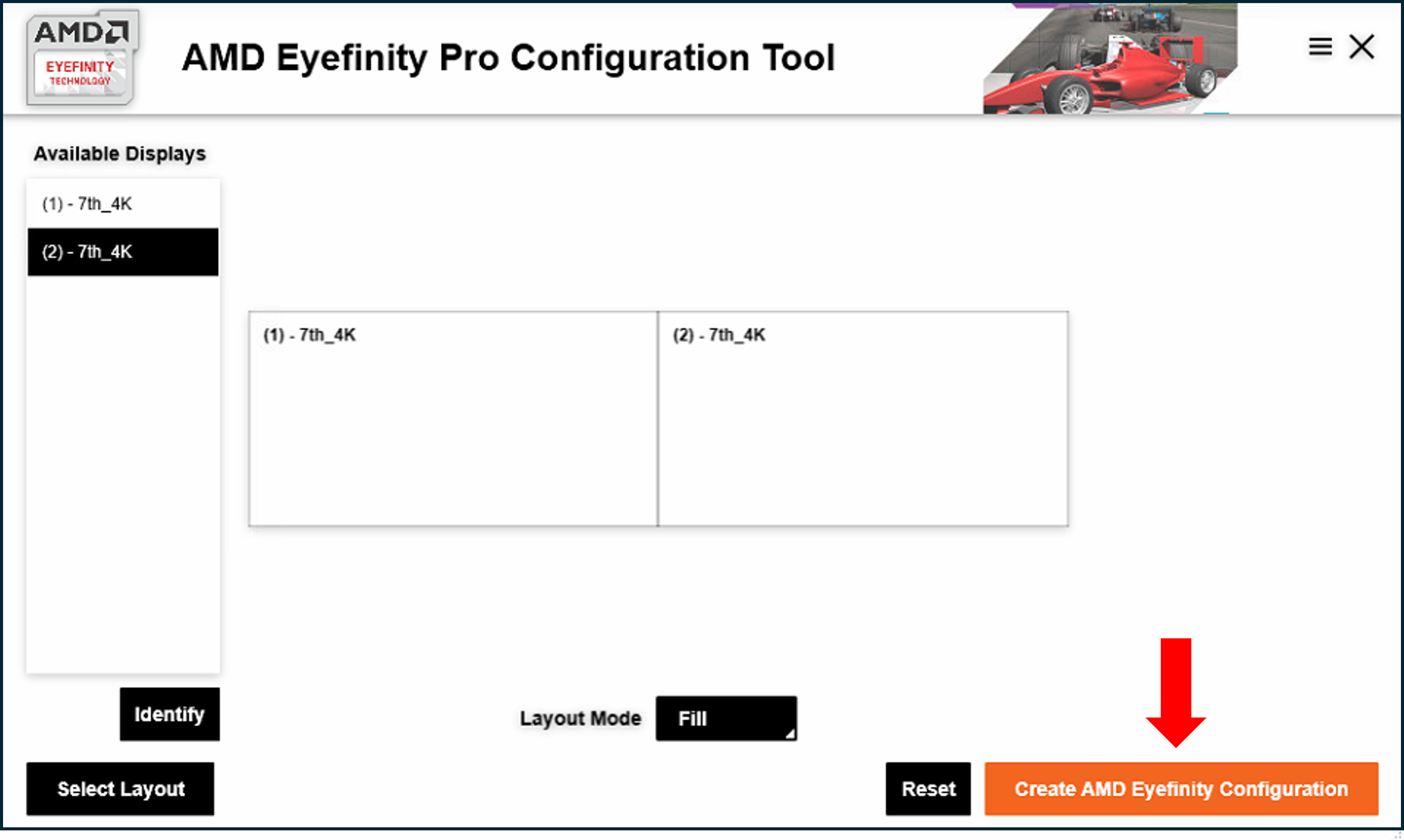
Then click Create AMD Eyefinity Configuration
-
You’ll see the following confirmation when the Eyefinity desktop has been created.
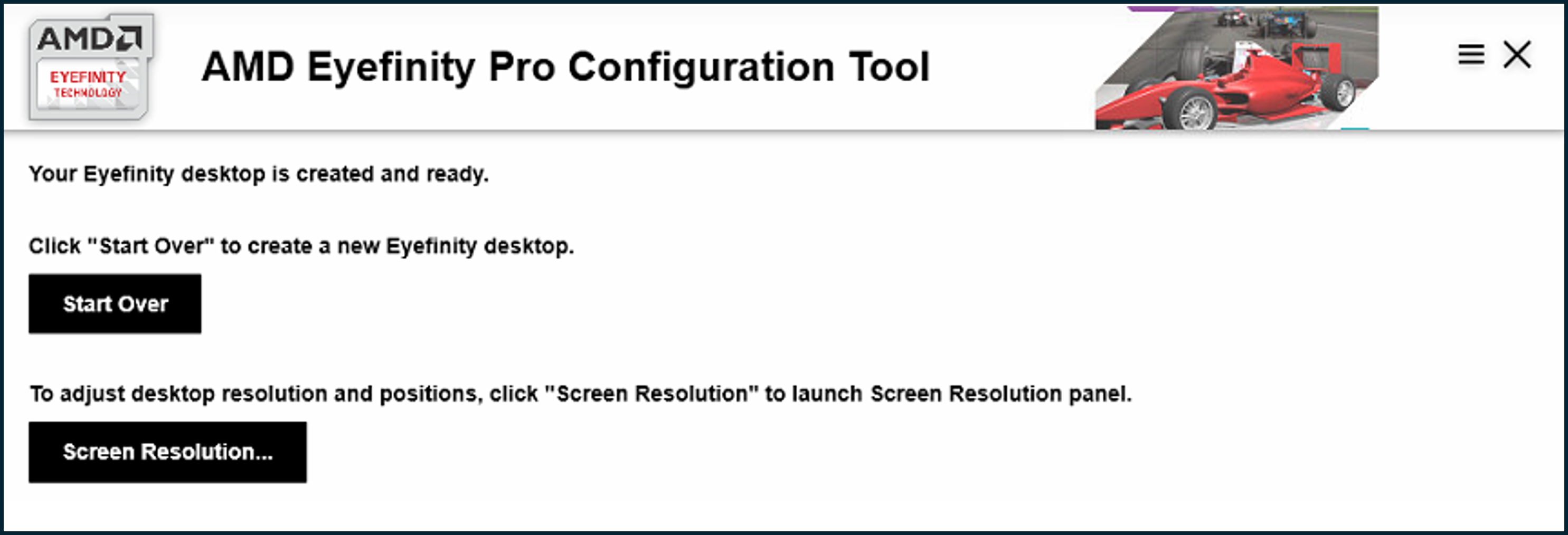
That completes the Eyefinity configuration.
Step3: Enable and configure Bit Depth Mode (In the 7thSense Context Menu)
For this final task, we are going to use the 7thSense Context menu.
-
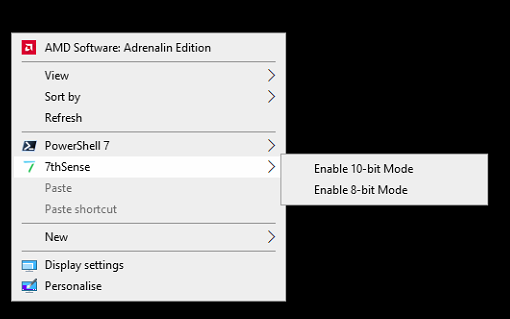
Right-click on the Desktop
-
Expand the 7thSense menu options
-
Select the required bit depth mode
-
Restart the S-Series (you’ll be prompted to do this)
Using the AMD Cleanup Utility (Graphics Driver reset)
Making multiple changes over time to the EDIDs, to Eyefinity and to the Bit Depth Mode has been known to cause issues with graphical playback (e.g. jittering).
Uninstalling and reinstalling the Graphics Driver rarely solves these issues, but you can use the AMD Cleanup utility to effect a full clean-up. As well as uninstalling and reinstalling the Driver, it also clears the relevant components from the Registry.
Just follow these simple steps to use the utility.
Step 1: Close Delta and, for safety, all other applications.
Step 2: Run AMDCleanupUtility.exe (in C:\7thSense\Software & Drivers\Drivers\Graphics\AMD\[version]\Bin64\)
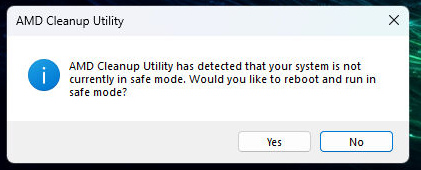
Respond ‘Yes’ to the Safe Mode prompt.
DO NOT respond YES if you’re using remote (VNC) for control, as safe mode stops it running, effectively locking you out until the next reboot!
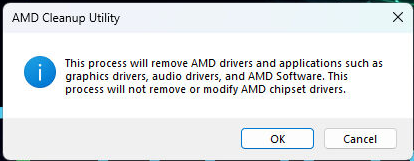
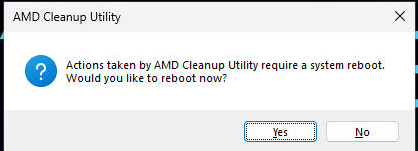
Once the clean-up has completed, click Yes to the ‘reboot now’ prompt
Step 3: Run setup.exe with Admin Privileges. (C:\7thSense\Software & Drivers\Drivers\Graphics\AMD\[version]\)
Click ‘Accept & Express Install’.
Do not tick the following:
‘Allow AMD to collect information to contribute to the installer development’
‘Help AMD improve your experience by sending system usage information.’
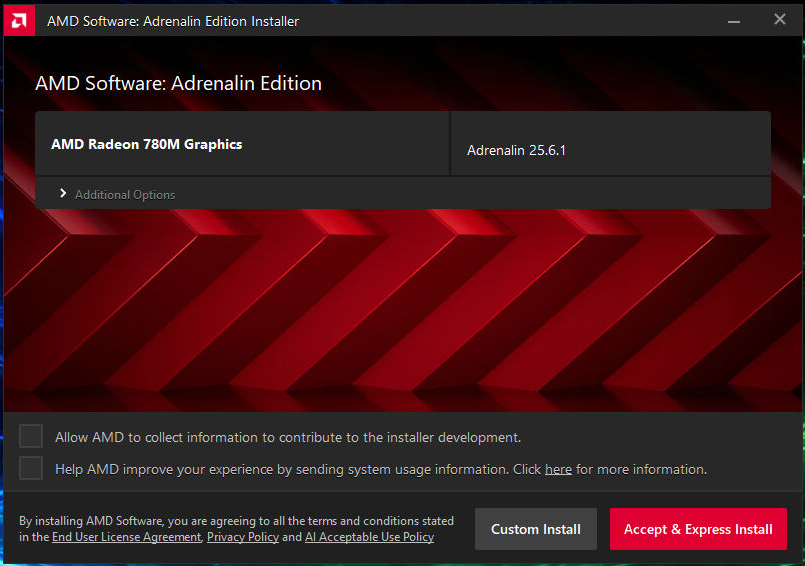
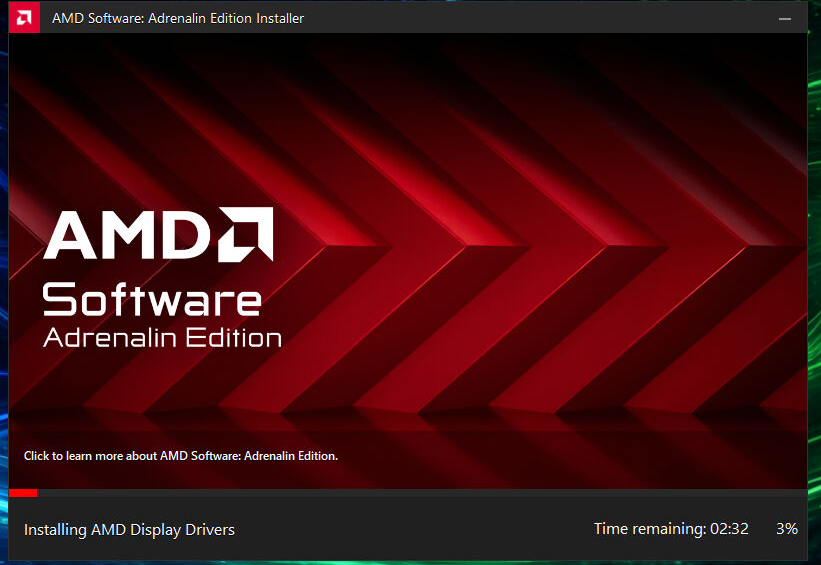
Installation takes approximately 3mins.
Once the installation has completed, make sure you untick the ‘Keep AMD software up to date’ option.
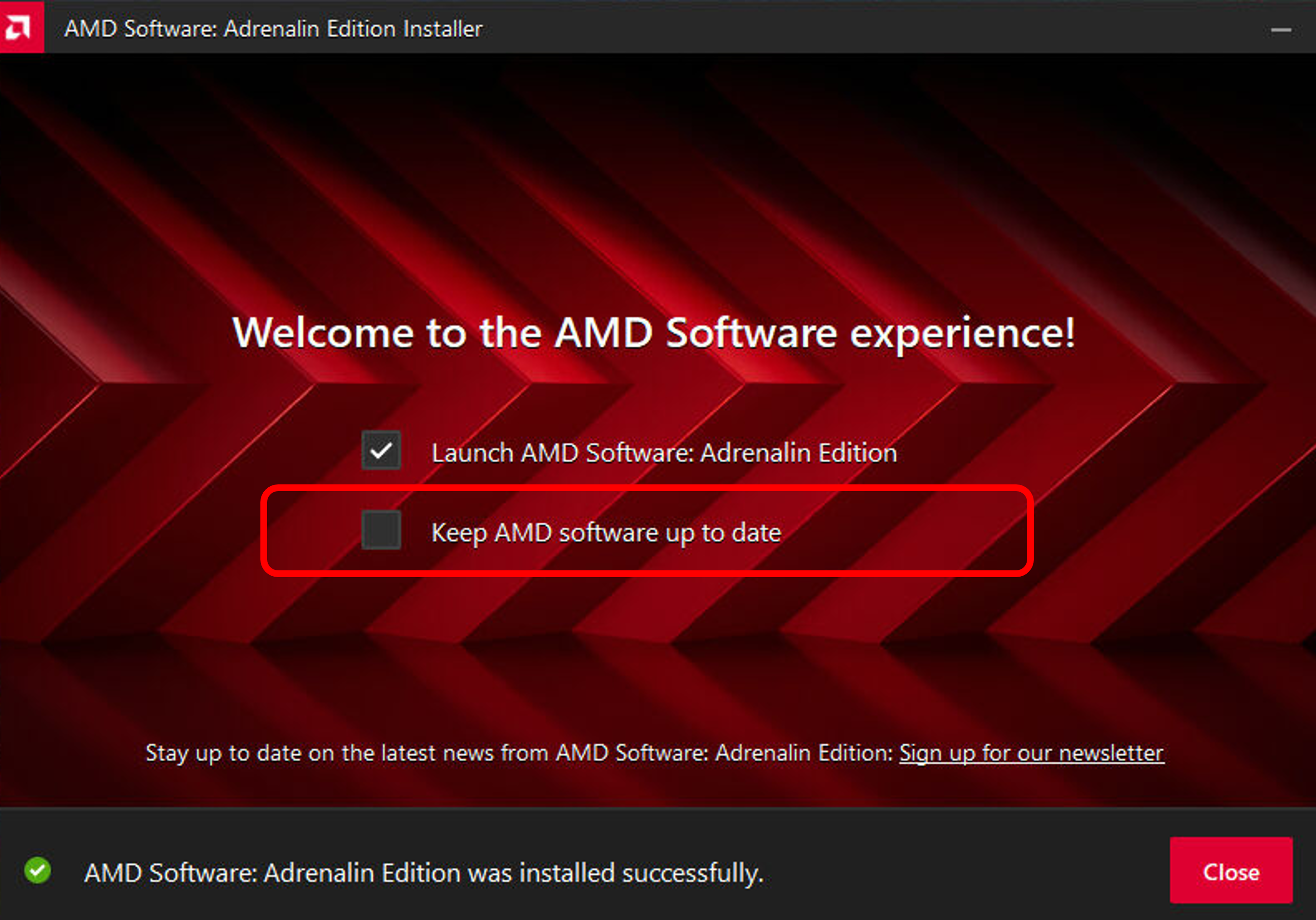
Click Close, then reboot the S-Series server manually.
The “Wait for Vertical Refresh” option
Once the server has rebooted, open the graphics driver by right-clicking on the desktop and selecting ‘AMD Software: Adrenalin Edition’ from the menu.
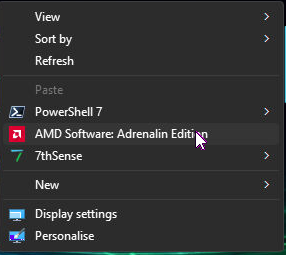
Go to Create, then Graphics, then set the “Wait for Vertical Refresh” option to “Always on”
Step 4: Re-load EDIDs (as per Step 1 in the prescribed workflow).
Step 5: Repeat Step 2 of the prescribed workflow to setup Eyefinity
Step 6: Repeat Step 3 of the prescribed workflow to configure Bit Depth mode as required.
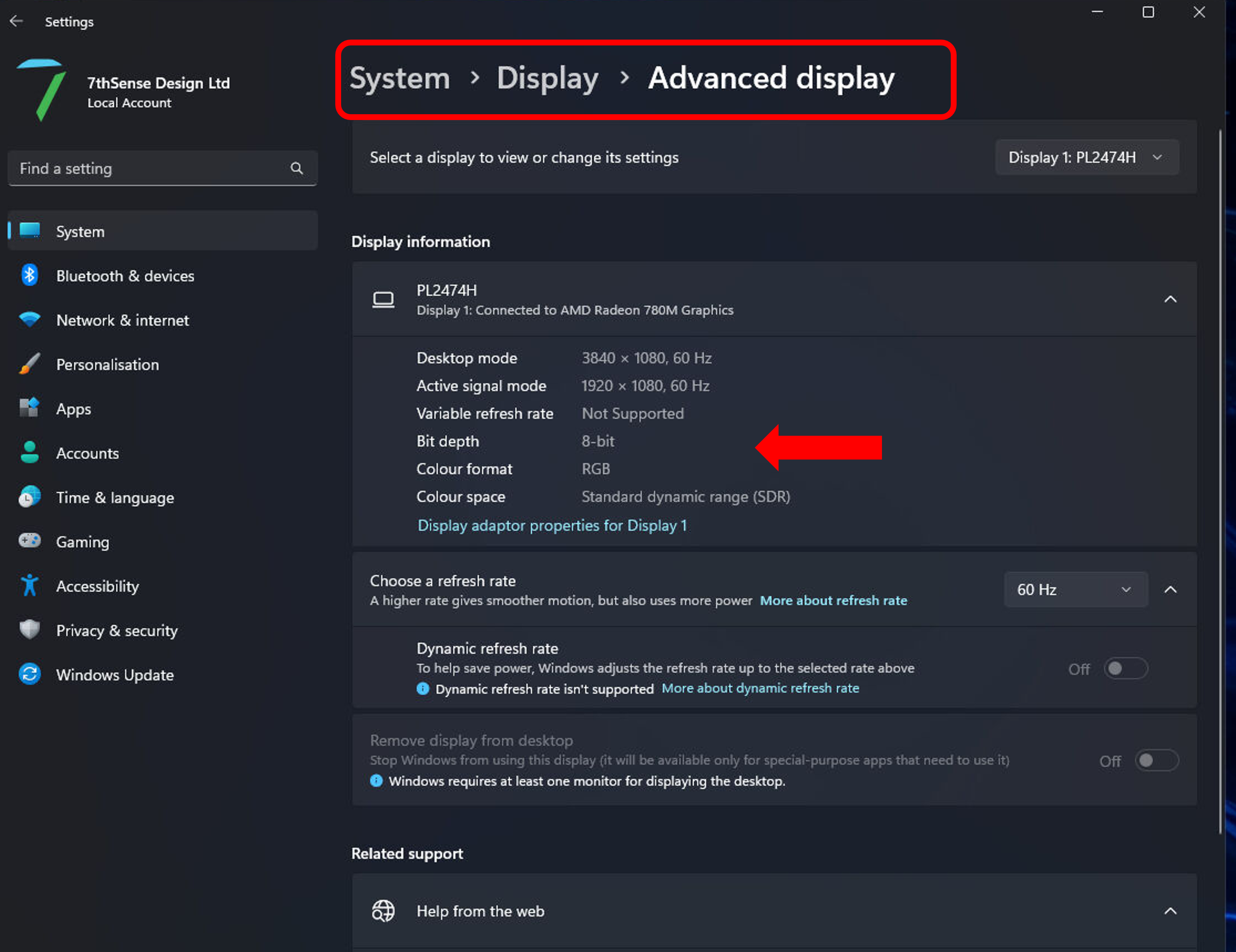
Step 7: Once the graphics configuration is complete, reboot system once again, then check in Windows Display Settings (Control Panel > System > Display > Advanced Display) to verify that the desired settings have been achieved (and held).